Connecting the Printer 43
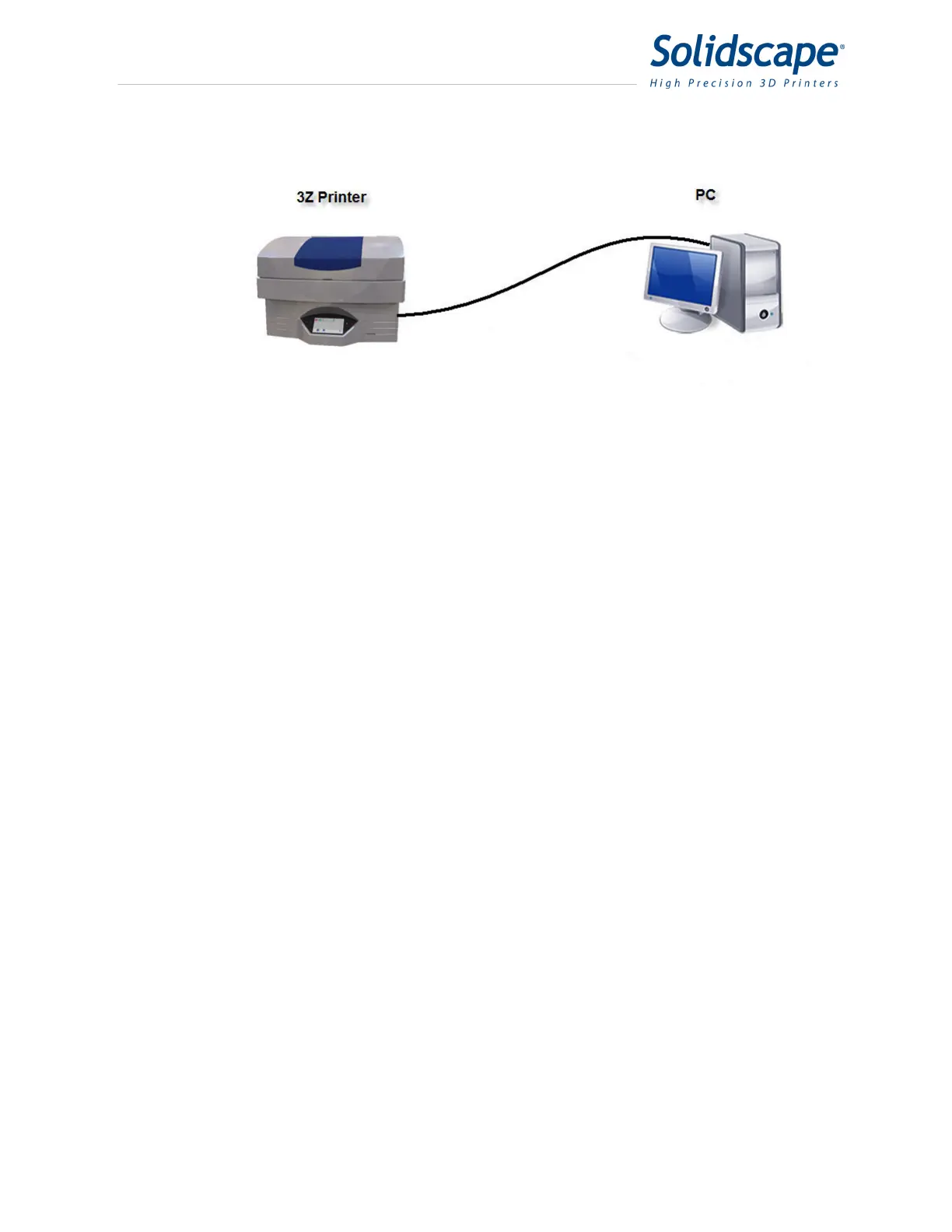
Figure 10-2 Wired connection Peer to Peer
Follow the directions in the “Assigning a Static IP Address to a 3Z Printer” section of this
document to set the IP address to 192.168.0.2 with a subnet mask of 255.255.255.0 on the
3Z series printer.
If your PC is running Windows 7, proceed to the section 10.7 Windows 7 Static IP
Address Assignment.
If your PC is running Windows XP, proceed to the section 10.8 Windows XP Static IP
Address Assignment.
Your 3Z Series printer is now connected to your network.
10.5 Wireless via DHCP
To wirelessly connect the 3Z Series printer to your wireless network, you will need a
third party wireless Ethernet adapter. The wireless Ethernet adapter must connect to the 3Z
Series printer Ethernet port, wireless USB adapters will not work on the 3Z Series printers.
The NetGear WNCE2001 Wireless Ethernet adapter has been tested and shown to work
with the 3Z Series printers. Other manufacturer’s wireless Ethernet adapters should also work
but have not been tested with the 3Z Series printers.
Configure the wireless Ethernet adapter according to the manufacturer’s Installation
Guide. When configuring the adapter, make a note of the wireless Ethernet adapters MAC
address (i.e. c0:3F:0e:40:d3:05). The MAC address may be listed on the wireless Ethernet
adapters box or documentation. If not, see the manufacturer’s documentation for instructions on
finding the MAC address. See Figure 10-3.


 To Next Page