A.2 Checking the assignment of an IP address
In Windows®
1. Click on Start > Run. Enter cmd and then click on OK. The command prompt screen appears.
2.
Enter ipconfig/all and then press Enter.
3.
Check that the entry IP Address contains a value other than 0.0.0.0 (for example 192.168.1.10).
If no IP address is displayed, enter ipconfig /release. Then enter ipconfig
/renew.
All the troubleshooting procedures described are valid for Windows® XP. These
procedures in other Windows operating systems® (7, 10, 98, ME and 2000) may
be slightly different.
In MAC OS X
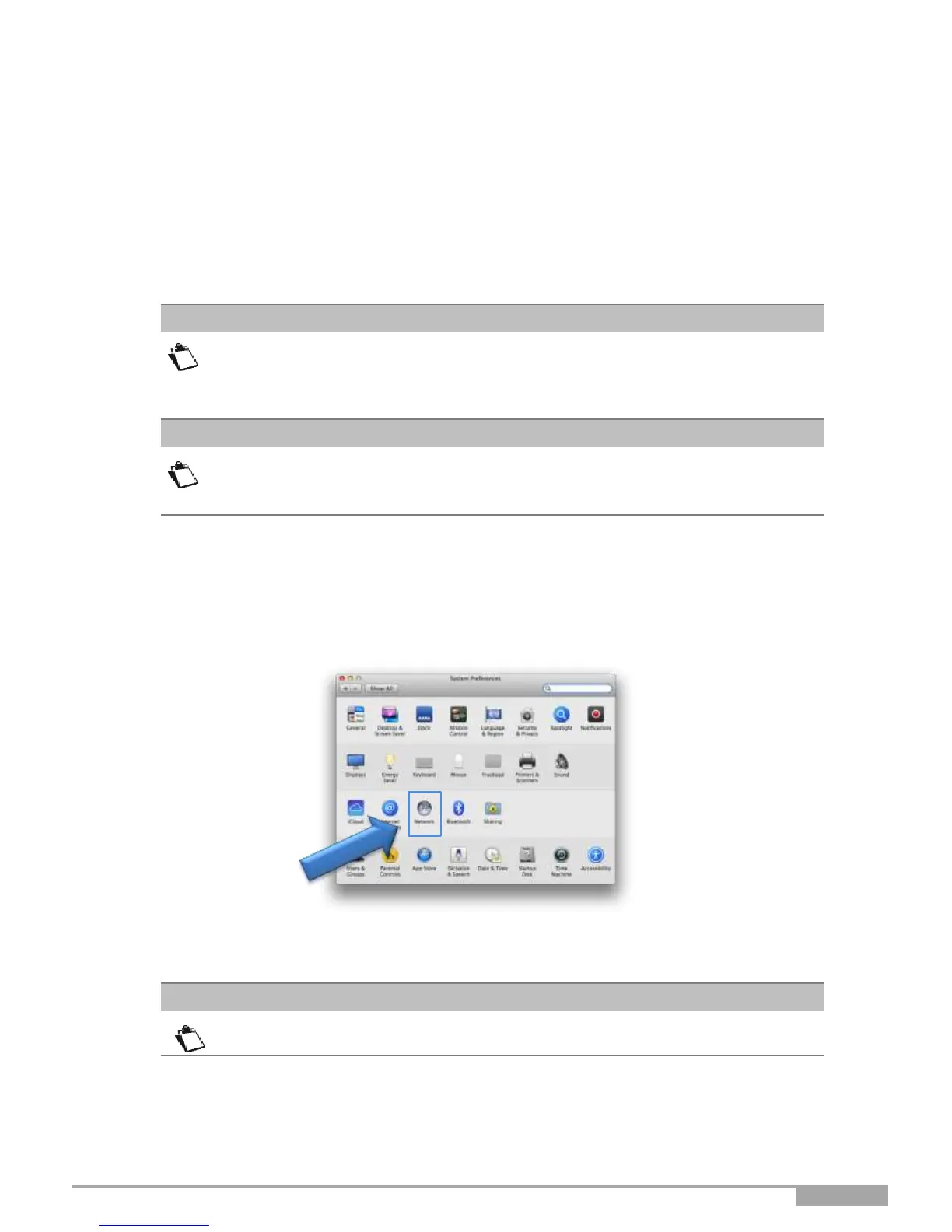
1. Click on the Spotlight Search Icon at the top left of your screen
2. Type “System Preferences” and click on the resulting entry
3. In the new “System Preferences” window, click on the “Network” icon:
4. Check that the entry IP Address contains a value other than 0.0.0.0 (for example 192.168.1.10).
All the troubleshooting procedures described are valid for Mac OS® X El Capitan. These
procedures in other Mac OS® X operating system versions may be slightly different.
Many sources of information are available to help you identify and resolve issues you may experience:
•
the LEDs on the front panel of the Sunrise Internet Box.
•
the graphical User Interface (http://192.168.1.1).


 To Next Page