5.0 Operation
- 55 -
5.5.3.6.3 Trouble screen
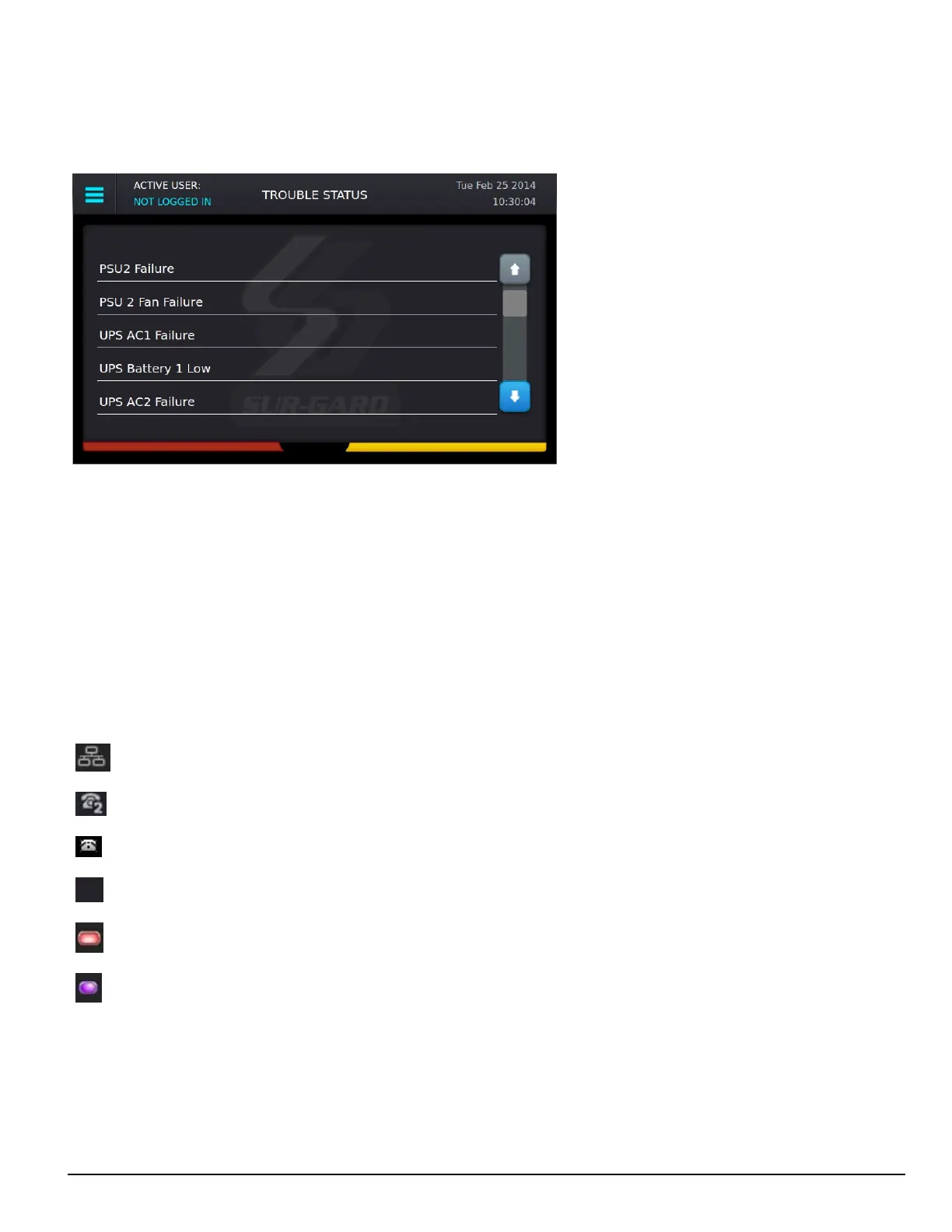
The Trouble Status screen displays the current list of SG-CPM5 troubles, including problems with the power supplies, batteries, fans, printers, etc. To
navigate to the Trouble Status screen, either click on the Trouble banner or click the menu and then Trouble Status.
Scroll arrows provide access to the next or previous page of troubles.
5.5.3.7 Line Card banner
The Line Card banner displays the line cards being polled by the SG-CPM5. This banner displays the type of line card (indicated by an icon), as well as
the status of the line card (indicated by color).
If the SG-CPM5 is in Manual mode and alarms are pending acknowledgment, the Status banner, ACK button, and Trouble banner slide down and the
Line Card banner disappears.
5.5.3.7.1 Numbering
The slot number of each SG-DRL5-IP (1-24) is displayed at the top of the Line Card banner.
5.5.3.7.2 Icons
The following icons indicate the type of line card and the status:
DRL5-IP icon
DRL5-2L icon
DRL5/DRL5E icon
Line card slot not polled – no icon – background color
Line card absent. The icon is in the middle of the display and there is no line card icon with it just the red orb.
Line card polled by other CPM. To be used for Split Reporting mode only – when the two CPMs are sharing the polling of cards. The icon is in
the middle of the display and there is no line card icon with it just the purple orb.
5.5.3.7.3 Status color
SG-DRL5-IP
The mode and/or network speed of each line card is indicated by the color above and below the line card icons.
The status color indicates the mode and/or network speed:
SG-DRL5-IP


 To Next Page