5.0 Operation
- 58 -
5.5.4 Logging In
5.5.4.1 Login/Options
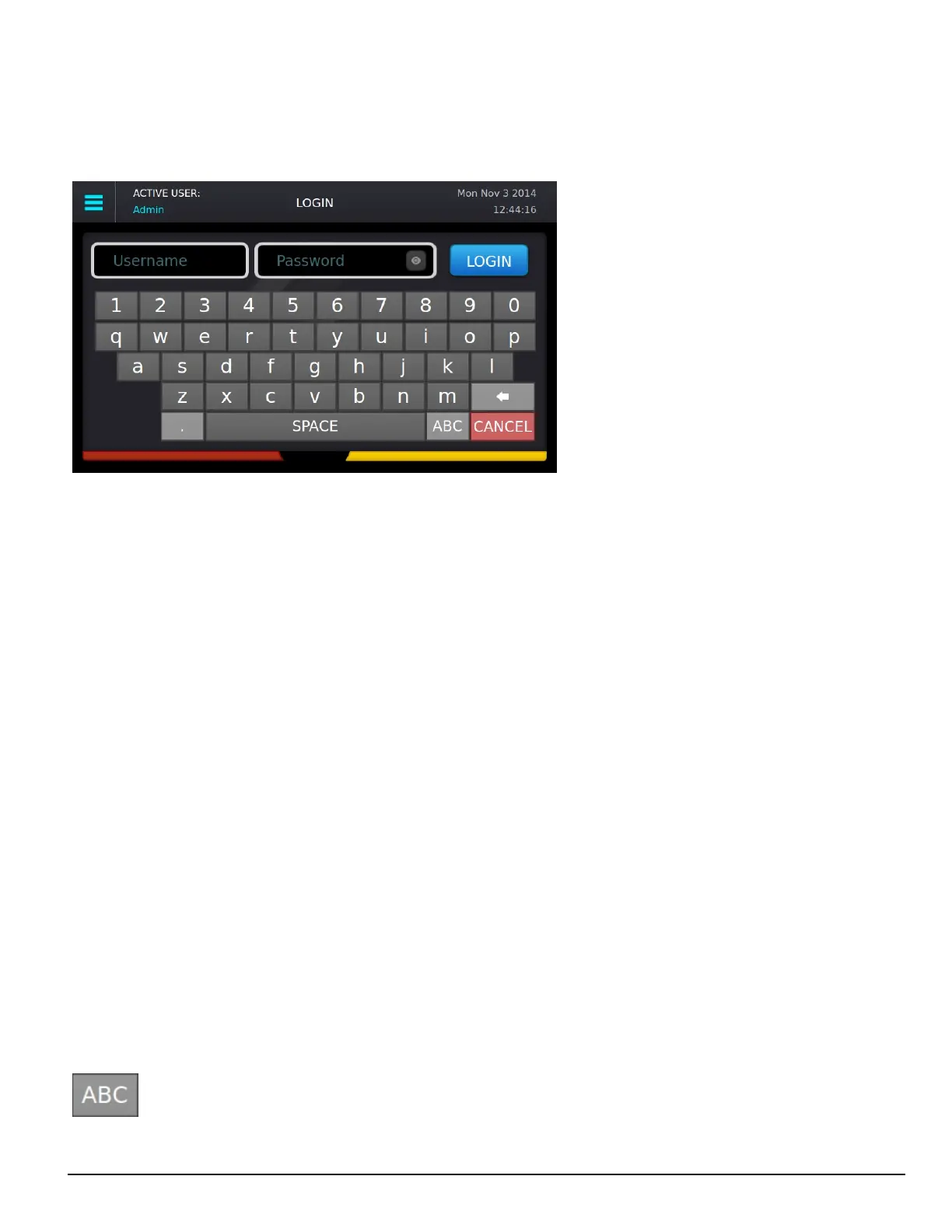
This screen provides access to username and password entry.
5.5.4.2 Username
The text box on the left is for the username. The username must be 1-8 characters long and can contain A-Z, a-z, 0-9 and space. The username cannot be
only a space.
5.5.4.3 Password
The text box on the right is for the password. The password must be 8-20 characters long and can be A-Z, a-z, 0-9.
Click the Eye icon inside the text box to show the password characters as they are typed. By default, characters are hidden and each character appears as
* (asterisk).
5.5.4.4 Default username and password
Administrator – User 1
Username : Admin
Password : adminpass
User 2-16
Username : User [X]
Users 2-16 do not have passwords. Assign a password with the LCD or Console using the admin login.
Coldboot – Login to coldboot the system
Use this login to set the options back to default if the admin password is lost.
Username : Coldboot
Password : resetoption
5.5.4.5 Keyboard
Use the keyboard at the bottom of the screen to type a-z and 0-9. Press the Shift key to change to capitals for the next letter typed. Press and hold the
Shift key for caps lock. Press the Shift key again to remove caps lock.
FIGURE 5-1: Shift Key


 To Next Page