Fire Panel IRIS - Installation Manual 21
The “SAVE” button can be used for fast configuration of the device. Following this command, the panel sets
up all detected loop and periphery devices by default. New devices only are configured under this com-
mand.
The “RESTORE DEFAULTS” command deletes all system parameters.
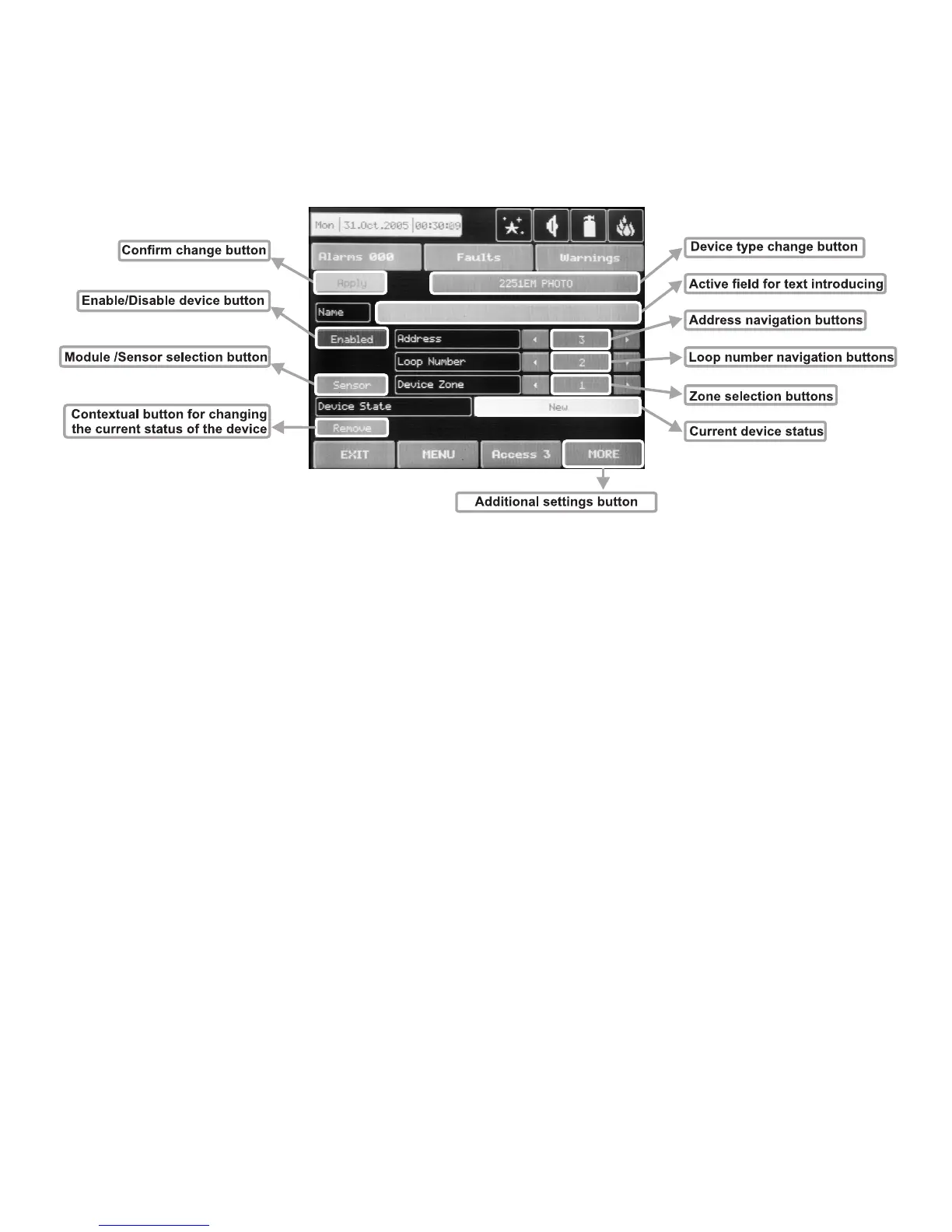
On Fig. Screen 8 is given the general view of the submenu for new loop devices configuration.
Fig. Screen 8.
3.2.2.1 Confirm Change Button
Saves changes in the permanent memory.
3.2.2.2 Button to enable/disable a device
See 5.10.2
3.2.2.3 Module or detector selection button
This button is used to switch over between module and detector addresses.
3.2.2.4 Address Navigation Button
This button helps to screen (in sequence or directly) the devices of one and the same loop.
3.2.2.5 Loop Number Navigation Button
These keys alternate the loop (in sequence or directly) of the screened devices.
3.2.2.6 Zone Selection Button
These keys alternate the zone (in sequence or directly) to which the device belongs.
3.2.2.7 Current Device Status
The current device status varies according to the device type.
3.2.1.8 Button for Changing the Current Status of the Device
The action of this button depends on the type of current status of the device. The following are possible:
REMOVE – deletes the device from the configuration.
SAVE – saves the new device in the configuration.
REPLACE – replaces the device type.
3.2.2.9 Change Device Type Button
Press this button for the panel to provide a compatibility device list of which to choose the most suitable one.
The “SELECT NEW DEVICE TYPE” message will be portrayed Fig. Screen 9.


 To Next Page