Fire Panel IRIS - Installation Manual 39
4.10 Calibrating the Display
It is possible that after a certain period of use the parameters of the Touchscreen display may change, caus-
ing difficulties in marking the sites. This would require it to be calibrated periodically, which can be done in
access levels 2 and 3.
ATTENTION! Calibrating the display must be done with a Touch screen pen (or PALM)!
To begin a display calibration procedure the following sequence of actions must be performed:
Main menu → Maintenance → Calibration → Coordinates
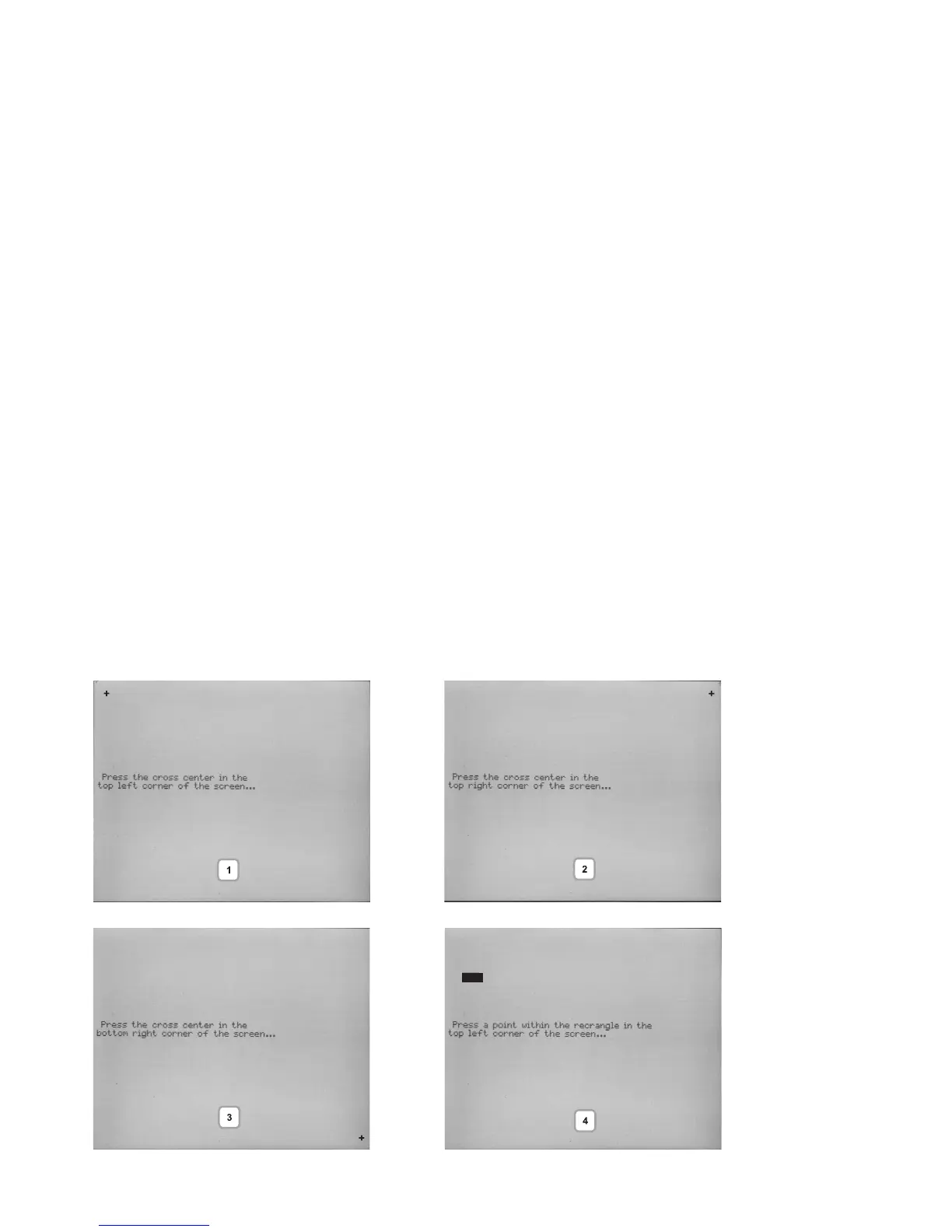
The calibration of the display runs in the following 4 stages – see also Fig. Screen 30.
1. The following message is displayed on the screen:
“Press the cross center in the top left corner of the screen:”
The user has to press the point on the top left corner of the display. It is marked with a cross and it is desir
-
able to choose the crossing point of the two lines. The calibration procedure shall continue after the point is
pressed.
2. The following message is displayed on the screen:
“Press the cross center in the top right corner of the screen:”
By analogy, the next point, which has to be pressed, is selected – in the top right corner of the display, once
again marked with a cross. The calibration procedure shall continue after the point is pressed.
3. The following message is displayed on the screen:
“Press the cross center in the botton right corner of the screen:”
This is the last point and is situated in the lower right corner of the display. The calibration procedure shall
continue after the point is pressed.
4. The following message is displayed on the screen:
“Press a point within the rectangle in the top left corner of the screen:”
This is the menu for verifying input data, and it is entered automatically. The user has to press the rectangular
field with the pen in the upper left corner of the display.
The message “Calibration Successful!!!” will be displayed if the calibration has been successful and after
pressing of any part of the display, the programme returns to the main menu.
The message “Calibration Unsuccessful!!!” will be displayed if the calibration has been unsuccessful, the
newly introduced data will be ignored and after pressing of any part of the display, the program returns to the
main menu.
Fig. Screen 30.


 To Next Page