13
3.2.2 Configuring directly via USB
To start programming the device, follow the instructions below:
• Open the Adapter2 programming software.
• Select the USB option in the “Connection type” menu, power up the device and connect it
to the computer using a USB-A to USB-B cable.
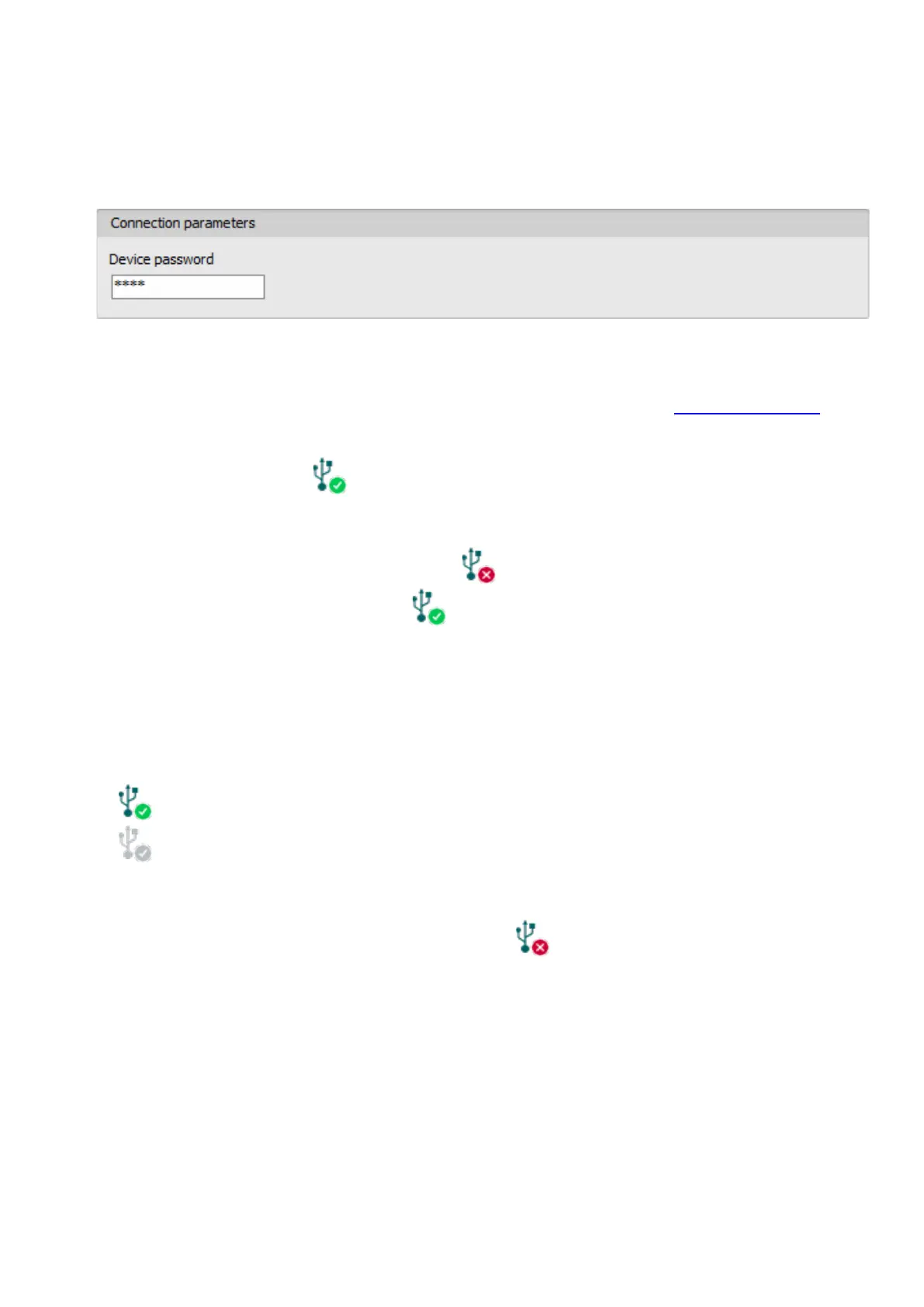
• Enter the device password.
o Super administrator permission: full access to all settings. (Default password: 1234).
o Administrator permission: can only access settings enabled by the superadmin.
You can configure the admin password separately (see chapter “Connection type”).
o Connecting without a password: only restoring the factory default settings is available,
if the device has not been locked.
• Click on the “Connect” button.
• If the wrong password is entered, the software connects to the device, but the same functions
will be available as when connecting without a password. To try a different password, close
the connection using the “Disconnect” button, enter the new password, and then
connect again using the “Connect” button.
• The software connects to the device using standard HID driver, which is integrated in
Windows operating systems, thus there is no need to install special USB drivers. When the
device is connected to USB for the very first time, the Windows operating system installs the
drivers automatically.
• The connection status is indicated by the USB status icon placed in the upper left corner of
the program window:
USB disconnected (green)
connected via USB (grey)
• After connecting using the valid password, you can configure the device, change settings,
download event logs and monitor system status.
• To close the connection, click on “Disconnect” button.


 To Next Page