87
Available options:
• Reading the settings from the device:
To read the settings from the device, click on the “Read” button. This will read all
settings in all menus.
• Writing the settings into the device:
After changing the settings or entering new settings, to take effect, it is necessary to
write the new settings into the device by clicking on the “Write” button. This will write
the changes only, but all changes made in any menu.
• Adding a new custom zone name:
To add a new custom zone name, click on the “New” button.
• Creating a copy of an existing custom zone name:
To create a copy of the selected custom zone name, click on the “Clone” button.
Please note that the new copy should have a different unique zone number.
• Editing a custom zone name:
To edit the selected custom zone name, click on the “Edit” button.
• Deleting a custom zone name:
To delete the selected custom zone name, click on the “Delete” button.
• Saving the custom zone names database to file:
To save the custom zone names to file in csv format, click on the “Save to file” button.
• Adding custom zone names from file:
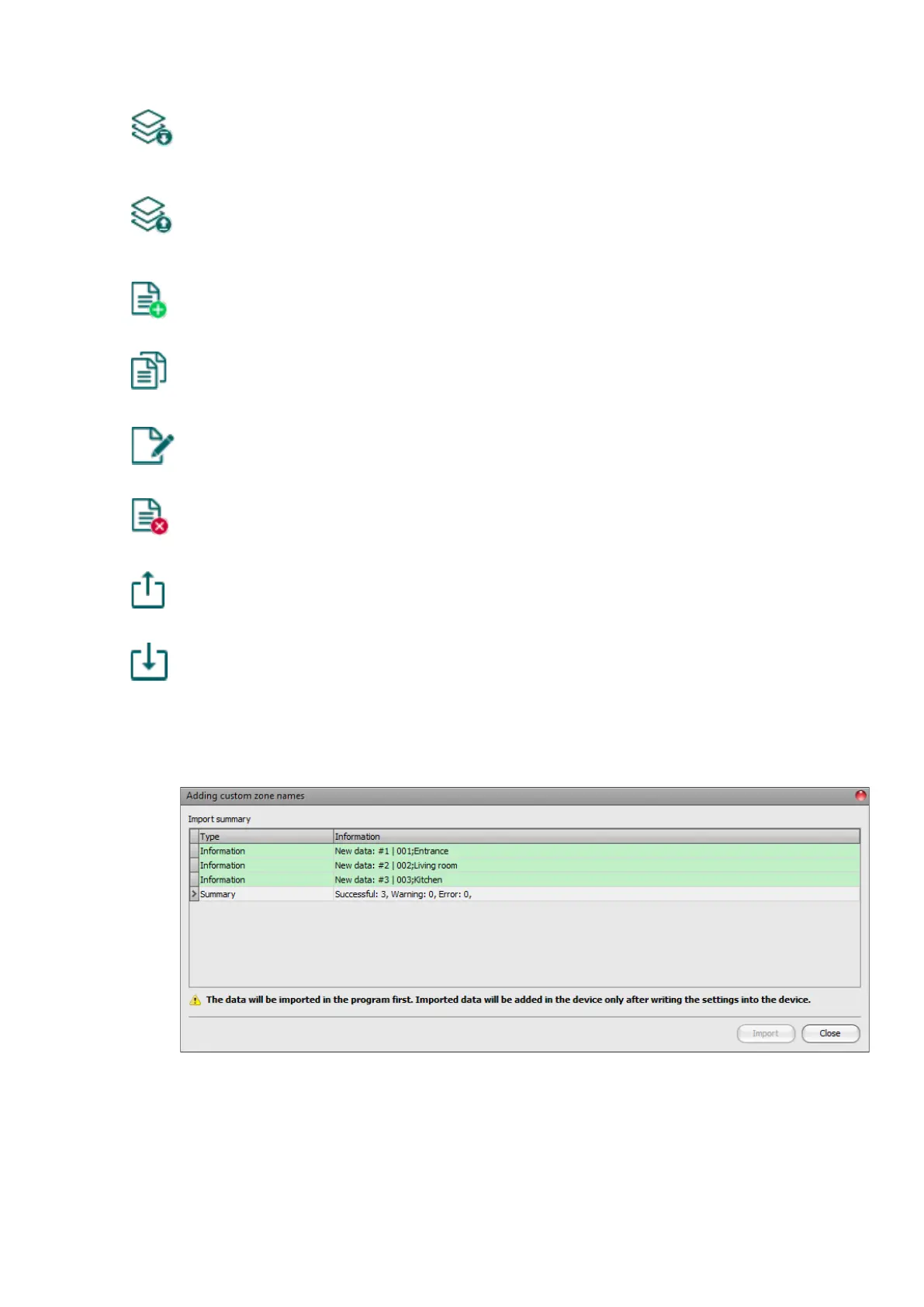
It is possible to add custom zone names from a csv file prepared in advance. To add
custom zone names from file, click on the “Add from file” button, browse the file,
and then click on the “Import” button. By this, the program will read the entries from
the selected file and will prepare an import summary. If there are already custom
zone names stored in the device, those will not be deleted by adding entries from file,
but the imported zone names will be added to the existing ones.


 To Next Page