Note: You can upload up to 16 certificates. As of Firmware Release 3.5, the PCoIP protocol
reads just one 802.1X client certificate for 802.1X compliant networks. Make sure you
include all the security information for your PCoIPdevices in that client certificate.
The following are some general guidelines when using 802.1X authentication. For detailed
information, see Knowledge Base support topic 15134-1063 on the Teradici support site.
l 802.1X authentication requires two certificates—an 802.1X client certificate and an
802.1X server CA root certificate.
l The 802.1X client certificate must be in .pem format and contain a private key that uses
RSA encryption. If the certificate is in a different format, you must first convert the
certificate, including the private key, to .pem format before uploading it.
l After uploading the 802.1X client certificate from the Certificate Upload page, you
must configure 802.1X authentication from the Network page. This entails enabling
802.1X authentication, entering an identity string for the zero device, selecting the
correct 802.1X client certificate from the drop-down list, and then applying your settings.
l The 802.1X server CA root certificate must be in .pem format, but should not need to
contain a private key. If the certificate is in a different format, you must convert it to
.pem format before uploading it. This certificate does not require configuration from the
Network page.
l Both the 802.1X client certificate and the 802.1X server CA root certificate must be less
than 6 KB; otherwise, you will not be able to upload them. Some certificate files may
contain multiple certificates. If your certificate file is too large and it has multiple
certificates within, you can open the file in a text editor, then copy and save each
certificate to its own file.
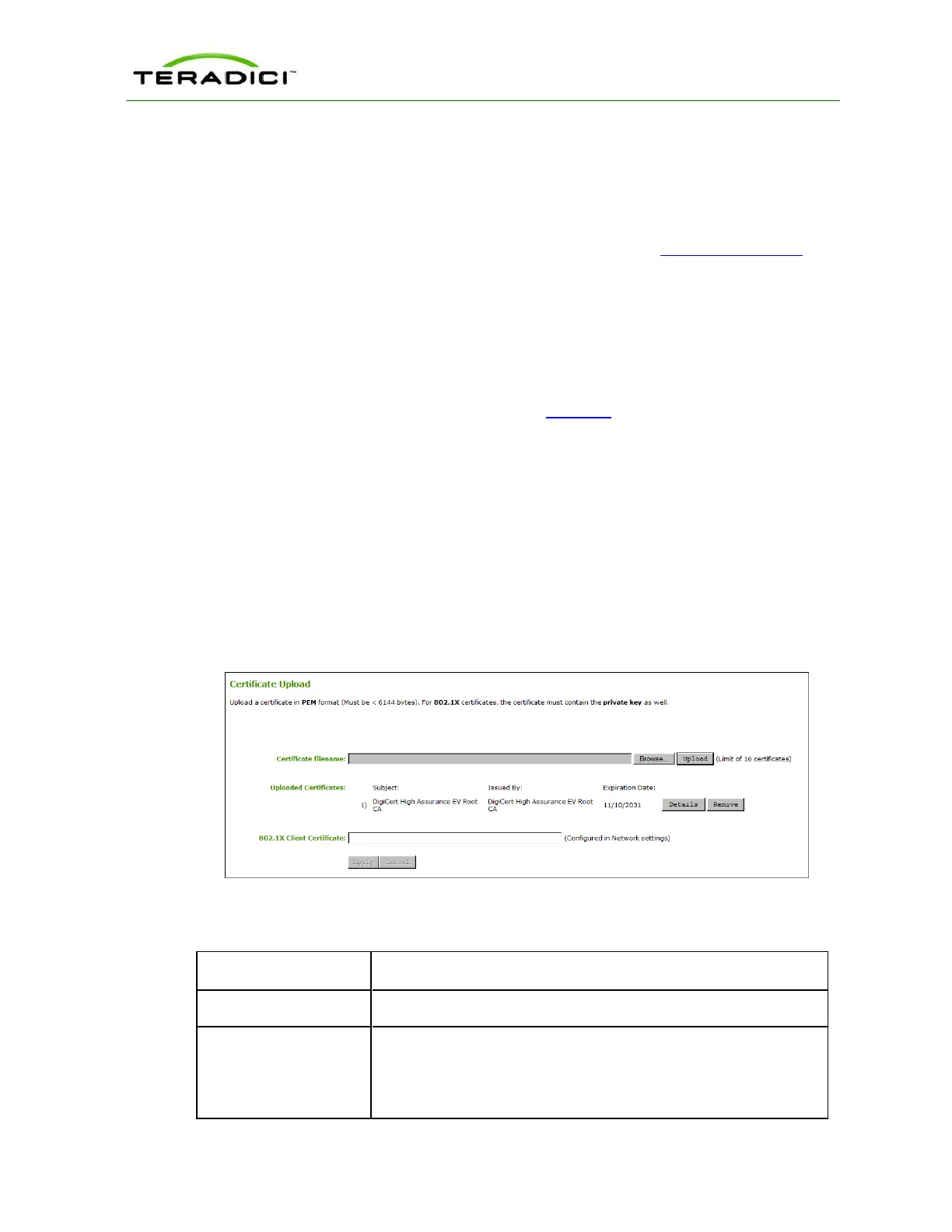
Figure 5-102: AWI Certificate Upload Page
Table 5-91: AWI Certificate Upload Page Parameters
Parameter Description
Certificate filename Upload up to a maximum of 16 root and client certificates.
Uploaded Certificates This displays any uploaded certificates. To delete an uploaded
certificate, click the Remove button. The deletion process occurs
after the device is rebooted. To view the details of a certificate, click
the Detail button. These certificates appear as options in the Client
TER1206003 Issue 1 282
PCoIP Zero Client and Host Administrator Guide



 To Next Page