The lost network connection message appears until the network is restored or the timeout
expires (and the PCoIP session ends).
Note: It is not recommended to use this notification message when using PCoIP devices
with virtual desktops. Normal scheduling within the virtual desktop hypervisor can falsely
trigger this message. To prevent this problem, you can disable the Enable Peer Loss
Overlay setting.
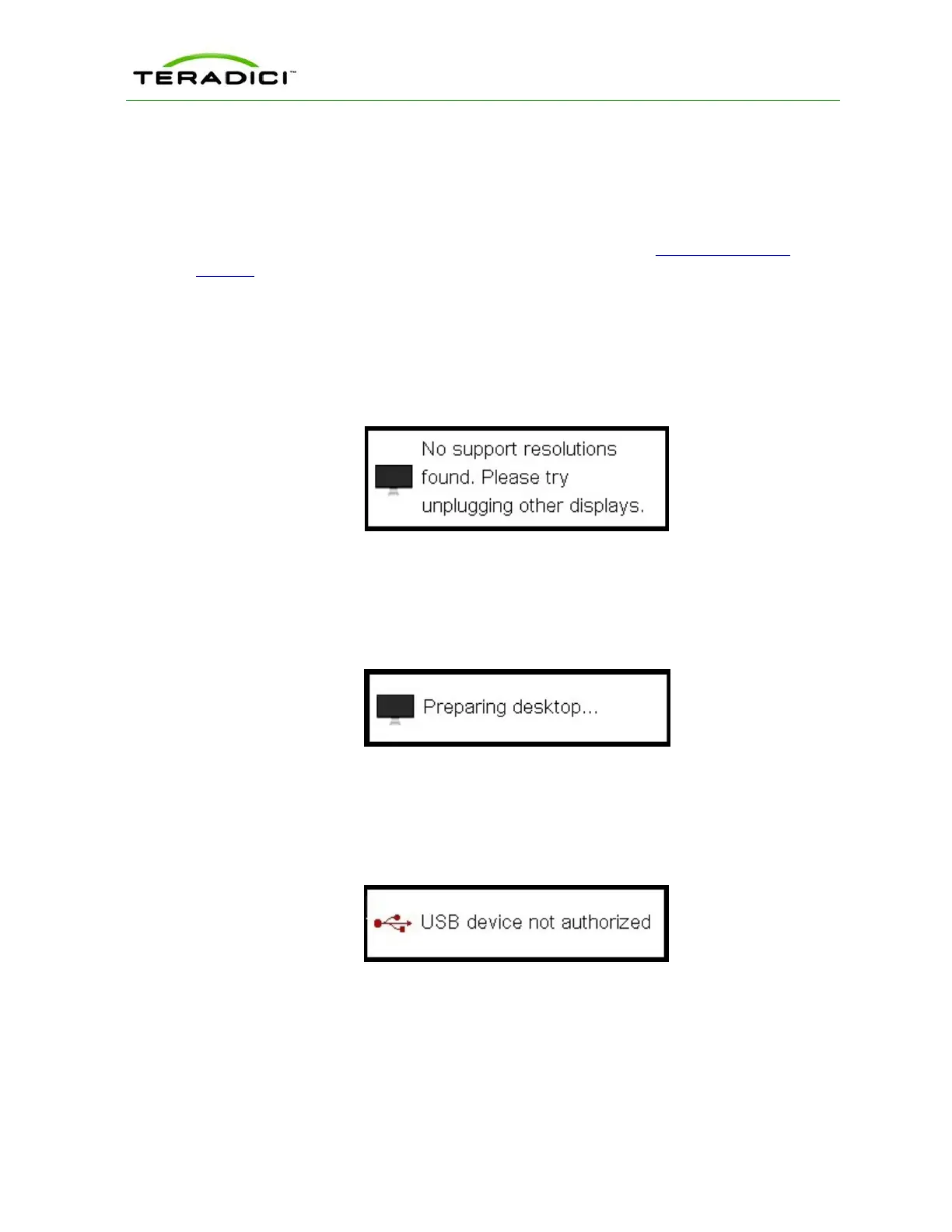
3.14.4 No Support Resolutions Found
This overlay displays on Tera2 clients only. Display resolution may have limitations due to
resource constraints when all four ports have large displays connected. If the resolution limit
is exceeded, the following overlay appears with the message "No support resolutions found.
Please try unplugging other displays."
Figure 3-24: No Support Resolutions Found Overlay
3.14.5 Preparing Desktop Overlay
When a user first logs into a PCoIP session, the following overlay appears with the message
"Preparing desktop."
Figure 3-25: Preparing Desktop Overlay
3.14.6 USB Device Not Authorized Overlay
If an unauthorized USB device is connected, the following overlay appears with the
message "USB device not authorized." This overlay lasts for approximately five seconds.
Figure 3-26: USB Device Not Authorized Overlay
3.14.7 USB Over Current Notice Overlay
If the USB devices connected to the client cannot be handled by the USB ports, the
following overlay appears with the message "USB over current notice." This overlay
remains until USB devices are removed to meet the current handling of the USB ports.
TER1206003 Issue 1 44
PCoIP Zero Client and Host Administrator Guide



 To Next Page