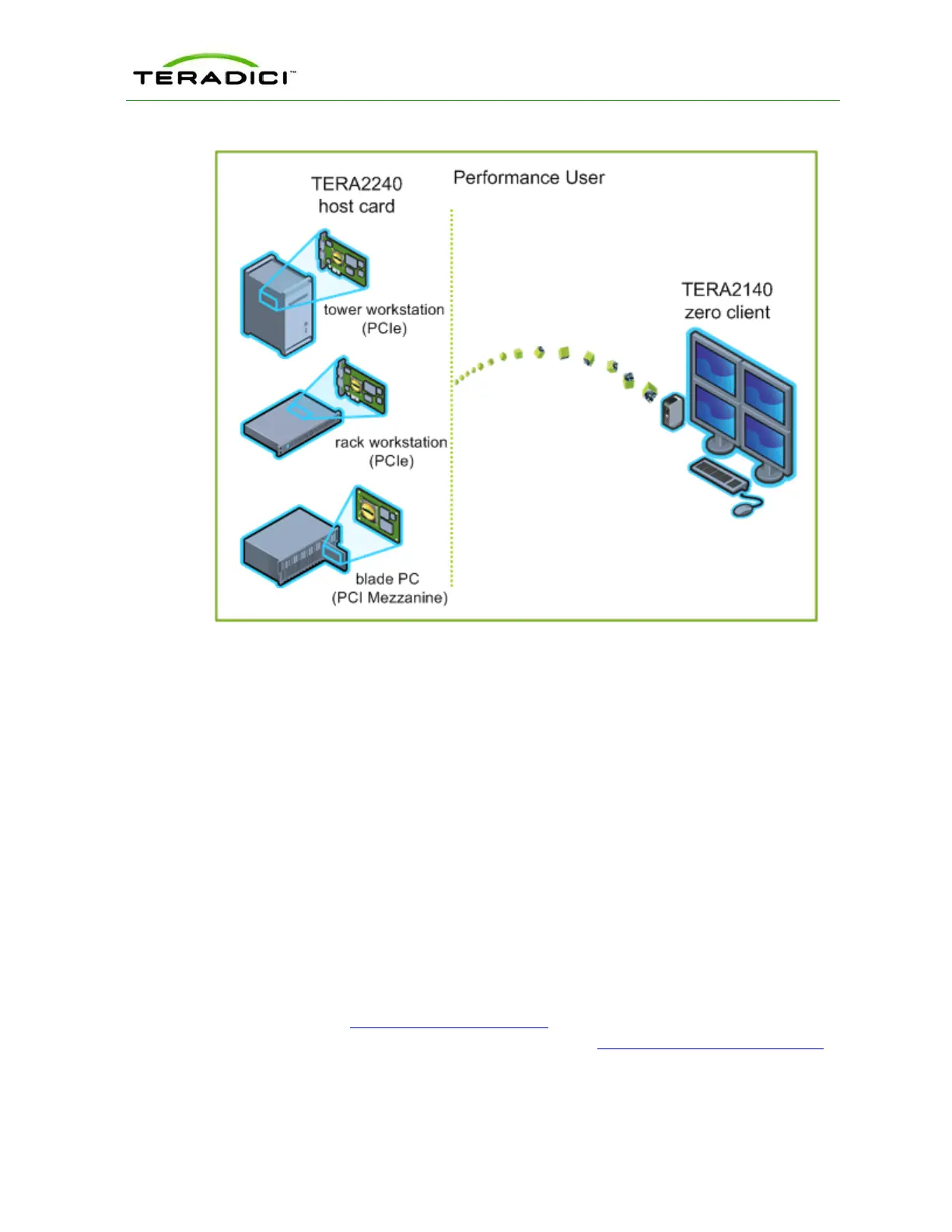
Figure 4-12: Connecting a TERA2140 Zero Client to a TERA2240 Host Card
The left side of the diagram shows some of the form factors for a remote workstation in
which a host card can be installed, such as a tower workstation, a rack workstation, or a
blade workstation. The zero client on the right can connect to the remote workstation
through a direct host-client assignment, through SLP discovery, through a VMware View
Connection Server broker, or through another 3rd party connection broker. These connection
options are explained below.
Note: Other client options include PCoIP-enabled displays, phones, laptops, iPads, and other
PCoIP-enabled mobile platforms.
4.19 Prerequisites
The following conditions must be met before connecting a host card and zero client:
l The host card and zero client must have the same firmware versions. For information
how to upload firmware using the MC, see the "PCoIP Management Console User
Manual" (TER0812002). For information on how to assign a firmware file to a profile
using the MC, see MC: Firmware Management. For information on how to upload
firmware to a single host or client using the AWI, see AWI: Firmware Upload Settings.
l Your network resources must be able to meet bandwidth, QoS, latency, jitter, and packet
loss requirements. For more information about designing PCoIP network architecture,
TER1206003 Issue 1 92
PCoIP Zero Client and Host Administrator Guide



 To Next Page