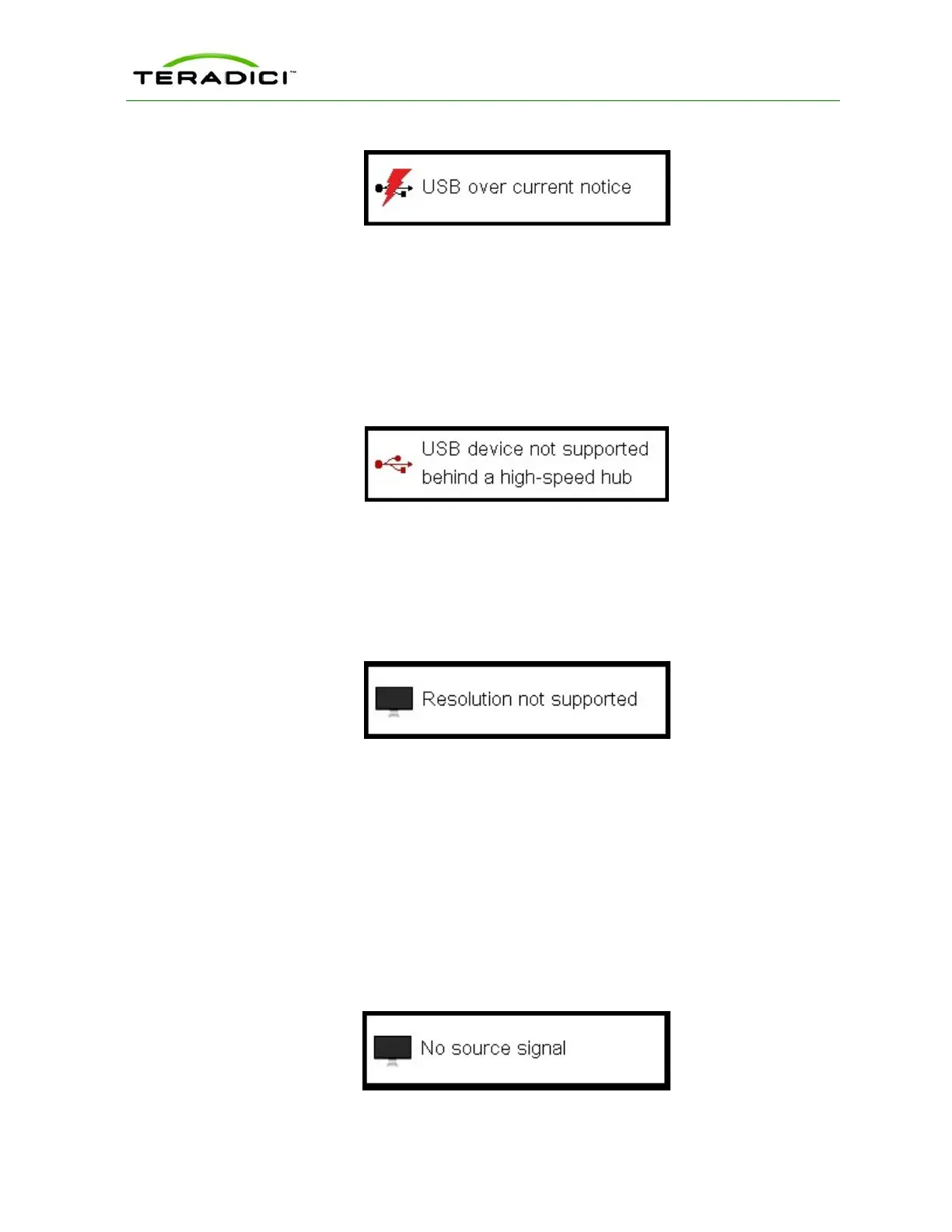
Figure 3-27: USB Over Current Notice Overlay
3.14.8 USB Device Not Supported Behind a High-speed Hub Overlay
Some USB devices cannot be connected through a high speed (USB 2.0) hub, and should
instead be connected directly to the zero client or through a full speed (USB 1.1) hub. If
such a device is connected to the zero client through a high speed hub, the following overlay
appears with the message "USB device not supported behind high speed hub." This overlay
lasts for approximately five seconds.
Figure 3-28: USB Device Not Supported Behind a High-speed Hub Overlay
3.14.9 Resolution Not Supported Overlay
If the resolution of a monitor connected to the client cannot be supported by the host, the
monitor is set to its default resolution and the following overlay appears with the message
"Resolution not supported."
Figure 3-29: Resolution Not Supported Overlay
3.14.10Video Source Overlays
Improper connection of the host video source is denoted by two possible overlays. These
overlays appear for approximately five minutes. The monitor is put into sleep mode
approximately 15 seconds after they appear.
l When no video source is connected to the host, the following overlay appears with the
message "No source signal." This helps you debug a situation where the host does not
have the video source connected or the host PC has stopped driving a video signal. To
correct this, connect the host PC video to the host. (This message can also be triggered
by the host going into display power save mode.)
Figure 3-30: No Source Signal Overlay
TER1206003 Issue 1 45
PCoIP Zero Client and Host Administrator Guide



 To Next Page