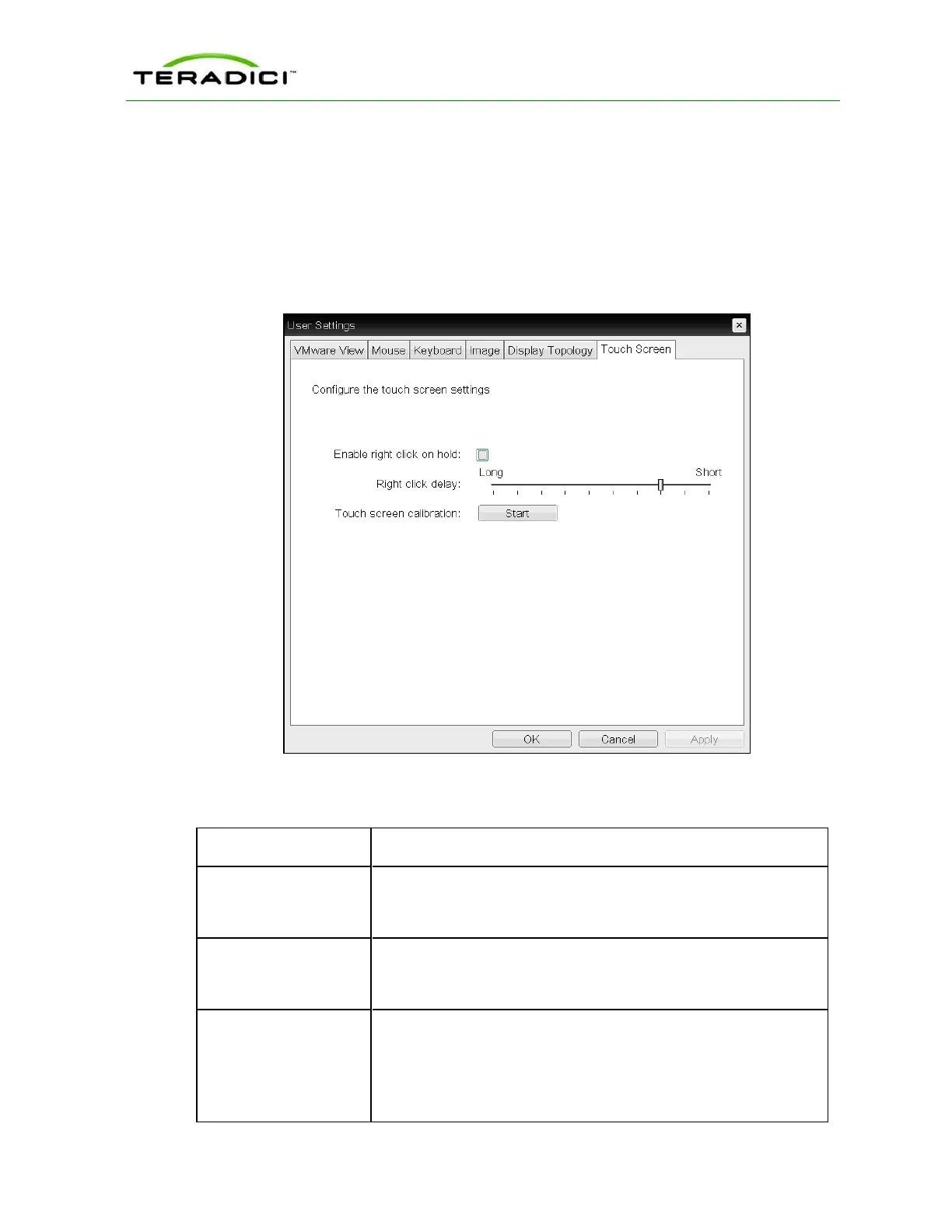
5.30.8 OSD: Touch Screen Settings
The Touch Screen page lets you configure and calibrate settings for an attached Elo
TouchSystems touch screen display. You can access this page from the Options > User
Settings > Touch Screen menu.
Note: The Touch Screen page is only available through the OSD. It is not available from
the AWI.
Figure 5-128: OSD Touch Screen Page
Table 5-115: OSD Touch Screen Page Parameters
Parameter Description
Enable right click on
hold
Select this checkbox to let users generate a right-click when they
touch the screen and hold it for a few seconds. If disabled, right-click-
ing is not supported.
Right click delay Slide the pointer to the position (between Long and Short) to deter-
mine how long the users must touch and hold the screen to generate
a right-click.
Touch screen cal-
ibration
When you first connect the touch screen to the zero client, the
calibration program starts. At the touch screen, touch each of the
three targets as they appear.
To test the calibration, run your finger along the monitor and ensure
that the cursor follows it. If it is not successful, the calibration program
TER1206003 Issue 1 313
PCoIP Zero Client and Host Administrator Guide



 To Next Page