4.20 Connecting a TERA1100 Zero Client to a VMware View
Virtual Desktop
This topic explains how to configure a connection between a first-generation TERA1100
zero client and a VMware View virtual desktop.
Note: To determine what zero client you have, see Displaying Processor Information. To
see the display options for this client, see PCoIPHost Cards and Zero Clients.
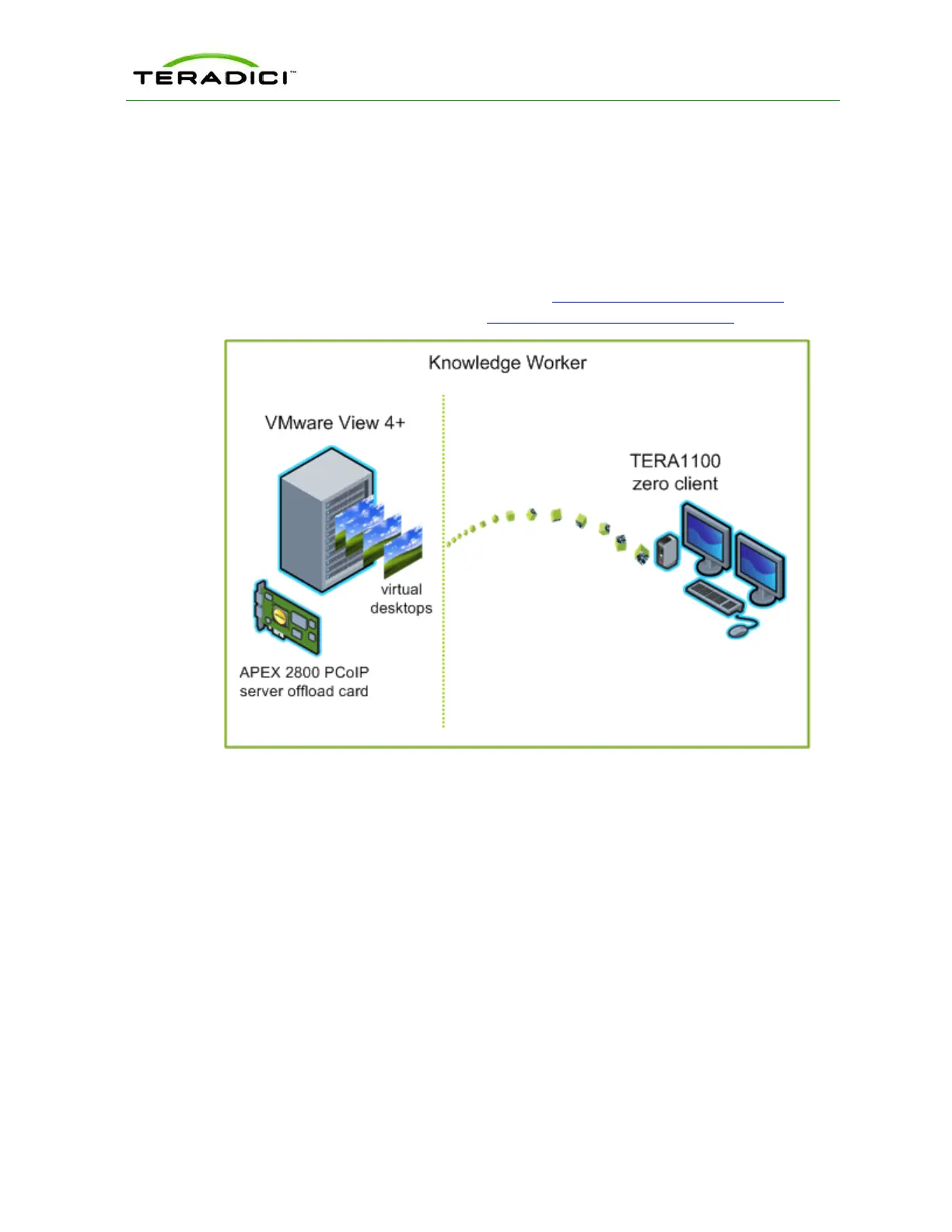
Figure 4-13: Connecting a TERA1100 Zero Client to a VMware View Virtual Desktop
The left side of the diagram shows a typical server-hosted VMware View implementation—
a set of virtual desktops (often referred to as virtual desktop infrastructure, or VDI) and an
APEX 2800 server offload card, which provides hardware-accelerated PCoIP image
encoding. The zero client on the right connects to a VMware View virtual desktop using a
VMware View Connection Server broker. You can configure users to connect to a VMware
View virtual desktop using manual or automatic logon, using VMware View Kiosk mode (to
provide multiple users access to information on a desktop), or using Imprivata OneSign
technology (to provide proximity card support for VDI roaming implementations). These
VMware View configuration options are described below.
Note: For information about the APEX 2800, see the "Teradici APEX 2800 Server Offload
Card Administrator's Guide" (TER1109003). For information on how to configure VMware
View for use with a PCoIP zero client, see the "Using PCoIP Zero Clients with VMware
View User Guide" (TER0904005).
TER1206003 Issue 1 97
PCoIP Zero Client and Host Administrator Guide



 To Next Page