32
The S-4 Sculpting Sampler - Ofcial Manual
33
The S-4 Sculpting Sampler - Ofcial Manual
NOTES
Projects & Tracks
2
Projects & Tracks
2
NOTES
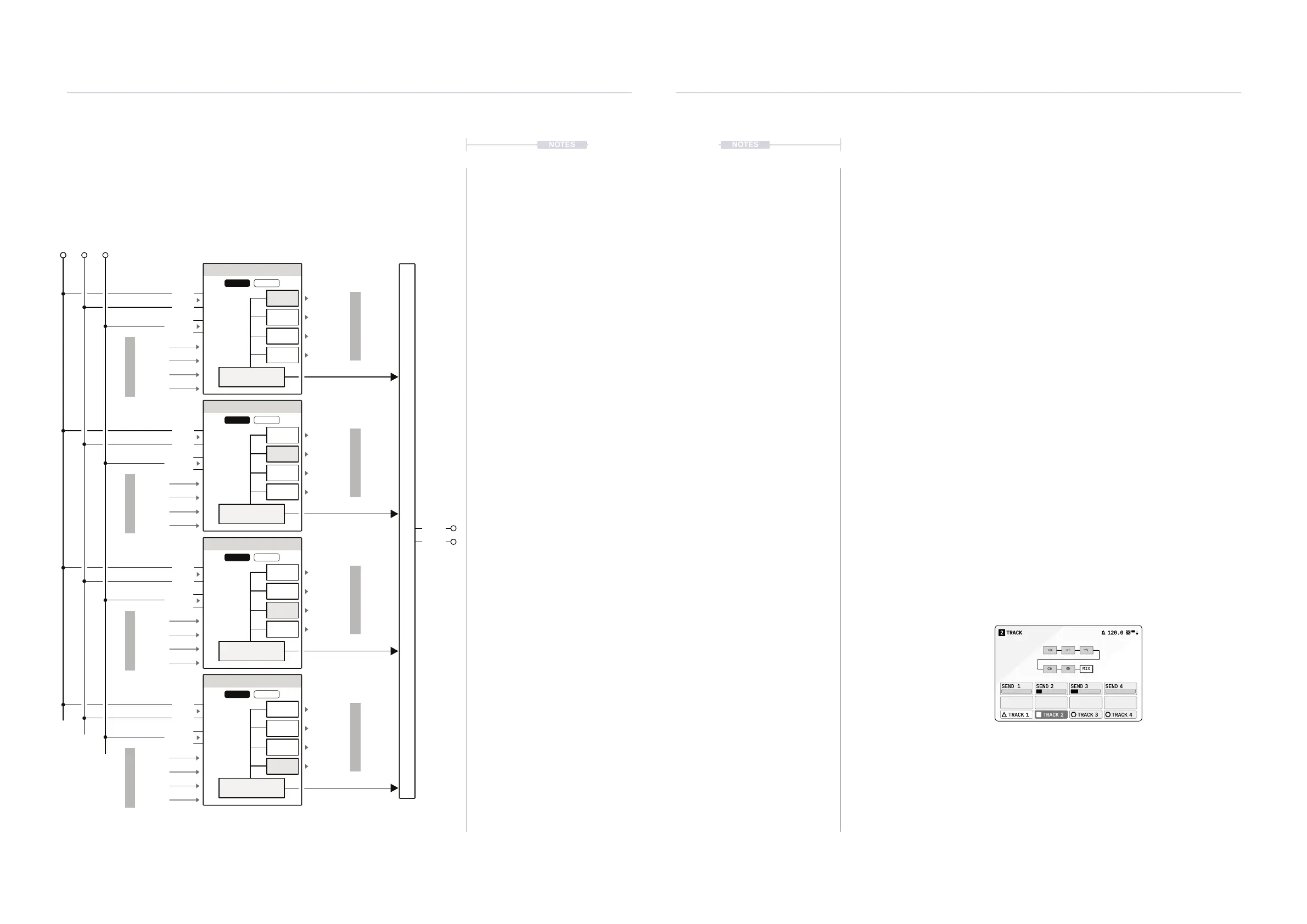
2.4 Track Signal Flow
Each of the 4 tracks has its own track signal ow especially for controlling
the audio sends to any other track. Conguration for the track stereo or
mono audio is set in the Cong > Track X settings.
Track 1
Track 2
Track 3
Track 4
Master OutTrack Page
In 1* In 2* USB**
Audio Engine
Audio Engine
Audio Engine
Audio Engine
Send 1
Send 1
Send 1
Send 1
Send 2
Send 2
Send 2
Send 2
Send 3
Send 3
Send 3
Send 3
Send 4
Send 4
Send 4
Send 4
In 1
In 1
In 1
In 1
Out 1
USB
USB
USB
USB
Track 1
Track 1
Track 1
Track 1
Track 2
Track 2
Track 2
Track 2
Track 3
Track 3
Track 3
Track 3
Track 4
Track 4
Track 4
Track 4
Track 1
Track 1
Track 1
Track 1
Track 3
Track 3
Track 3
Track 3
Track 2
Track 2
Track 2
Track 2
Track 4
Track 4
Track 4
Track 4
* Line in or Mic. Excluded from track if ‘SENDS ONLY’ is Track Input. ** USB Audio has 10 In and 10 Outs
In 2
In 2
In 2
In 2
Out 2
Stereo Mono
Stereo Mono
Stereo Mono
Stereo Mono
Send OutSend OutSend OutSend Out
From SendsFrom SendsFrom SendsFrom Sends
Audio can be routed using ‘sends’ from one track to another track. So the
processed audio from the Material, Granular, Filter, Color and Space device
chain along with any modulation is applied before being routing to mix into
another tracks audio. This allows chaining of tracks and offers control of the
incoming audio feedback level and the track send output amounts. If
‘Sends Only’ is set as the Track input then only sent audio is used.
▌ CONFIGURING AUDIO SEND ROUTING FOR TRACKS
1. Open the track page. Press [TRACK].
2. Select a track using the action buttons. For example, Press [TRACK 2],
action button. The selected track will be the working track to edit.
3. Select and adjust the audio ‘Send’ levels. This is will direct a selected
amount of the processed audio into another track.
• Adjust the send option using the parameter knobs based on the
action buttons. Audio can be sent to another track, for example
adjust (SEND 3) to send the amount to Track 3.
• Audio can be sent to back into the same track, for example if Track
2 is selected, adjust (SEND 2) to send the output amount back into
to Track 2. This feedback can generate interesting effect chains.
• All track outputs are also by default mixed fully at the master output
stage accessed using [MIX].
TRACK12 120.0
SEND 1 SEND 2 SEND 3 SEND 4
TRACK 1 TRACK 2 TRACK 3 TRACK 4
MIX
Track Routing Example
Each device slot is
loaded with a device
Track 2 is the currently
selected track
Track 2 is sending an amount of its audio output to Track 3 and also to
Track 2 i.e. back into its own input. No audio from track 2 is being sent to
Track 1 or Track 4.
Track 2 Output is also mixed in the Main MIX with all other tracks.



 To Next Page