your position is our focus
7.1.2 U-center Update Tool
7.1.3 Firmware update with u-center AE
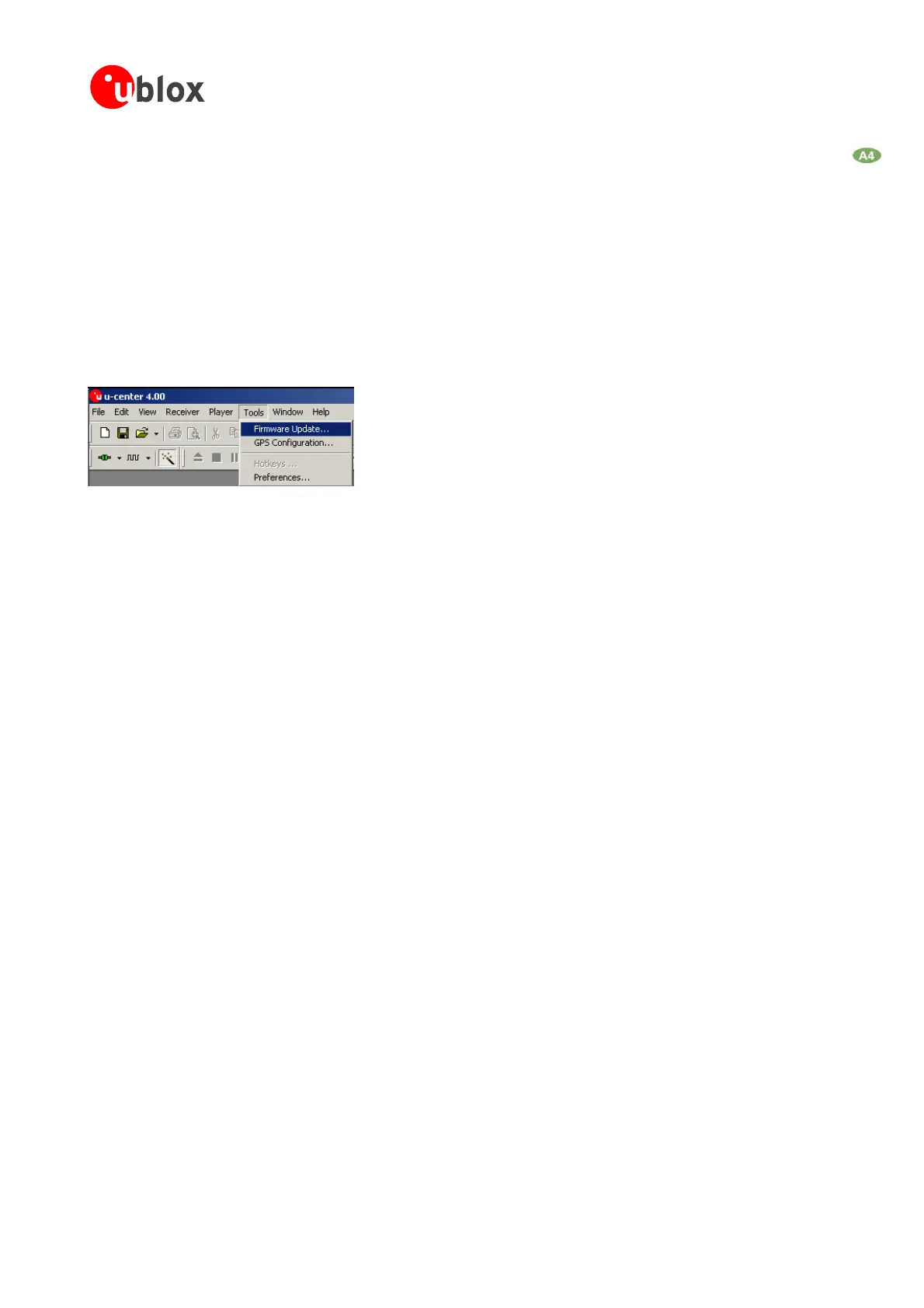
The receiver firmware can be updated with the firmware update function in the Tools Menu of u-centerAE.
FollowthesestepstoupgradethefirmwareonANTARIS
®
4GPSReceiver:
7.1.3.1 Firmware Update via Serial Port (USART)
1. Establishtheserialcommunicationbetweenu-centerAEandtheReceiver.
2. Startthefirmwareupdatetool
®
Figure 105: Screenshot, u-center ANTARIS Edition, Tools Menu
4.
X
choose
. Otherwise, select ‘use bootmode pin’ andputthe receiver manually into Boot
Modebysettingpin
BOOT_INTtohigh.
use).
6. Selectthedownloadbaudrate.Thisisthebaudrateusedduringthefirmwaredownload.Thedefaultvalue
is115200baud.Thelowerthisbaudrate,thelongerafirmwareupdatetakes.
7. If ‘Production Mode’ is set to ‘serial port with UBX protocol’, check the UBX protocol baud rate
(automaticallyinitializedwiththecurrentbaudrateinuse).TheUBXprotocolbaudrateisonlyusedtoenter
thedownloadprocess.
3. Selectthepathofthe‘prodstub’(ATR062xL.exeforSerialPortUpdate)andthefirmwareimage.
Selectthe‘ProductionMode’.ANTARIS
®
4basedGPSreceiverscanbeputintobootmodebysendingaUB
protocolcommand. IftheGPSreceiverconnectedtou-center isconfiguredforUBXprotocolinput,
the ‘use serial port’ option
5. ChecktheCOMport(automaticallyinitializedwiththecurrentCOMportin
GPSModules-SystemIntegrationManual(SIM)(incl.ReferenceDesign) PCSupportTools
GPS.G4-MS4-05007-A1
Page 136



 To Next Page
 Loading...