VIDEONICS TITLEMAKER 3000 PAGE 5
❶
❷
Power On/Off
There is a power switch on the rear panel and a POWER key on the keyboard.
TM-3000 Unit: Press the POWER SWITCH (D) on the rear panel; the power
light on the front panel comes on for a moment and then goes out. Simulta-
neously, the three lights on the keyboard (upper right hand corner) flash on
and off.
Keyboard: Press the POWER key on the keyboard (upper left hand corner) and the power
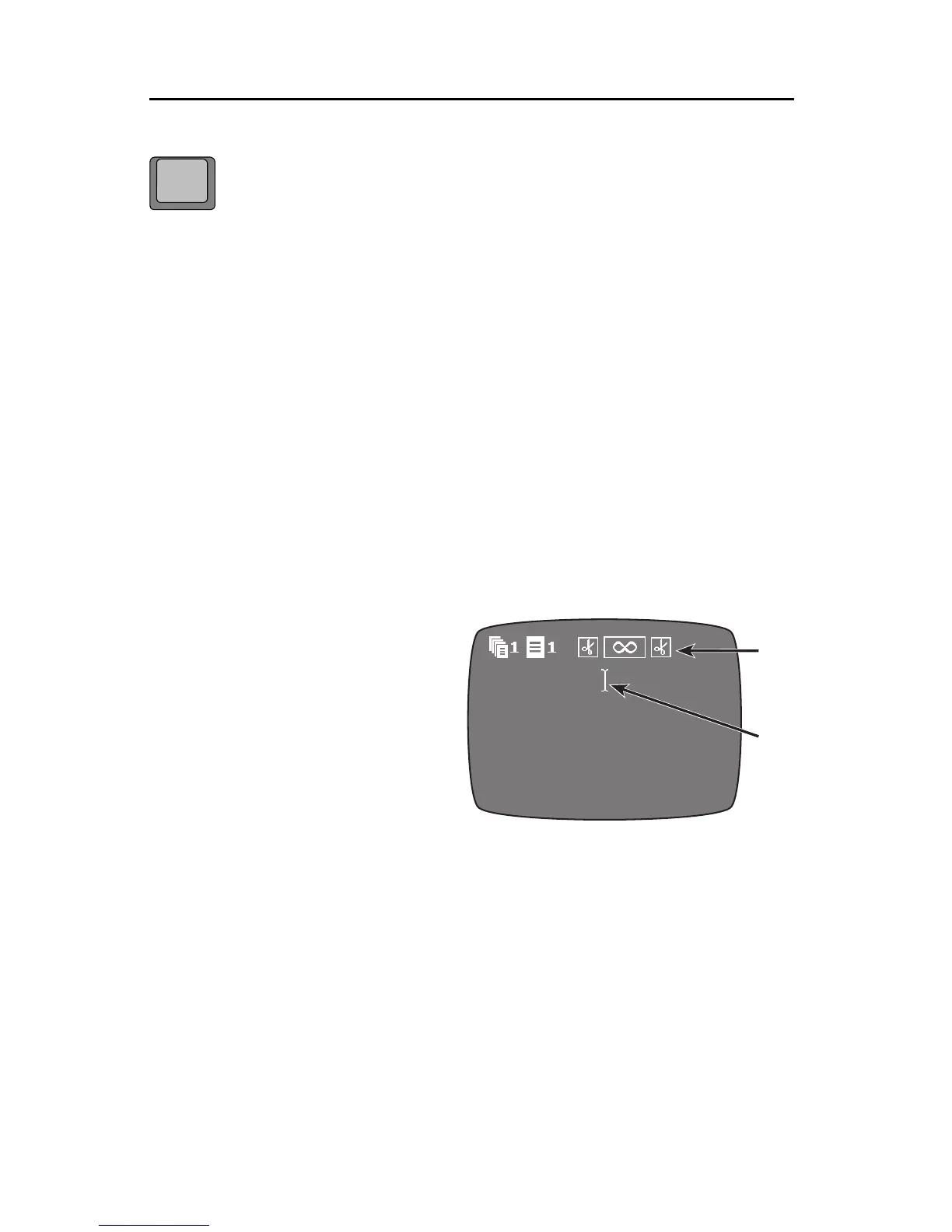
light comes on. You should see a screen (called the Editing Screen) on the OUTPUT moni-
tor, similar to the one in the illustration below.
Press POWER again to turn power off. Titles are retained in TitleMaker 3000’s memory even
if the unit is unplugged.
When power is off, and the power switch remains on, the OUTPUT monitor shows the
video source that is plugged into VIDEO IN.
Note: When turning the unit off, power off the keyboard and then the rear panel switch,Note: When turning the unit off, power off the keyboard and then the rear panel switch,
Note: When turning the unit off, power off the keyboard and then the rear panel switch,Note: When turning the unit off, power off the keyboard and then the rear panel switch,
Note: When turning the unit off, power off the keyboard and then the rear panel switch,
making sure the power light is out before you unplug the unit.making sure the power light is out before you unplug the unit.
making sure the power light is out before you unplug the unit.making sure the power light is out before you unplug the unit.
making sure the power light is out before you unplug the unit.
Demo
To start the demo, press ACCENT while you press DEMO (POWER). The demo is a built-in
project that demonstrates a wide range of the TM-3000 features and effects. To run the
international version of the demo, press SHIFT + DEMO. If no demo appears, check the
connections. Press any key to stop the demo.
Instant Titles
Creating basic titles is simple. Start with
the Editing Screen. The screen may not
look exactly like this but it should have at
least the blinking
cursor
(1). Press POWER
once or twice if the cursor is not displayed.
The cursor indicates where characters you
type will appear. Page symbols ( 2, de-
scribed later) separate pages of titles.
Type some titles. They appear at the cur-
sor location. Press either of the two PLAY
keys on the keyboard when you are fin-
ished. The Editing Screen disappears and
the finished titles fill the screen. Congratu-
lations — you have created your first titles!
Press NEW LINE/OK to return to the Edit-
ing Screen.
The Editing Screen and the Play Screen
You have just seen how the screen changes appearance, depending on whether you are
creating titles or displaying them. The
Editing Screen
(the one with the cursor) is used to
create or change titles. The
Play Screen
shows just the titles, with no cursor or other items.
It is the screen you use to display and record the completed titles.
POWER
DEMO


 To Next Page