PAGE 6 VIDEONICS TITLEMAKER 3000
Sherlock
Holmes
221B Baker Street
Sherlock
Holmes
221B Baker Street
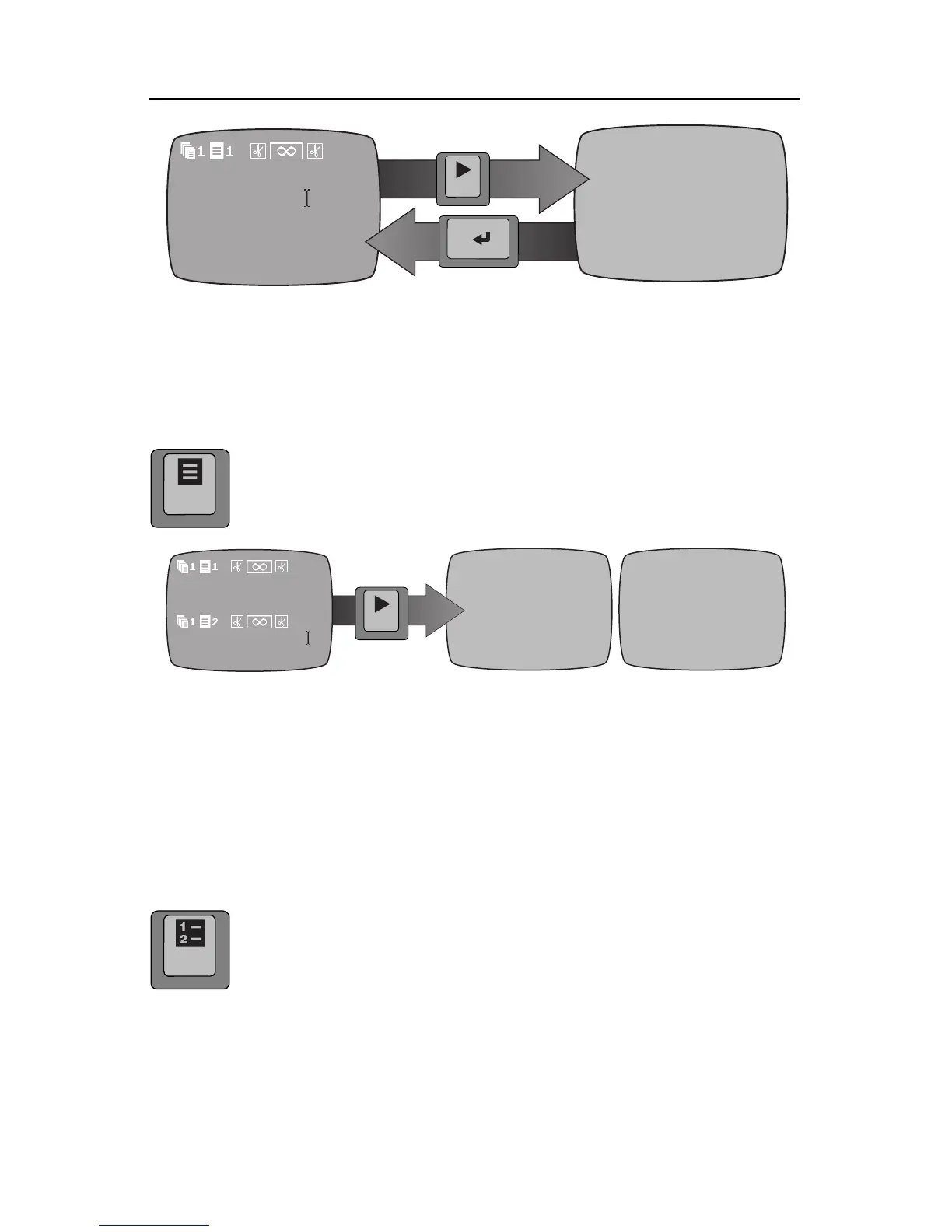
Edit Screen Play Screen
The PLAY key is used to go from the Editing Screen to the Play Screen. NEW LINE/OK
(or any letter key) goes back to the Editing Screen from the Play Screen.
You can recognize the Editing Screen by the flashing cursor and the page symbols.
Pages
Titles are divided into
pages.
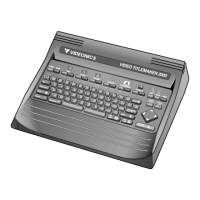
A page is a full screen of titles. You create a new
page by pressing the NEW PAGE key. In this example, we typed “Sherlock
Holmes,” then pressed NEW PAGE, then typed “221B Baker Street.” We then
used the up arrow to move the curser back to the first page and pressed
PLAY. This produces the following Editing Screen and Play Screens:
Edit Screen Play Screen Pg 1 Play Screen Pg 2
Page Symbols
A row of
page symbols
divides one page from the next. These are described in detail in
Chapter 7. Briefly: The first two symbols and their numbers identify which page this is and
to which project (described in Chapter 8) it belongs. The next symbols tell which effect will
be used to introduce the page; how it will be displayed; and which effect will be used to
end its display.
Projects
You can create separate
projects
(Chapter 8). Each project has its own pages
which are protected from alteration while you are working on another project.
This way several people can use the same unit, or one person can work on
several distinct jobs.
The PAGE INDEX key is used to access projects. It displays all the pages in all
the projects. By moving the cursor up and down through the Page Index screen, you can
begin work on any page, in any project. Press NEW LINE/OK to return to the Editing Screen.
Entering Text
To create a title, simply type some letters and they will appear at the cursor’s location.
new
page
page
index
Sherlock
Holmes
Sherlock
Holmes
PLAY
new
line
OK
PLAY


 To Next Page