VIDEONICS TITLEMAKER 3000 PAGE 41
Chapter 10 • Positioning Text
Youcanautomaticallycentereachlineoftextoryoucanpositionit
againsteithertherightorleftedgeofthescreen.Youcanalsoadjust
theverticalpositionofthetextoneachpage,centeringthetextor
positioningitatthetoporbottomofthepage.
When you type text, it automatically appears at the center of the
screen. Asyou type more, the wholeblock of text remains centered.
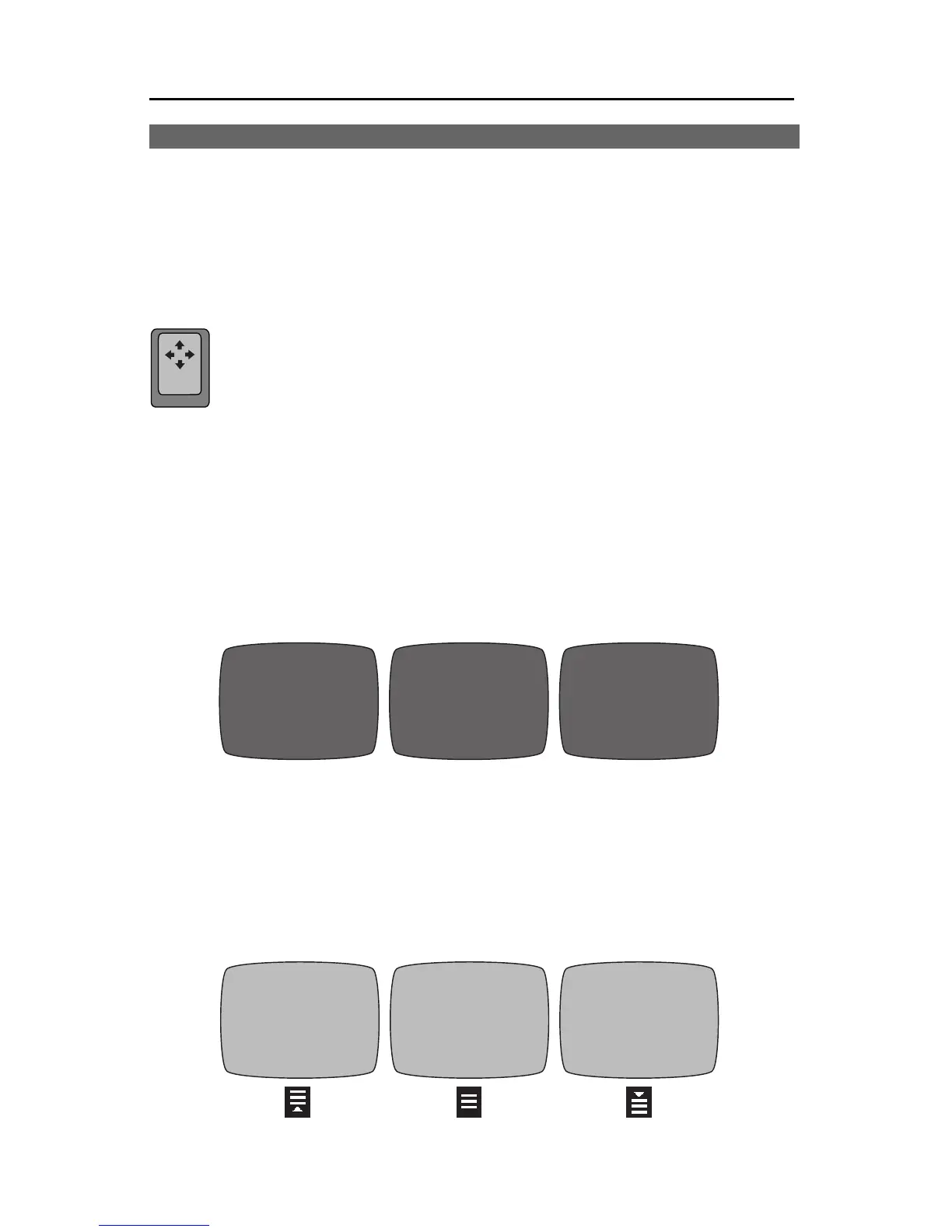
You can change the position of the text by using the POSN (Posi-
tion) key in conjunction with the arrow keys.
PositioningHorizontallyLeft, Right,Center
Position the cursor on a text line (or mark text in several lines, as described
in “Marking Text for Major Changes,” in Chapter 9, “Changing Titles”). Press
and release the POSN key, (a light will go on in the upper right hand of the
keyboard indicating the POSN key is in use) then press the RIGHT or LEFT
arrow on the keypad. The selected lines will change position, between the left
side of thescreen, the center, and the right side, and thelight on the keyboard
will go out.
You can position many lines at once by marking text. Any line that con-
tains any marked text will change.
Positioning VerticallyUp, Down, Center
You can also automatically position the text vertically, making it appear at
the top, middle, or bottom of a screen.
posn
Abelard
&
Heloise
Abelard
&
Heloise
Abelard
&
Heloise
Gable
&
Lombard
Gable
&
Lombard
Gable
&
Lombard


 To Next Page