VIDEONICS TITLEMAKER 3000 PAGE 59
PlacingaLine Above, Below,orBetweenTextLines
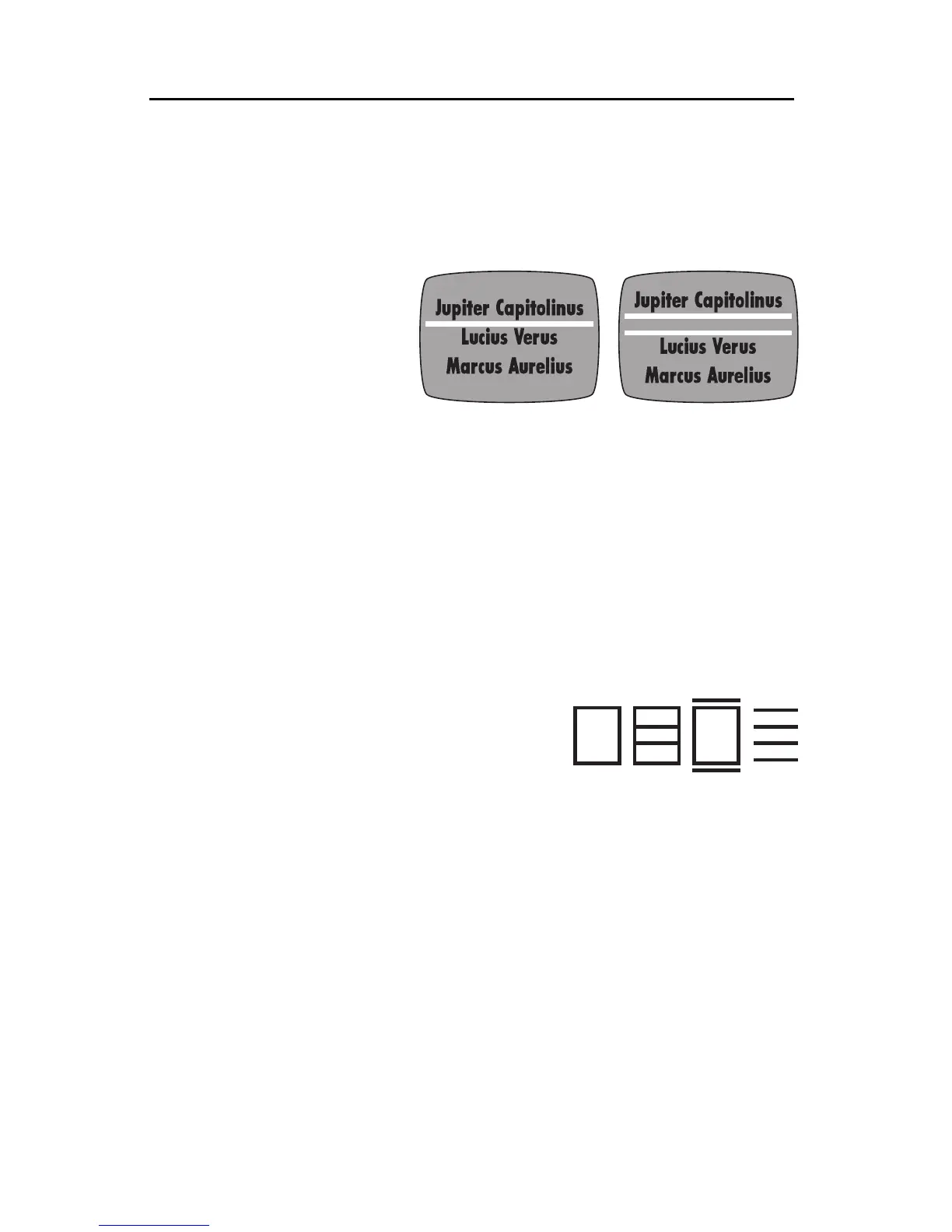
You can add a horizontal border line between any two lines of text. Place
the cursor on one of the text lines and use the “line above” (C) or “line below”
(B) symbol to place a border line either above or below the text. Adding a
border line below one text line is the same as adding a border line above the
following text line.
Hint: If you would like two
borderlines(adoubleline),cre-
atea blank lineof titles.Add a
borderlinebelowthenew,empty
line.Addaborderlinebelowthe
text line above it. This trick
placesalineaboveandbelowthe
blankline.Youcanchangethedistancebetweenthetwoborderlinesbychangingthe
fontandsizeoftheblanktextline(whichchangesitsheight).
SideBars
You can also place bars on the sides of text using the “side” symbol (D).
ComplexBorders
Whenever you change a border style, the new style replaces any borders
already in place. You can create some interesting border patterns:
1 Simple box. Mark text using MARK START and END and add the box
border style.
2 Box with lines inside. Create a box as in 1.
Remove the marks by pressing UNDO and
placethe cursoron thesecond line,inside the
box. Add the box border style. Repeat for
each line in the box.
3 Box plus lines. Add a blank line above and below the box. Set the blank
lines to the smallest Font & Size. Add a border line below the blank text
line above the box. Add a border line above the one below the box.
4 Lines. Mark text, including the line of text following the last line. Add a
border line above. Each text line will have its own border line.
Hint:Don’tforgetthatcharacterscanmakeexcellentborders.Usearowofbullet
andpictorialcharacters(suchasACCENT+J),dashes,theletterO,etc.Makethem
hollowbymakingthemthesamecolorasbackgroundandaddingacontrastingoutline.
Removingborders
To remove borders, mark the text and choose the no-border symbol (A)in
theBORDER menu.


 To Next Page