VIDEONICS TITLEMAKER 3000 PAGE 31
PageSymbols
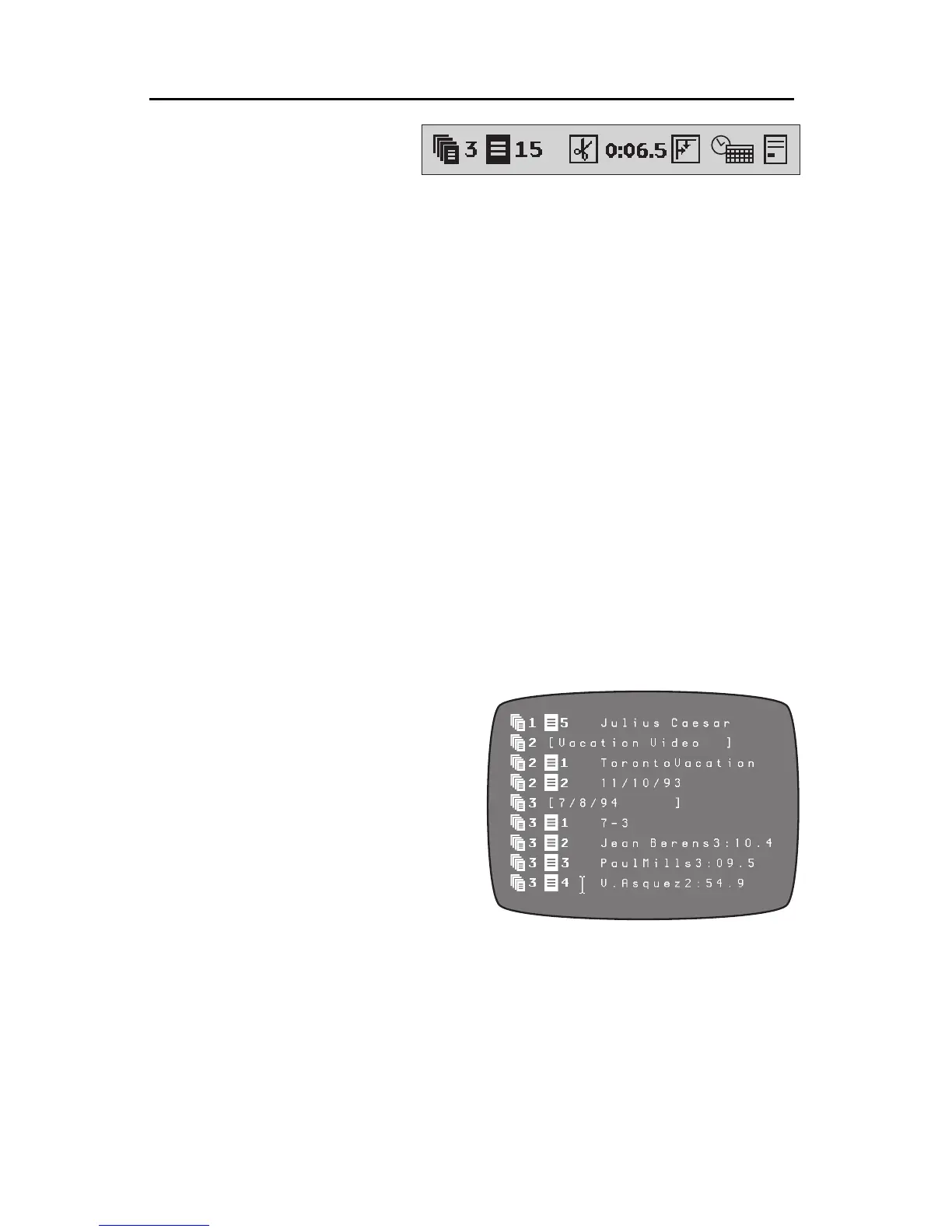
A set of page symbols starts
eachpage:
• The first symbol (A) indicates the current project (described in the next
section). Thenumber indicates the number of the projectto which the page
belongs.
• The second symbol (B) indicatesthe number of the page within the project.
It also shows the vertical positioning of the text on the page. The symbol
changes depending on whether the text is positioned at the top, bottom, or
center of the page.
• The next symbol ( C ) shows the EFFECT-IN that has been selected. This
effect will introduce the page when it’s played.
• The next symbol (D) shows the duration of the page — how long it will be
displayed when you press PLAY. If the page is set for infinite duration,
scroll, or crawl, a symbol is displayed here instead of a number.
• The next symbol (E) indicates the EFFECT-OUT.
• The last symbol (F) indicateswhether time, date orboth are to bedisplayed
after the text on the page and it’s horizontal position on the page.
NavigatingPagesandProjectswiththePageIndex
With the ability to create hundreds
of pages comes a problem: How do
you find a particular page efficiently?
TitleMaker3000includesaPageIndex
that lists all pages in a condensed
form and makes it easy to move the
cursor to the desired page.
Press PAGE INDEX and a Page
Indexscreen appears.
Eachpage appears asa single line
beginning with the project symbol,
the project number, the page symbol,
and the page number. The rest of the line contains as much of the text from
the page as will fit.
All pages and all projects are listed in order. The cursor shows the current
page. Use the arrow keys to find any page. As in the Editing Screen, you can
move quickly through the pages. Press PAGE UP or PAGE DOWN and the
cursor will jump a full screen at a time. You can perform the same function by
Holding SHIFT while you press the arrow keys. Hold CMD while you press
the arrows to move between projects.
Press NEW LINE/OK to exit the Page Index and return to the Editing
Screen.
DCBA E
F


 To Next Page