VIDEONICS TITLEMAKER 3000 PAGE 7
❹
❷
❶
❸
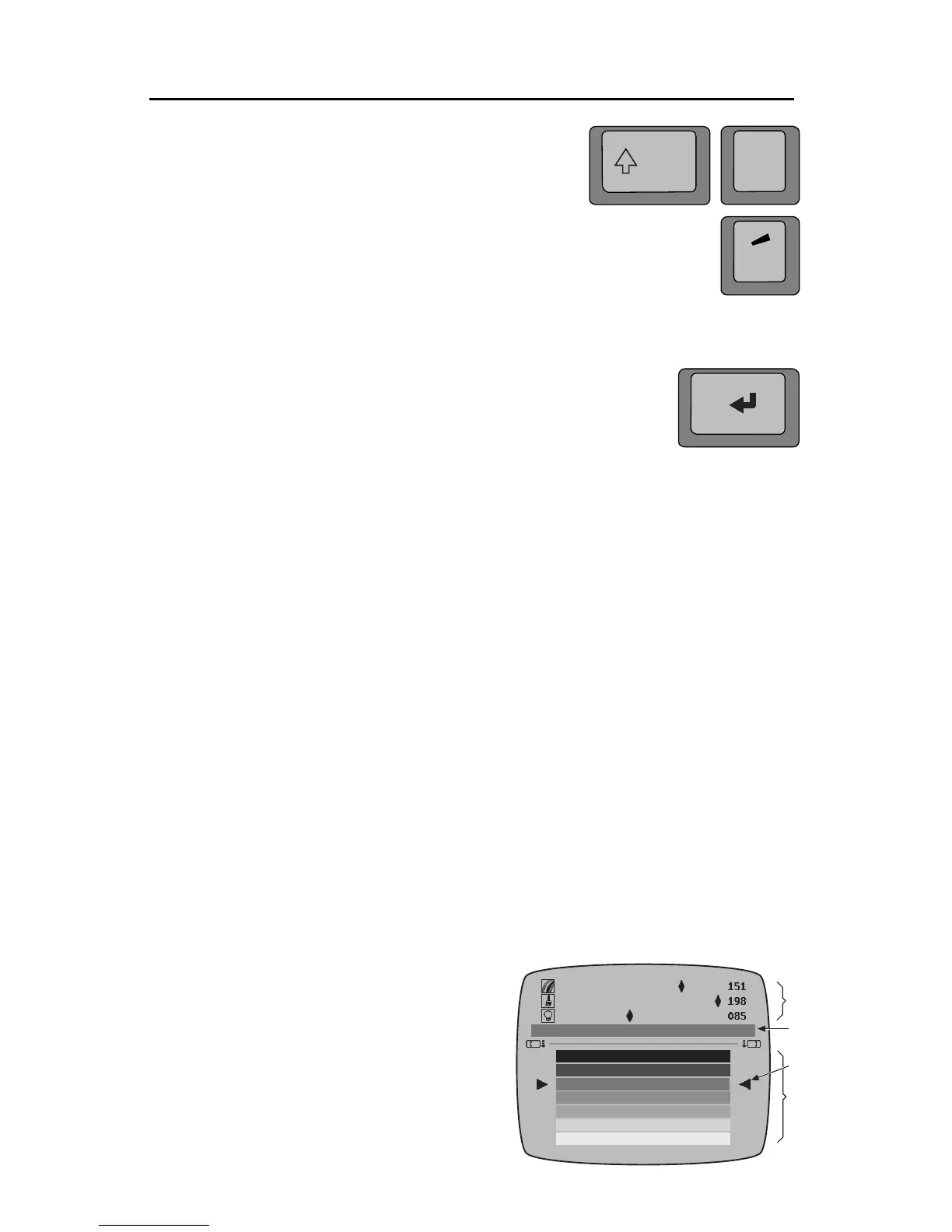
• To type a capital letter, hold SHIFT as you type. Press
CAPS LOCK to type all capital letters (keyboard LED will
light). Press it again to type in normal upper and lower
case (keyboard LED will go out).
• To type special characters (such as the ones printed in
blue on the keys), press ACCENT and a letter at the same
time. For instance, press ACCENT and Q to produce “¢.”
• To type an accented letter, simultaneously press AC-
CENT and the key with the desired accent mark,
then
press
the letter to be accented. For example, press ACCENT and
3 together; then release them and press the A key. You will
see the letter “à.”
Lines
Press NEW LINE/OK to end a line of text and begin a new line.
Moving the Cursor
If you want to add text somewhere other than where the cursor is, use the arrow keys to
move the cursor. Press PAGE UP or PAGE DOWN to move a page at a time or you can hold
SHIFT as you press the UP or DOWN arrow keys. SHIFT with the LEFT or RIGHT arrow key
moves the cursor to the start or end of the line.
Note: You cannot move the cursor past the end of the last line of text. If you want to type past
the last character in a line, position the cursor at the end of the line and type. If you want to
type beyond the last characters on the screen, position the cursor at the end of the line and
press NEW LINE/OK to create blank lines. The cursor moves down as you add lines.
Editing the Text
To
insert
text, use the arrow keys to move the cursor to the desired location and type. New
characters are added at the cursor’s location.
To
delete
text, position the cursor after the characters you want to remove and press DE-
LETE. The character before the cursor is removed. To delete large blocks of text at once,
mark the text and press delete.
To
replace
text, delete the existing text, then type the new text.
Oops!
If you accidentally delete something,
immediately
press UNDO. It restores the text that was
deleted by the last press of the DELETE key.
Using Menus to Change Colors, Fonts, etc.
You can change
characteristics
(such as fonts,
colors and font styles) using the
menu keys
at
the top of the keyboard. To do this, position the
cursor anywhere in the line you wish to change
and press the appropriate menu key.
For instance, press the LETTER COLOR key (in
the top row). A menu of colors appears.
This menu has two
sub-menus
— one at the top
of the screen ( ) and one at the bottom ( Õ).
Each sub-menu contains choices you can use to
caps
lock


 To Next Page