VIDEONICS TITLEMAKER 3000 PAGE 9
• Use MARK START to highlight the top sub-menu. Use the
RIGHT arrow key to highlight the VIDEO symbol. Press NEW
LINE/OK.
• Confirm that your video source is running (start the VCR
or camcorder).
• Press PLAY.
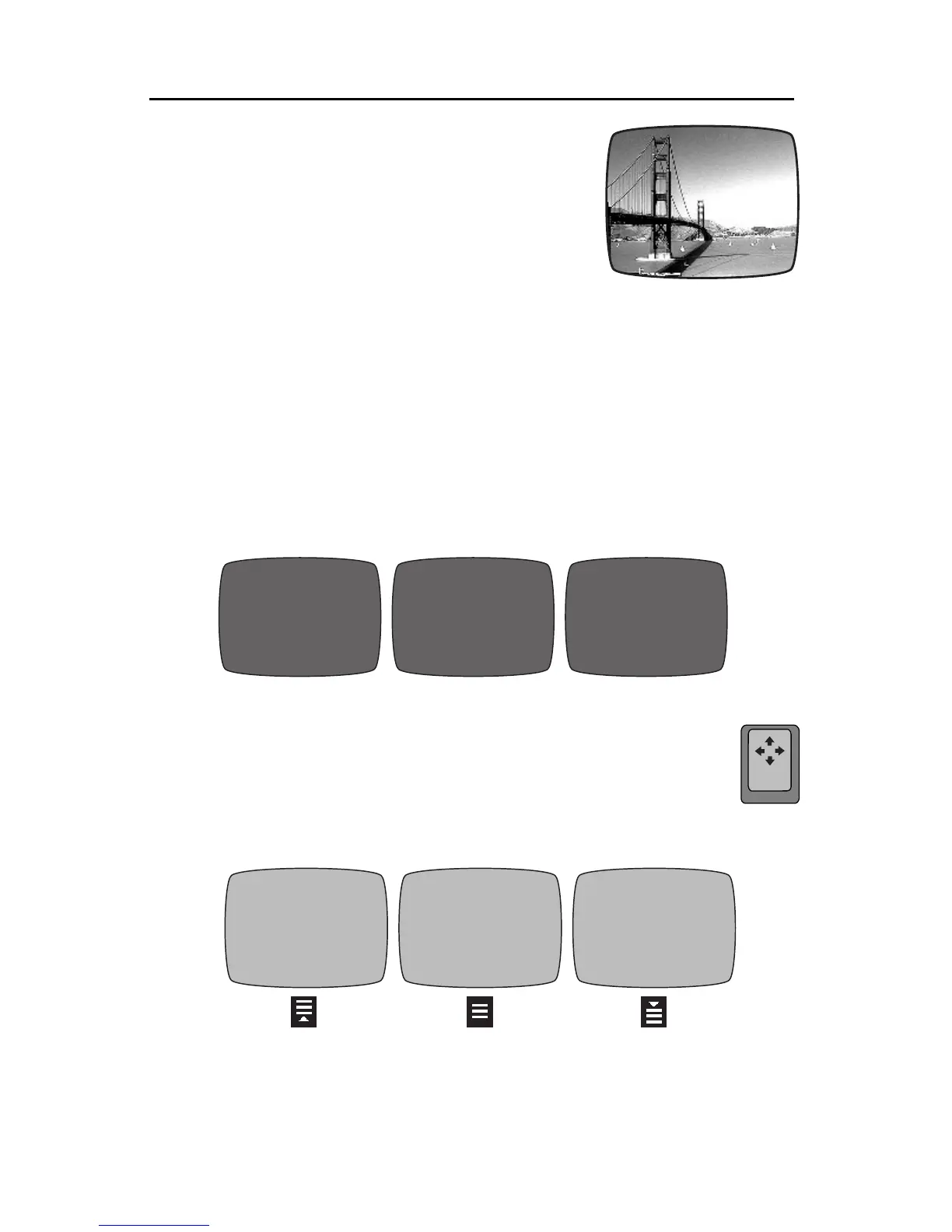
The OUTPUT monitor will show your page of titles superim-
posed over the source video.
Making Titles Come and Go
In a production, you may want superimposed titles to appear for a while, then disappear.
To do this, place blank pages with video backgrounds between pages of titles.
Create a page of superimposed titles. At the end of the page, press NEW PAGE but don’t
type anything on this page. Set its background to VIDEO, if it isn’t already. Press NEW PAGE
again and type the next titles. When you play these pages, the first titles appear, then
transition to the blank page. Since this page is empty and the background is plain video,
the result is that the titles simply go away. The next page can then introduce more titles.
(See Chapter 19.)
Positioning Text on the Line
You can change the position of the text on any line. A line can be centered or positioned
against the left or right edge of the screen.
Position the cursor on the line.
Press and release
the POSN (Position) key, the
position light will go on. Then press the LEFT or RIGHT arrow, the position light
will go off. The line position changes immediately to show the new choice: left,
center, or right justification. The page symbol is not affected. (See Chapter 10.)
Positioning Text on the Page
The page symbol shows how text is positioned vertically on the page. It can be positioned
at the top, center, or bottom of the page. To change the position,
press and release
the
POSN (Position) key, then press the UP or DOWN arrow on the keypad. You will see the
text in its new position when you press PLAY.
San
Francisco
San
Francisco
Abelard
&
Heloise
Abelard
&
Heloise
Abelard
&
Heloise
Gable
&
Lombard
Gable
&
Lombard
Gable
&
Lombard
posn


 To Next Page