VISIONEER STROBE 500 SCANNER USER’S GUIDE
142
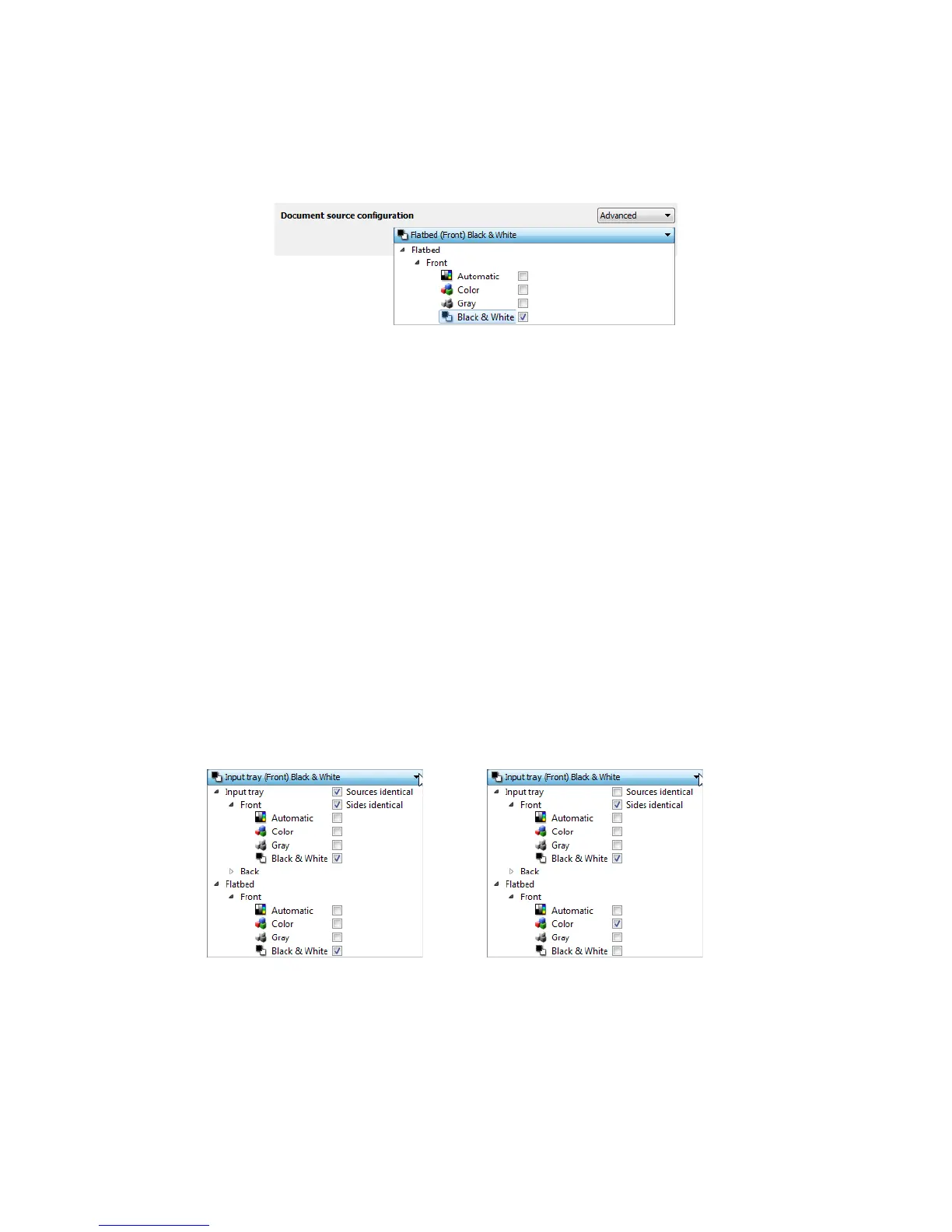
• Duplex—select this option to scan both sides of the item in the scanner. Note that if you deselect the Back
side options in the source configuration list, this option will automatically deselect.
Click the drop down menu to select the scanning options you want to use.
The available color modes are:
• Automatic determines the color of the document as it is being scanned.
• Color scans the document in color, creating a full color copy of an original document or photograph. Color
scans have the largest file size.
• Gray scans the document using varying shades of gray to reproduce the document. The grayscale scan
mode is often used when scanning documents or graphics where the original color does not need to be
retained, but the graphics need to be legible. Grayscale scanning preserves the graphic quality while
keeping the file size less than that of a full color scan.
• Black and White scans the document in bitonal where everything on the page is either black or white. This
setting is often used when scanning typed or written documents. When there are not a lot of graphics, or if
the graphics are not needed, this setting is ideal for archiving documents to a server or on a disc, send
through email, or posting to a web page, as the file size is smaller than the other scanning modes.
SOURCES IDENTICAL
If the scanner has multiple paper source options, select this option to have the settings you choose in the
interface apply to all paper sources in the scanner. For instance, if you select color scanning when scanning from
the input tray, then the flatbed or front feed tray scans will also be in color.
While the option to enable or disable Sources identical is in the source configuration list, the color mode is not
the only option that can be individually configured for each source. Other options in the scanner interface, such
as resolution, brightness, contrast, etc... will also be individually set for each source. After you deselect Sources
identical, any changes you make in the scanner interface will only be applied to the option that appears at the
top of the list (for example, “Input tray (Front side) Black and White”).
(Example: Sources are identical) (Example: Sources are different)












 To Next Page