VISIONEER STROBE 500 SCANNER USER’S GUIDE
98
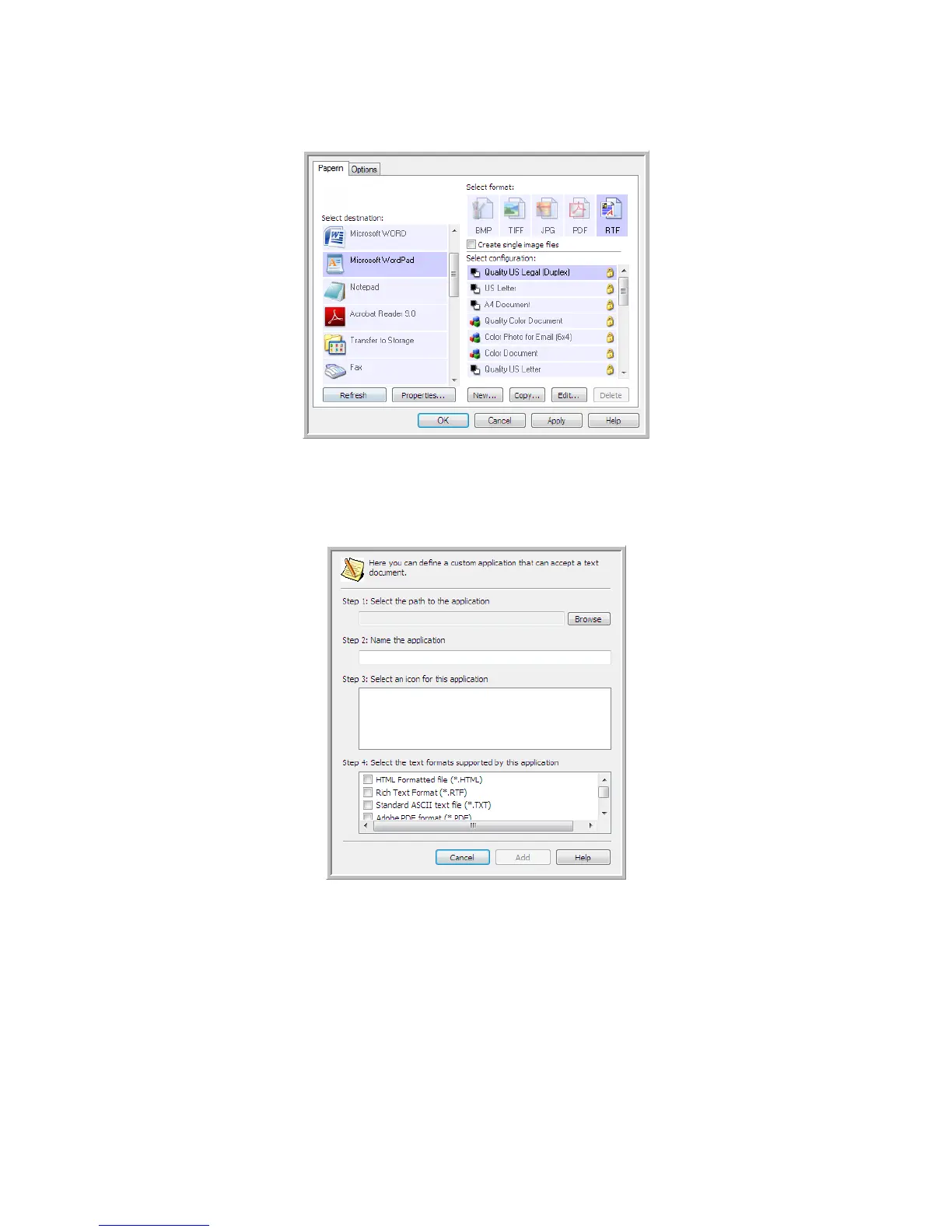
3. Click on one of the default text editors such as WordPad.
4. Click on the Properties button.
5. To add another application to the list, click the Add application button. The Add Text Based Link dialog box
opens.
6. Click Browse to find the application you want to add to the list.
When you select the application using the Browse button, Steps 1 and 2 on the dialog box are automatically
filled in, and the application icon appears in Step 3.
7. Select the icon in Step 3 of the dialog box. That is the icon that will appear in the OneTouch Destination List.












 To Next Page