N
N
o
o
t
t
e!
e! The Y56K has two DSPs. The first DSP is dedicated to effect chains 1-4, the second to
effect chains 5-8. When the DSP serving effect chains 1-4 is full, you can still load effects to
effect chains 5-8 and vice versa.
P
P
ast
ast
e
e
Choose Paste to paste the clipboard’s effect and settings into the selected effect block.
N
N
o
o
t
t
e!
e! Pasting an effect is possible only when the Y56K’s clipboard contains and effect and
when current available DSP resources allow the effect to be pasted.
Clicking on an effect block containing an ef
fect
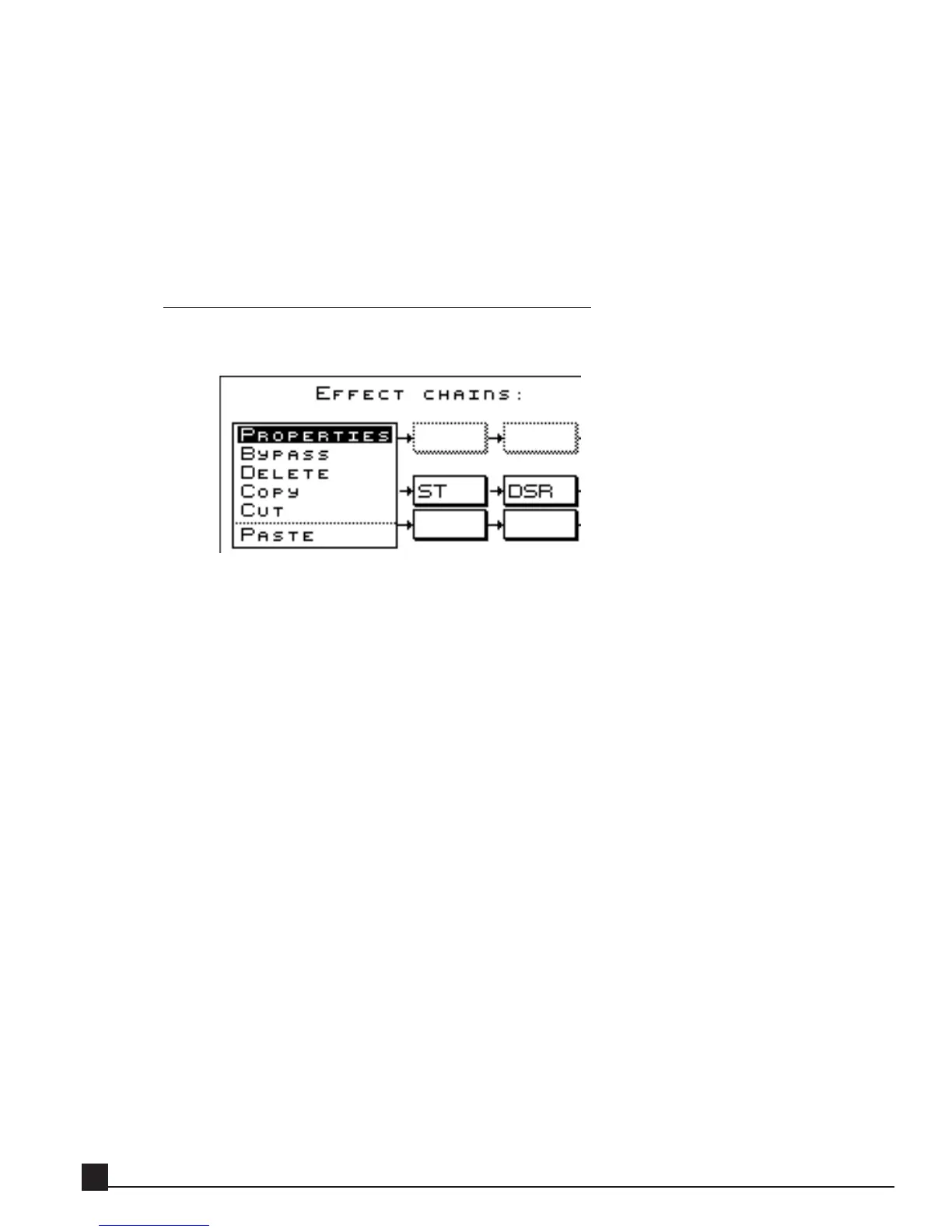
Clicking on an effect block containing an effect opens a popup menuthe Edit Effect popup menu
(below) consisting of the following functions.
Pr
Pr
o
o
p
p
e
e
r
r
t
t
ies
ies
Choose Properties to open the effect’s Properties page to adjust its parameters.
B
B
y
y
p
p
ass/E
ass/E
nab
nab
le
le
Select Bypass/Enable to toggle the effect between the two states. A bypassed effect block is
gray.
D
D
e
e
le
le
t
t
e
e
Choose Delete to delete the effect from the effect block, leaving it empty.
C
C
o
o
p
p
y
y
Choose Copy to copy the effect and its settings to the Y56K clipboard, allowing it to be past-
ed to another effect block.
C
C
ut
ut
Choose Cut to delete the effect from the selected block and copy the effect and its settings to
the Y56K clipboard, allowing it to be pasted to another effect block.
P
P
ast
ast
e
e
Choose Paste to paste the effect and its settings currently in the clipboard into the selected
effect block.
N
N
o
o
t
t
e!
e! When pasting a stereo effect onto a mono effect chain and vice versa, the Y56K will
paste the effect’s appropriate counterpart when applicable.
Some effects, like TrueVerb or L1+, can only be inserted to stereo effect chains.
Y56K User Guide
28


 To Next Page