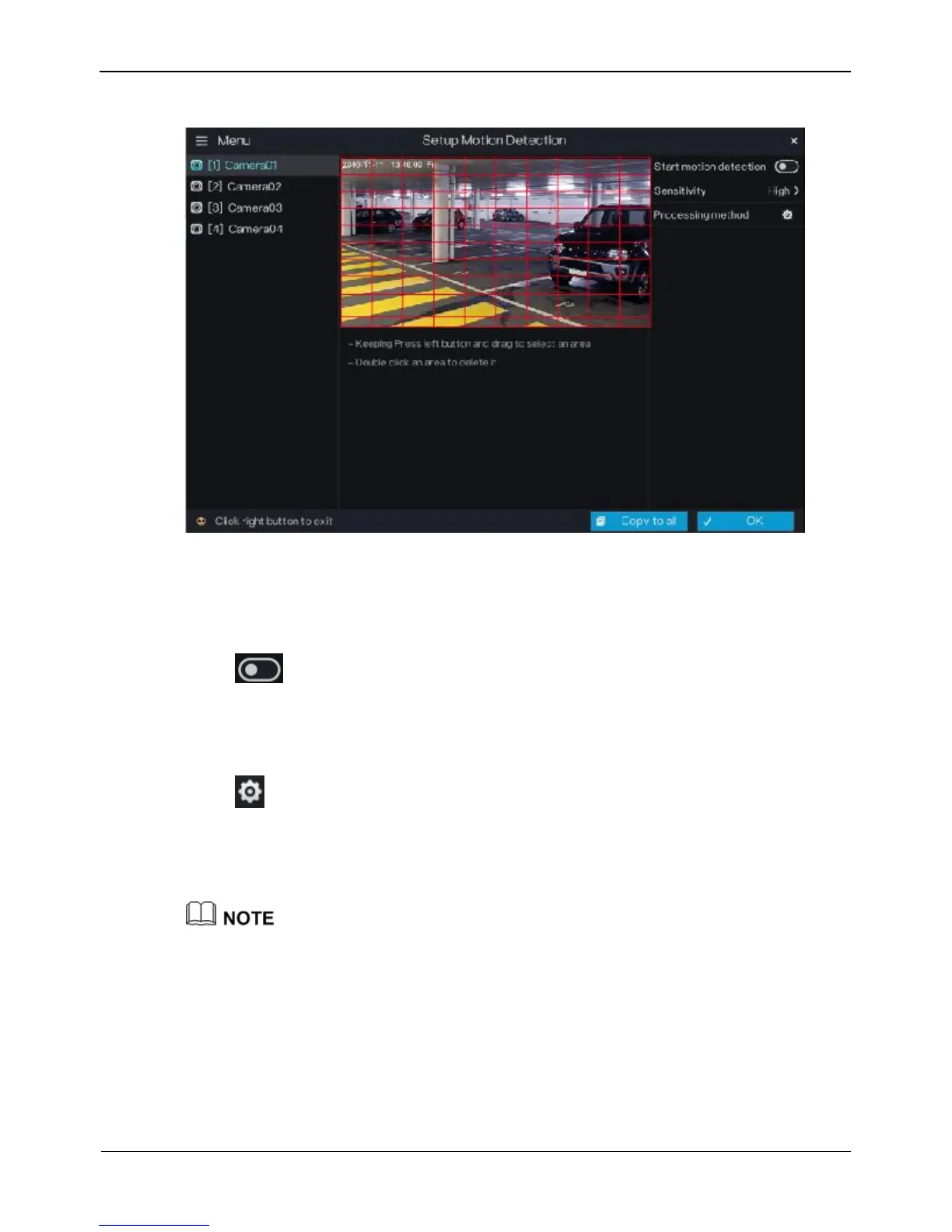
Figure 5-9 Motion Detection screen
Operation Steps
Step 1 Select a camera in the camera list on the left side of the Motion Detection screen.
Step 2 Click next to Start Motion Detection to enable motion detection.
Step 3 In the video window, hold down and drag the left mouse button to draw a motion
detection area.
Step 4 Select a value from the drop-down list next to Sensitivity.
Step 5 Click next to Processing method to access processing method screen.
For details, please see Step 2~Step 5.
Step 6 Click OK to save motion detection settings or click Copy to all, then click OK to
apply the motion detection settings to cameras of all channels.
After a motion detection area is selected, you can double-click it to delete the selected
area.
A maximum of four areas can be configured.
----End



 To Next Page