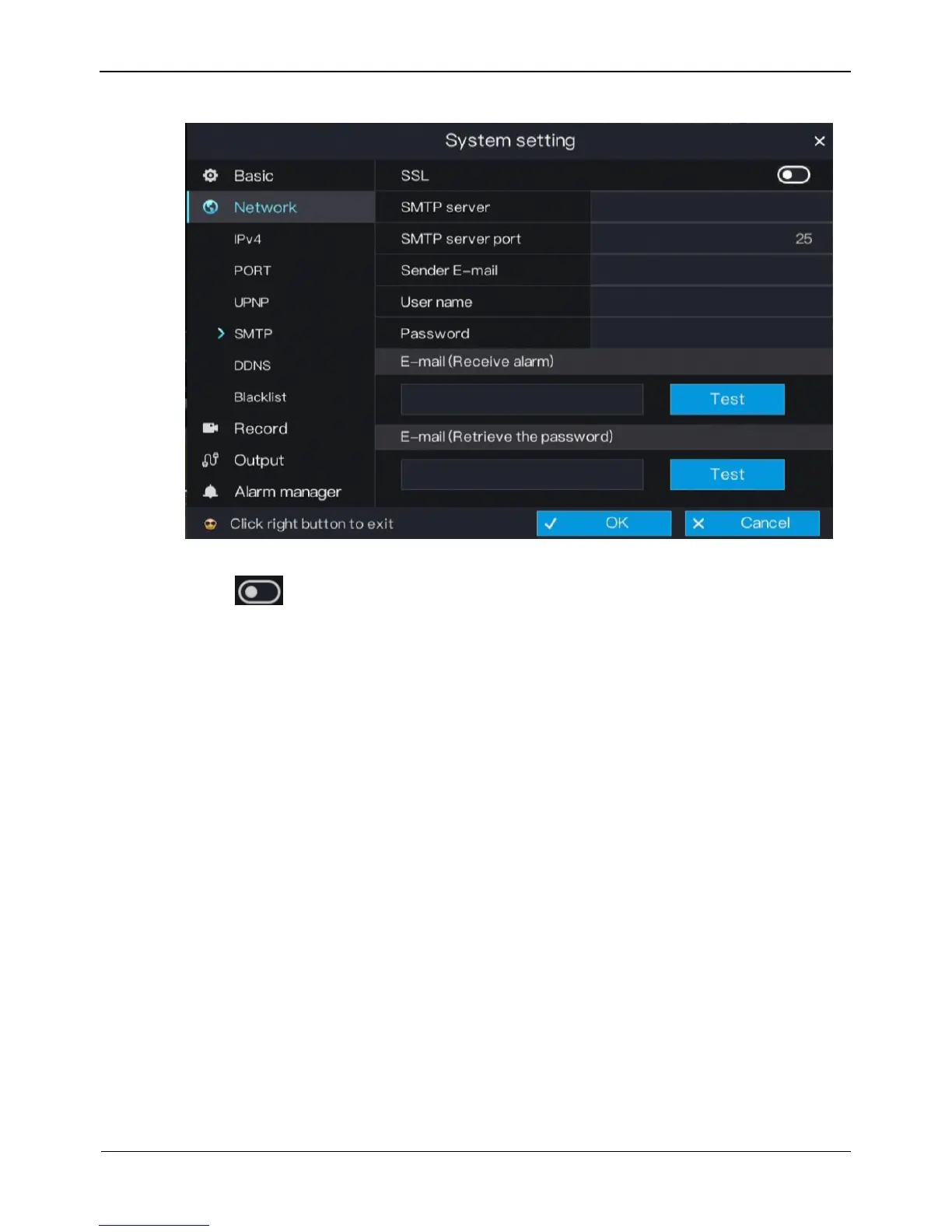
Figure 6-10 SMTP setting screen
Step 2 Click next to SSL to enable or disable the function of SSL. The function is
disabled by default.
Step 3 Set SMTP server and SMTP server port manually.
Step 4 Set sender E-mail, user name and password manually.
Step 5 Set E-mail for receive alarm. the message “Mail has been sent, please check” is
displayed. Open the mail, if the verification code is received, that shows the E-mail is
set successfully.
Step 6 Set E-mail for retrieve the password. the message “Mail has been sent, please check” is
displayed. Open the mail,
Step 7 if the verification code is received, that shows the E-mail is set successfully.
Step 8 Click OK to save settings or click Cancel to cancel settings.
----End
6.2.5 DDNS
Connect the specified camera to the Internet, and obtain the user name and password
for logging into the Dynamic Domain Name System (DDNS) server.
Operation Steps
Step 1 On the System setting screen, choose Network > DDNS to access the DDNS network
setting screen, as shown in Figure 6-11.



 To Next Page