Blacklist: IP address in specified network segment to prohibit access.
Whitelist: IP address in specified network segment to allow access
Select a name in the list and click Delete to delete the name from the list.
Select a name in the list and click Edit to edit the name in the list.
Only one rule type is available, and the last rule type set is efficient.
----End
6.3 Record
Operation Steps
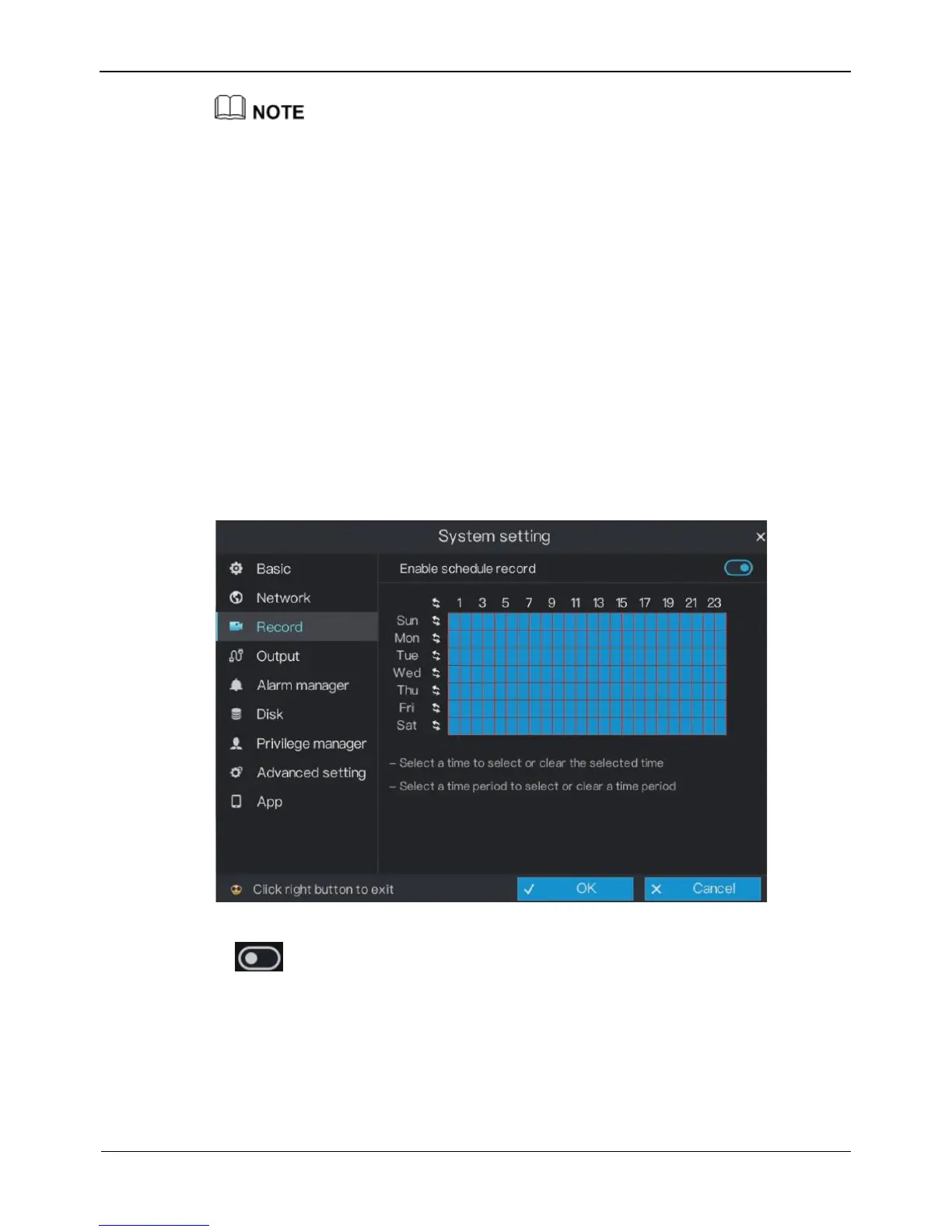
Step 1 On the System setting screen, choose Record to access the record screen, as shown in
Figure 6-14.
Figure 6-14 Record setting screen
Step 2 Click next to Enable schedule record to enable or disable the function of
schedule record. The function is enabled 7*24 recording by default.
Step 3 Set Schedule.
For details, please see Step 2~Step 5.
Step 4 Click OK to save record settings or click Cancel to cancel settings.
----End



 To Next Page