8 Alarm
The system allows you to view alarm events, set the timeline, and clear alarms in
Alarm.
8.1 Event
Operation Steps
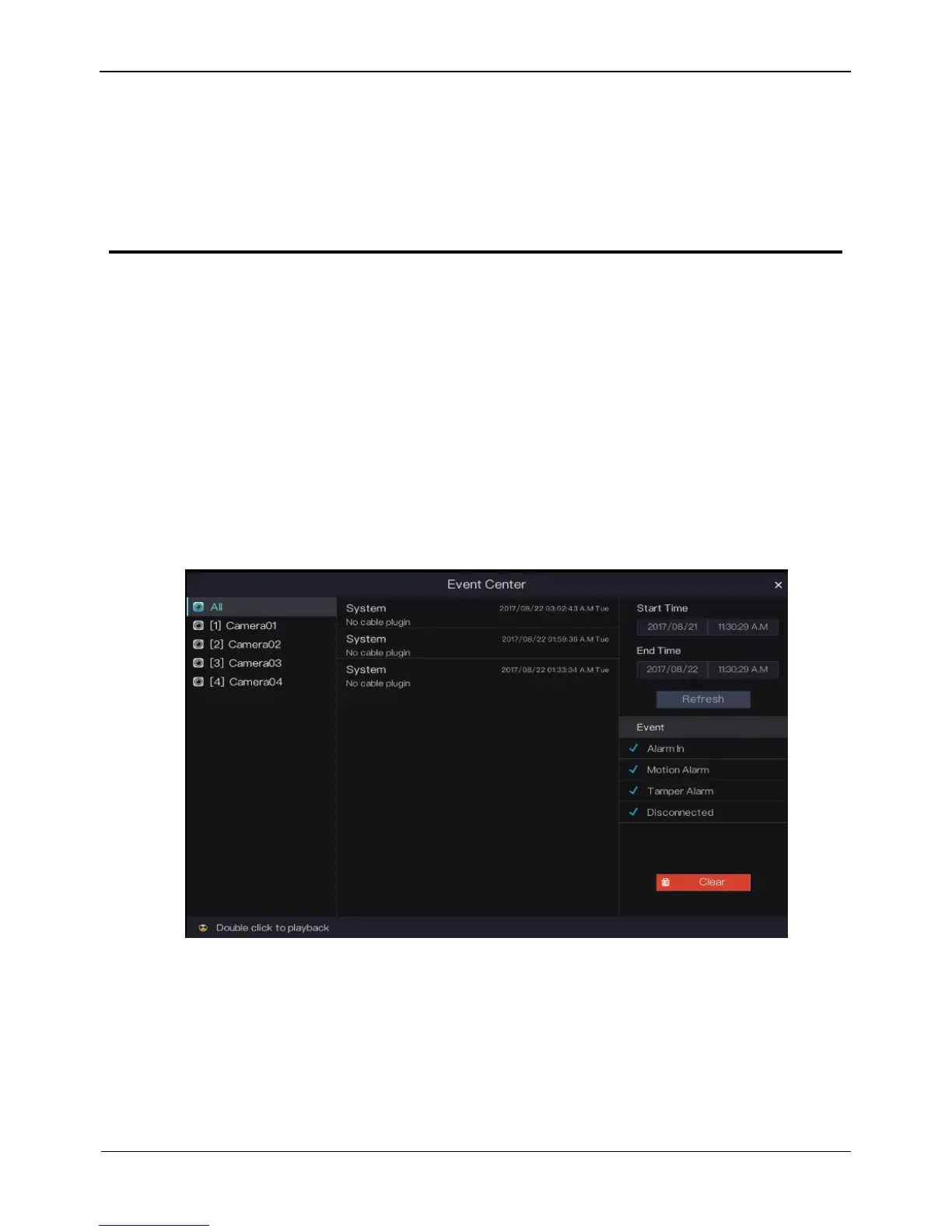
Step 1 Click Alarm in the main menu to access the Event Center screen, as shown in Figure
8-1.
Figure 8-1 Event Center screen
Step 2 Select a camera or all cameras on the left side of the Event Center screen.
Step 3 Select the event type below Event in the lower right part of the Event Center screen.
All event types are selected by default. You can click one event type to deselect it.
Step 4 Set the alarm start time and end time in the upper right part of the Event Center screen.
Step 5 Click Refresh to query alarm events.
Step 6 Double-click an alarm event to play the alarm video, as shown in Figure 8-2.



 To Next Page