Step 7 Set time plan.
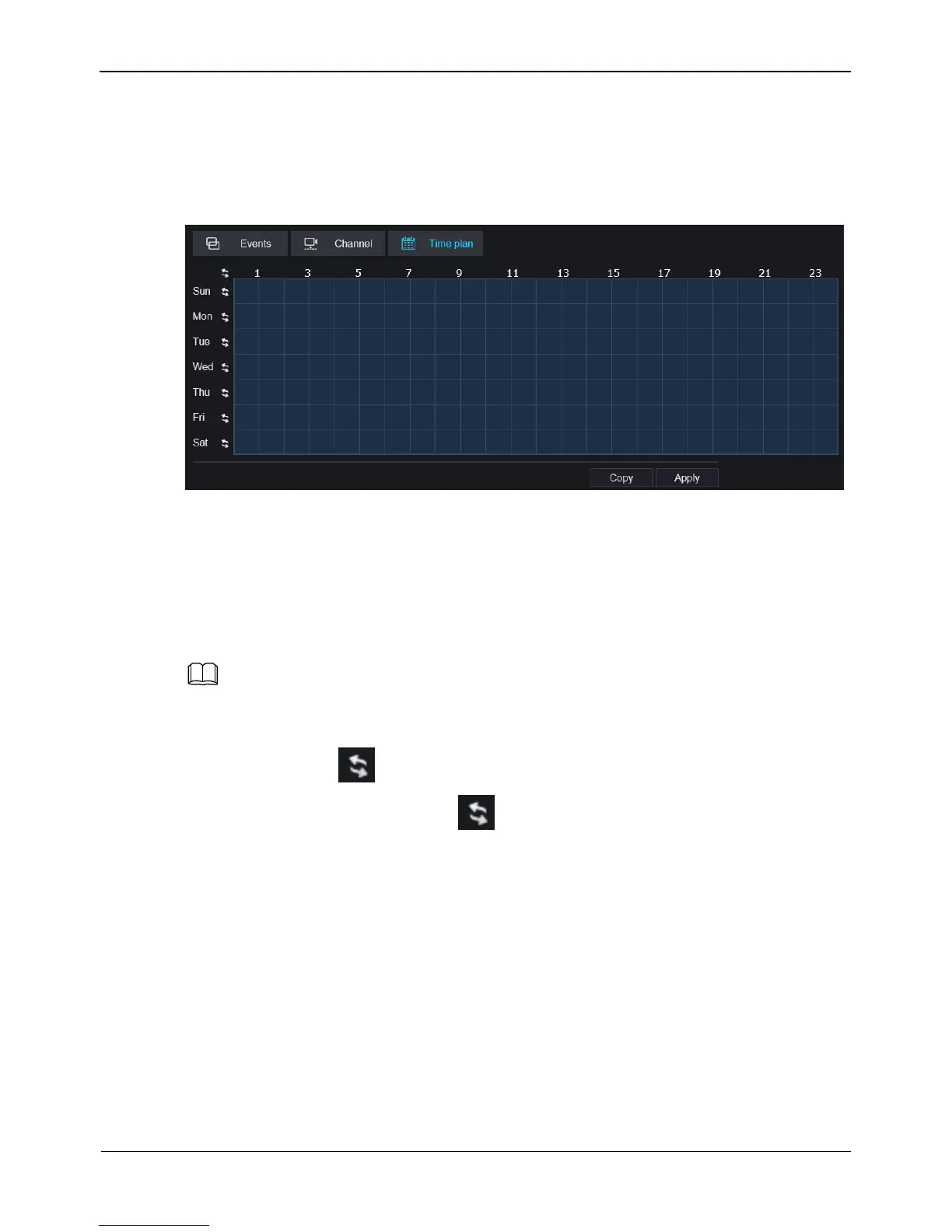
1. Click Time plan in channel alarm interface, the time plan interface is display, as
shown in Figure 9-16
Figure 9-16 Time plan interface
2. Set the time plan.
Method 1:Click left mouse button to select any time point within 0:00-24:00 from
Monday to Sunday.
Method 2:Hold down the left mouse button, drag and release mouse to select the
schedule within 0:00-24:00 from Monday to Sunday.
When you select time by dragging the cursor, the cursor cannot be moved out of the time
area. Otherwise, no time can be selected.
Method 3:Click in the schedule page to select the whole day or whole week.
Deleting deployment time: Click again or inverse selection to delete the
selected schedule.
Step 8 Click Apply to save the setting or Click Copy to and select one or more channels to
copy the settings to the selected channels.
9.7 Storage
You can configure record policy in storage interface.
Operation Steps
Step 1 On the System Setting screen, choose Storage > Record policy to access the Record
policy interface, as shown in Figure 9-17.



 To Next Page