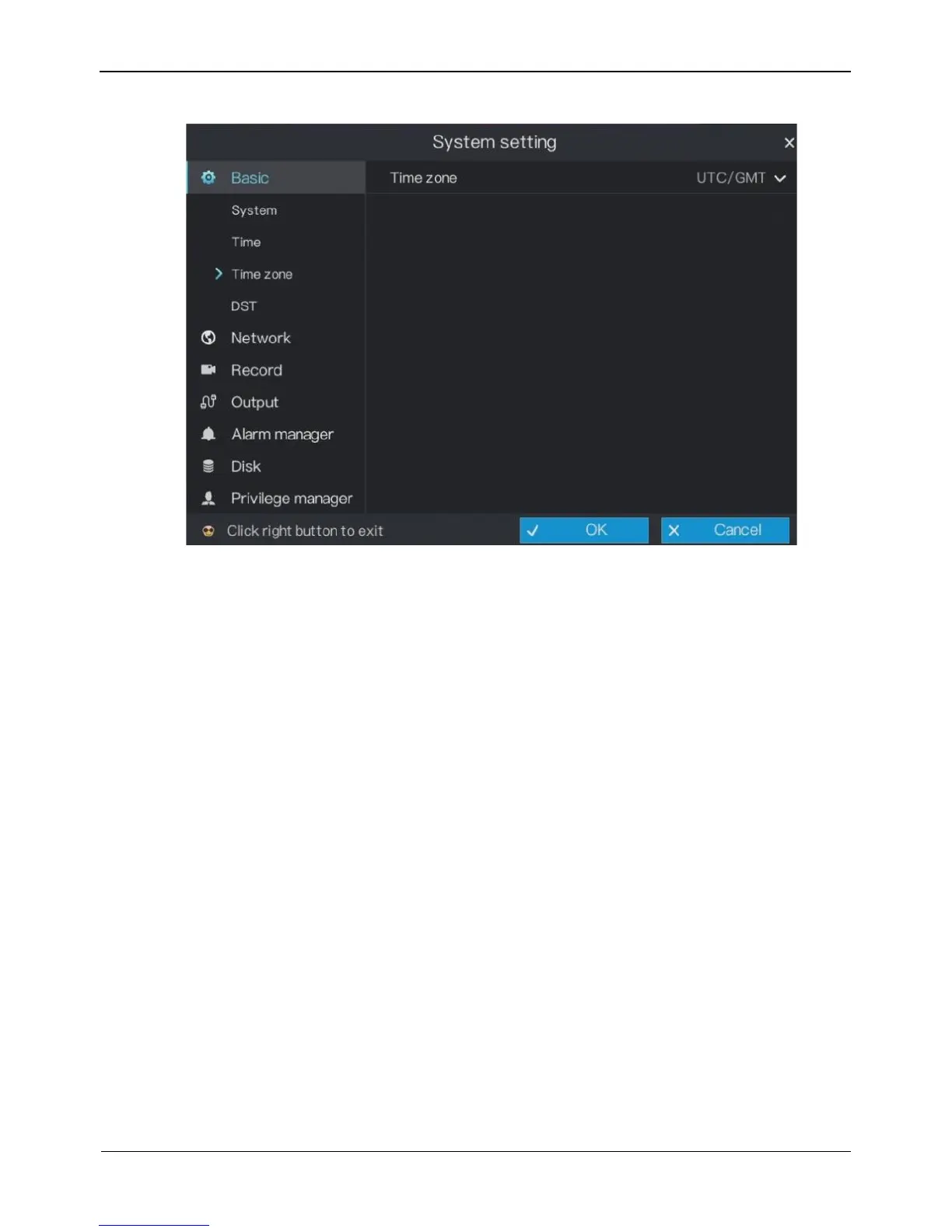
Figure 6-4 Time zone setting screen
Step 2 Select a required time zone from the Time Zone drop-down list.
Step 3 Click OK to save settings or click Cancel to cancel settings.
----End
6.1.4 DST
When the DST start time arrives, the device time automatically goes forward one hour. When the
DST end time arrives, the device time automatically goes backward one hour.
Operation Steps
Step 1 On the System setting screen, choose Basic > DST to access the DST setting screen,
as shown in Figure 6-5.



 To Next Page