6.1.1 System
Operation Steps
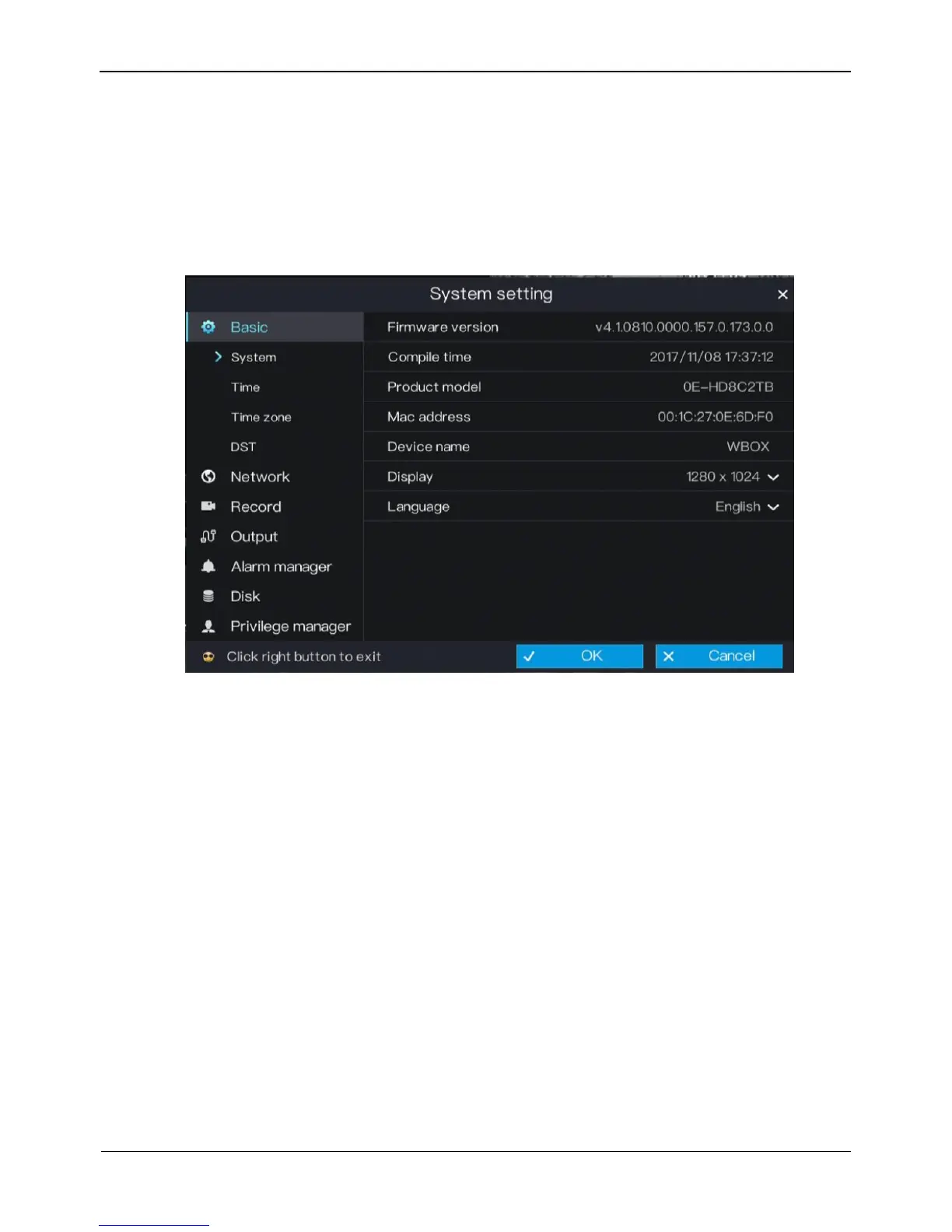
Step 1 On the System setting screen, choose Basic > System to access the System setting
screen, as shown in Figure 6-2.
Figure 6-2 System setting screen
Step 2 Enter Device name for selected device.
Step 3 Select a proper resolution from the Display drop-down list based on the adopted
monitor.
Step 4 Select a required language from the Language drop-down list.
Step 5 Click OK to save system settings or click Cancel to cancel settings.
----End
6.1.2 Time
Operation Steps
Step 1 On the System setting screen, choose Basic > Time to access the time setting screen,
as shown in Figure 6-3.



 To Next Page