6.6.1 Viewing Disk Information
Operation Steps
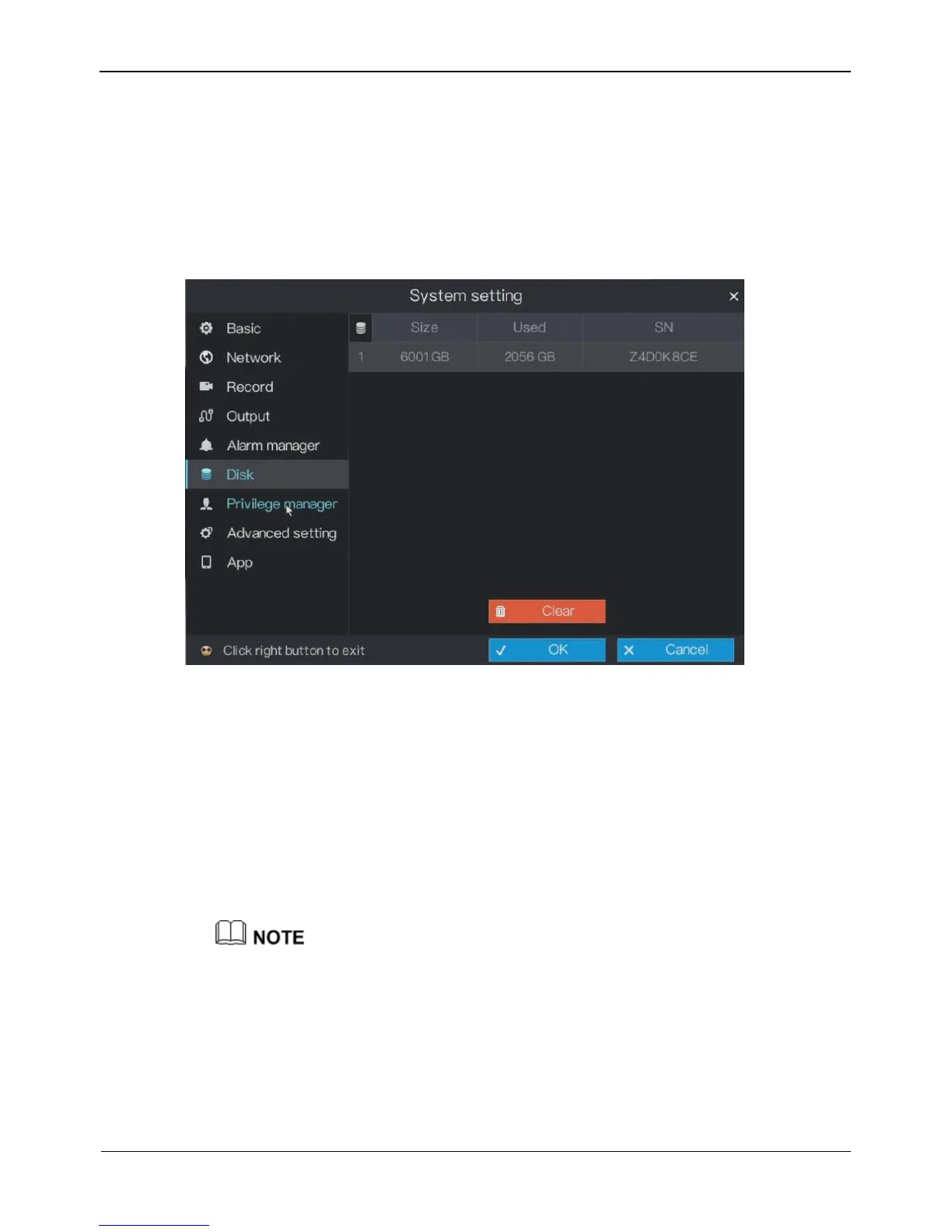
Step 1 On the System setting screen, choose Disk to access the disk management screen, as
shown in Figure 6-21.
Figure 6-21 Disk management screen
Step 2 You can view the total capacity, used capacity, and SN of a disk on the disk
management screen.
----End
6.6.2 Clearing Disk Data
Click Clear in the lower part of the disk management screen. A message, indicating
that all video data will be cleared and asking you whether to continue the operation, is
displayed. Click OK to delete all video data on the disks.
You should clear the disk data when the disk is installed to the DVR for the first time.



 To Next Page