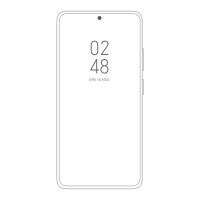
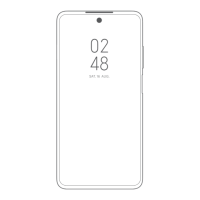
NOTE: You cannot change the lock screen layout for the third party themes.
Display charging animation after device is unlocked
1. Go to Settings > Always-on display & Lock screen.
2. Tap to enable Display charging animation after device is unlocked.
NOTE: Charging animation keeps displaying after your phone is unlocked except for
video playback and other similar full screen scenes.
Launch Camera
1. Go to > Settings > Always-on display & Lock screen.
2. Tap to enable Launch Camera.
Tip:
You can double press Volume down button to open Camera when the screen is
locked.
Display
Select a color scheme
1. Go to Settings > Display.
2. Select Light mode or Dark mode to apply.
Schedule Dark mode
1. Go to
Settings > Display > Schedule Dark mode.
2. Tap to enable Schedule Dark mode.
3. Choose to tap Sunset to sunrise or Custom.
• Tap Sunset to sunrise.
NOTE: Dark mode applies to your phone at sunset and is turned off at sunrise.
• Tap Custom.
NOTE: You can turn Dark mode on and off at scheduled time.
Adjust wallpaper to Dark mode
1. Go to
Settings > Display > More Dark mode options.
2. Tap to enable Adjust wallpaper to Dark mode.
120



 To Next Page