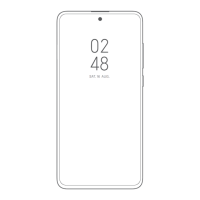
• Tap MIUI to apply MIUI notification style.
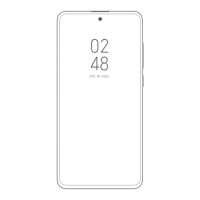
• Tap Android to apply Android notification style.
Choose Control center style
1. Go to Settings > Notifications & Control center > Control center style.
2. Choose Control center style.
• Choose to tap Old version.
NOTE: You can pull down status bar to view toggles and notifications
• Choose to tap New version.
NOTE: You can pull down status bar on the left to view notifications and you
can pull down status bar on the right to open Control center.
Items shown on the Lock screen after swiping down
1. Go to
Settings > Notifications & Control center > Items shown on the Lock
screen after swiping down.
2. Tap to enable Notification shade.
NOTE:
If you use the new version of Control center, you can tap to enable Control
center and tap to enable Smart home.
Show notification icons
1. Go to
Settings > Notifications & Control center > Status bar.
2. Tap to enable Show notification icons.
Show connection speed
1. Go to
Settings > Notifications & Control center > Status bar.
2. Tap to enable Show connection speed.
Show carrier when device is locked
1. Go to Settings > Notifications & Control center > Status bar.
2. Tap to enable Show carrier when device is locked.
Edit carrier name
1. Go to
Settings > Notifications & Control center > Status bar > Edit carrier
name.
2. Edit the names for SIM 1 and SIM 2.
125


 To Next Page