Chapter 6. 3ware Disk Manager (3DM 2)
90 3ware Serial ATA RAID Controller User Guide
Volumes.
Displays the number of volumes in a unit. This is usually 1. If you
created a boot volume on this unit, or if you have a unit on which you have
enabled the auto-carving policy, you will see the number of volumes into
which the unit has been divided. For more information, see “Using Auto-
Carving for Multi LUN Support” on page 121.
Stripe. The stripe size of the unit, if applicable.
Subunits. If the unit has subunits, details of the subunits are shown.
Note: If an asterisk (*) appears next to the status of a subunit, there is an error
on one of the drives in the subunit. This feature provides a diagnostic
capability for potential problem drives. The error may not be a repeated error,
and may be caused by an ECC error, SMART failure, or a device error.
Rescanning the controller will clear the drive error status if the condition no
longer exists.
Port #. If the Type is Disk, Single Disk, JBOD, or Spare, the port to which the
drive is connected is shown. For multiple drive units, the port numbers are
shown in the subunits section. The port number is a link to the Drive
Information page.
Drive Information Page
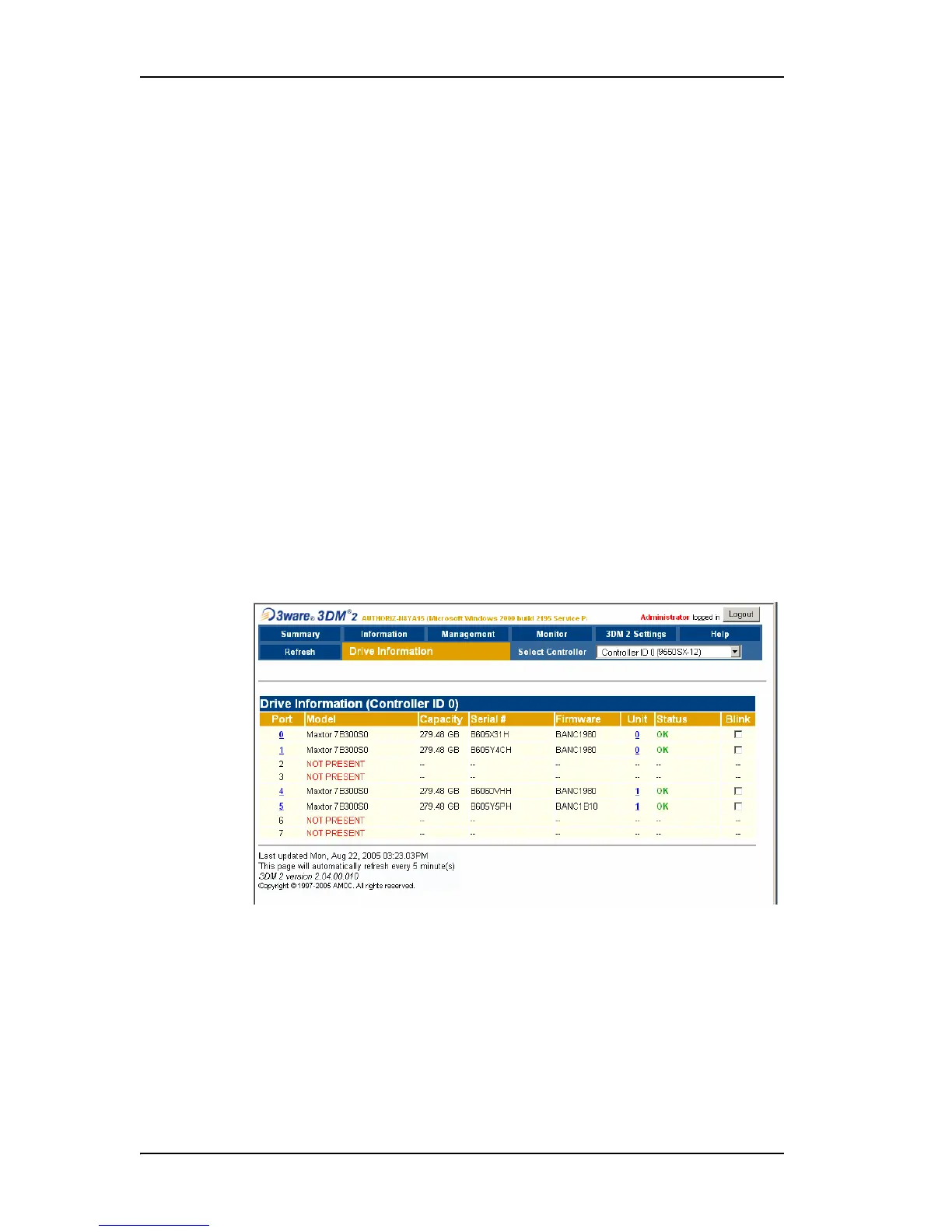
Figure 39. Drive Information Page
The Drive Information page appears when you choose Information > Drive
Information
from the menu bar, or when you click a port # on the Unit Details
page. If you arrive at this page from the port # hyperlink on the Unit
Information page, the line showing the port # you clicked on is highlighted.
The Drive Information page shows a list of drives on the controller specified
in the drop-down list on the menu bar, and a summary of each one.



 To Next Page