Scheduling Background Tasks
www.3ware.com 187
To turn on or off use of the current Verify or Rebuild task
schedule
1 Choose
Management > Schedule from the menu bar.
The Scheduling Page appears, showing the schedule for Rebuild/Migrate
Tasks.
2 To view Verify Tasks, select it from the drop-down list at the top of the
page.
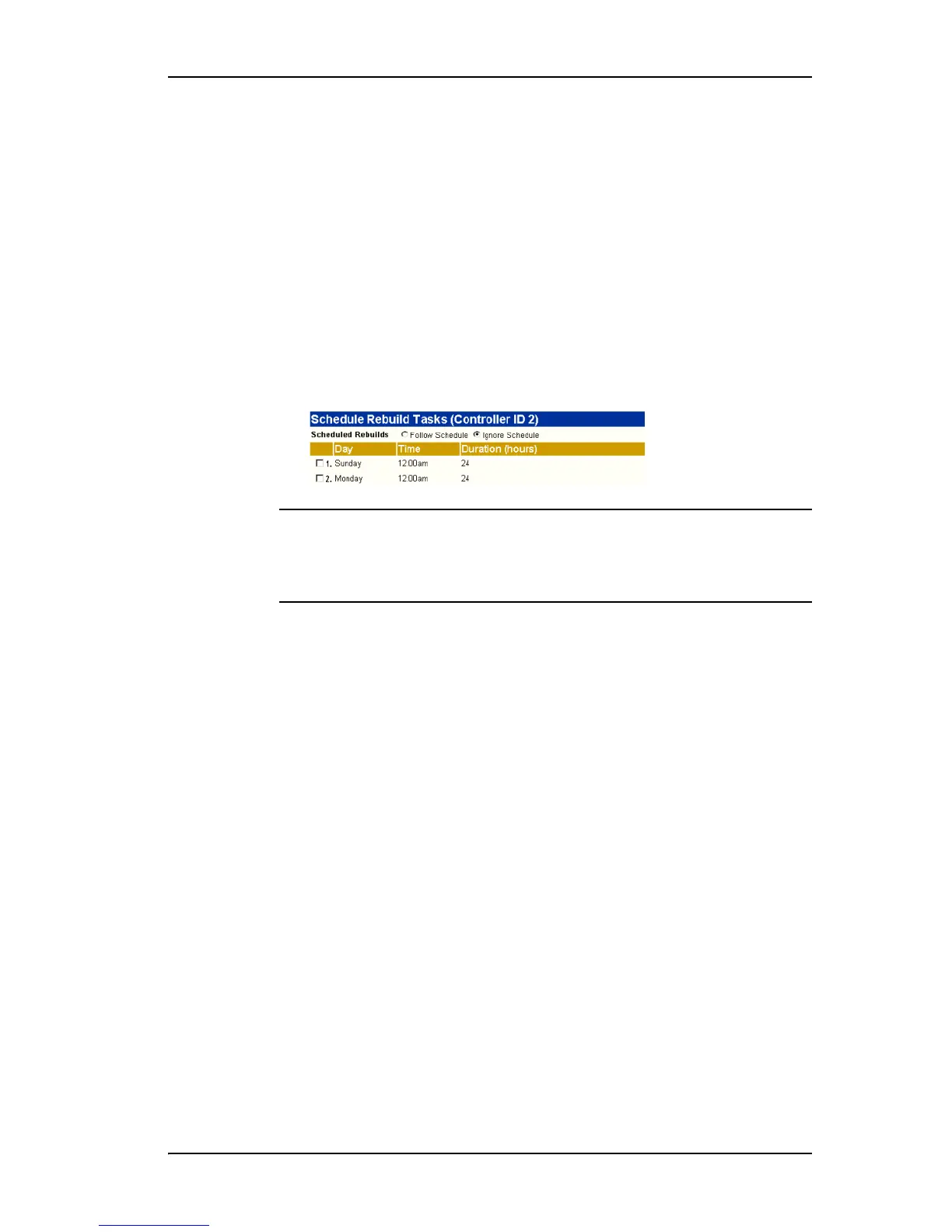
3 In the Schedule Rebuild Tasks section, select the appropriate setting:
Follow Schedule or Ignore Schedule.
The illustration below shows this setting for the rebuild task schedule.
Note: Self-test schedules cannot be turned off in this way. To disable self-tests
you must either remove all schedule times, or uncheck the tests listed in the
Tasks column. For more information, see “Selecting Self-tests to be
Performed” on page 188.
Removing a Task Schedule
By default, daily task schedules are defined, each starting at 12:00 am and
running for 24 hours.
A maximum of seven schedules can be defined. When seven schedules are
shown for any of the tasks, you must remove a schedule before you can add
another.
To remove a task schedule
1 Choose
Management > Schedule from the menu bar.
The Scheduling Page appears, showing the schedule for Rebuild/Migrate
Tasks.
2 To view Verify Tasks or Self-test Tasks, select it from the drop-down list
at the top of the page.
3 Select the checkbox next to the schedule(s) you want to remove.
4 Click the
Remove Checked button.
The page refreshes, and the selected schedule(s) are removed. You can
now add another schedule.



 To Next Page