MNR-310 System Administrator’s Manual
65
Devices, and Add Device Manually.
- Use Search Devices to auto search ACTi cameras located in the same subnet as your
NVR server.
- Use Search ONVIF Devices to find devices that support ONVIF in the same subnet as
your NVR server.
- If your cameras / video encoders are located outside of a local subnet or over WAN, add
them to your NVR server by using the Add Device Manually button. You will need to know
the IP address of the device to add it manually.
Search Devices Within Local Area Network
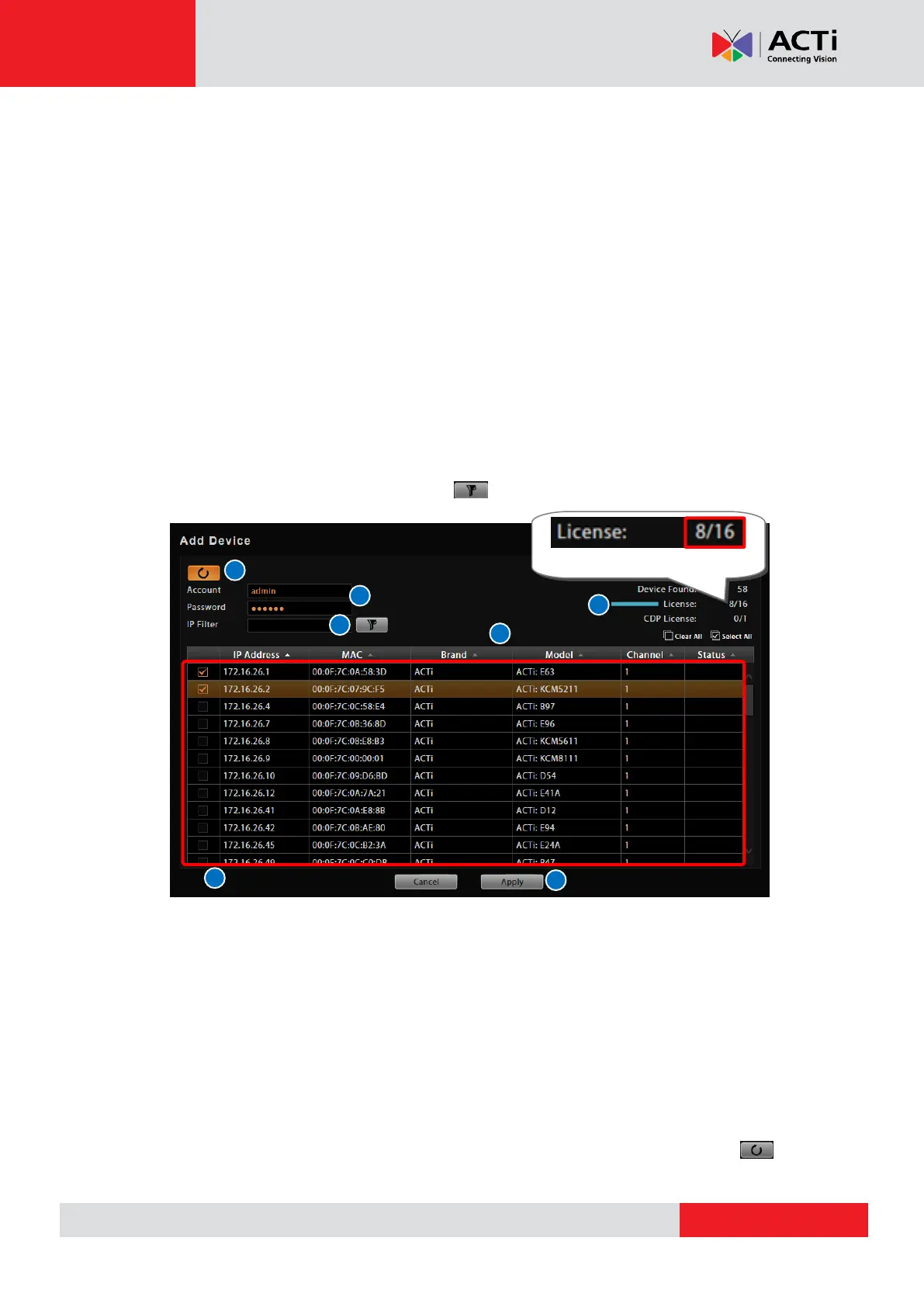
1. Select “Search Devices”. Once the search is completed, a list of the devices in your LAN
will be shown. Click on the title header to sort by that column. Click on the header again to
sort in reverse order. For faster search, you may type a specific IP address or a part of the
IP address in IP Filter as a filter and click to narrow down the search result.
2. Select the row of the camera you wish to add to the system and repeat this step until you
have checked all the devices you need. Please note that the list of devices is shown
regardless of the account name and password. You can choose to add all shown devices.
For those with different account and password, you will be prompted to fill in the correct
credentials to in order access the video feed. To perform the search using different
credentials, fill in the new Account and Password and click the “Refresh” button .
Account/Password text box
IP filter (for multiple networks)
Available / Total Licensed Channels
Available / Total Licensed Channels


 To Next Page