MNR-310 System Administrator’s Manual
66
3. Click “Apply” to add selected devices into NVR system.
Search Devices Within Local Area Network with ONVIF
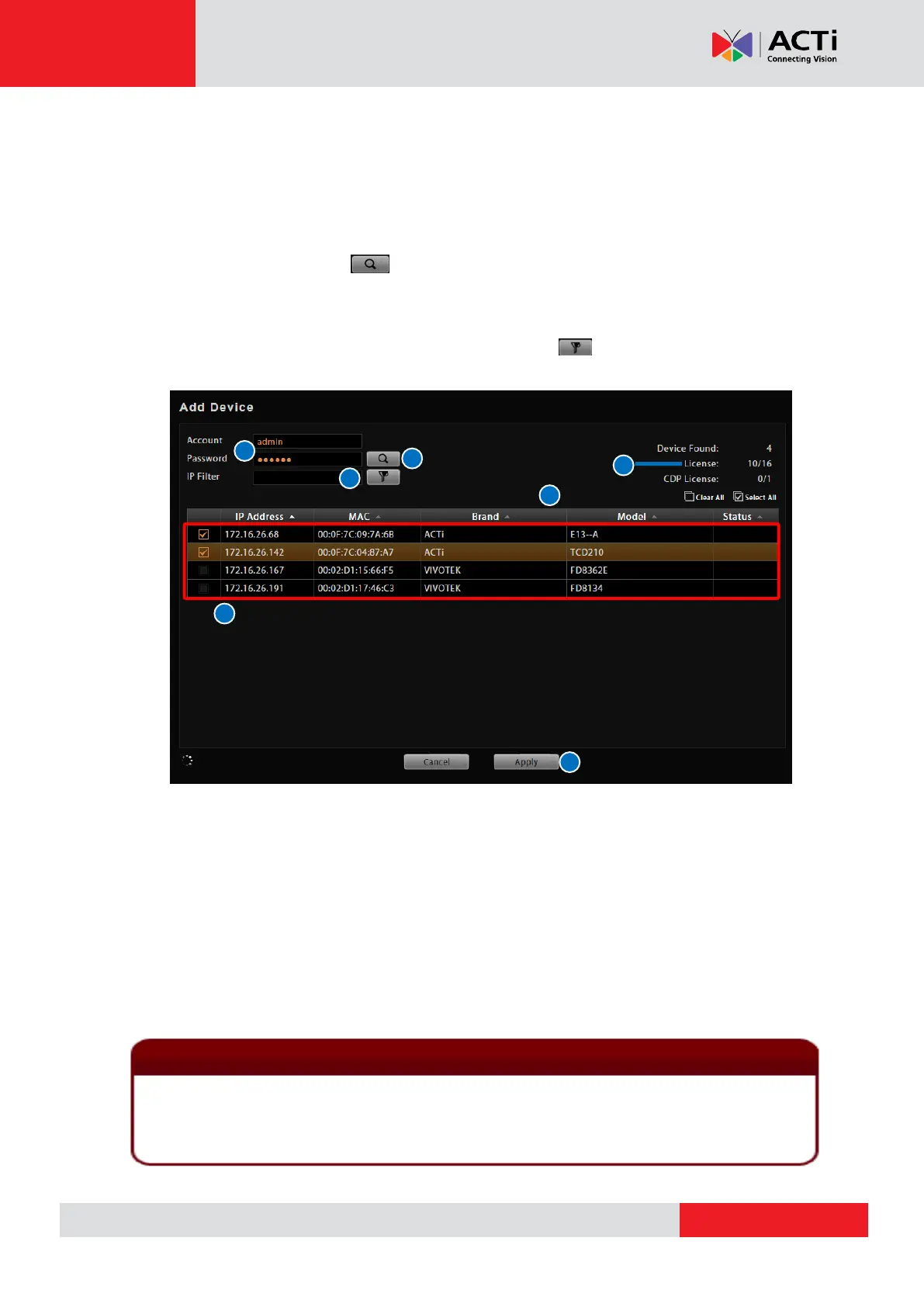
1. After selecting “Search ONVIF Devices”, fill in the account name and password for the
device you want to add.
2. Click the “Search” button . Once the search is completed, a list of available devices
will be shown. You may click on the title header to sort by that column. Click the header
again to sort in the reverse order. For faster search, you may type a specific IP address or
a part of the IP address in IP Filter as a filter, and click to narrow down the search
result.
3. Select the row of the camera you wish to add to the system and repeat this step until you
have checked all the devices you need.
4. Click “Apply” to add selected devices into NVR system.
Account/Password text box
IP filter ( for multiple networks)
Available / Total Licensed Channels
1. For certain non-ACTi devices, you may need to configure the ONVIF user credentials of the
camera by accessing its Web Configuration page and managing the ONVIF Users List.
2. Functions supported for devices added through ONVIF are live streaming and adjustments to
video image settings.


 To Next Page