
 To Next Page
S
Steven WilliamsAug 21, 2025
What to do if Advanced Instruments OsmoPRO MAX shows 'Printer Out of Paper'?
- MmelissasilvaAug 22, 2025
Replace the printer paper and then clear the error.

What to do if Advanced Instruments OsmoPRO MAX shows 'Printer Out of Paper'?
Replace the printer paper and then clear the error.
What to do if Advanced Instruments OsmoPRO MAX displays 'Assurance tag reader not connected'?
Check the cable and reboot. If the cable connection is good and the problem persists after rebooting, contact AI Service.
What to do if Advanced Instruments OsmoPRO MAX Measuring Instruments displays 'F scanner not connected'?
Reboot. Check the cable. If the cable connection is good and the problem persists after rebooting, contact AI Service.
What to do if Advanced Instruments OsmoPRO MAX displays 'B scanner not connected'?
Reboot. Check the cable. If the cable connection is good and the problem persists after rebooting, contact AI Service.
What to do if Advanced Instruments OsmoPRO MAX Measuring Instruments displays 'Assurance tag reader error'?
Check the cable (RX or TX). Reboot. If the cable connection is good and the problem persists after rebooting, contact AI Service.
What to do if Advanced Instruments OsmoPRO MAX displays 'F scanner error'?
Check the cable (RX or TX). Reboot. If the cable connection is good and the problem persists after rebooting, contact AI Service.
What to do if Advanced Instruments Measuring Instruments displays 'B scanner error'?
Check the cable (RX or TX). Reboot. If the cable connection is good and the problem persists after rebooting, contact AI Service.
What to do if Advanced Instruments OsmoPRO MAX displays 'Comm error (Motor Board)'?
First, check the cable. If the cable connection is good and the problem persists after rebooting the instrument, contact AI Service.
What to do if Advanced Instruments OsmoPRO MAX Measuring Instruments displays 'Fan error'?
First, check the cable connection. If the cable connection is good and the problem persists after rebooting, contact AI Service.
What to do if Advanced Instruments Measuring Instruments displays 'Printer Door Open'?
Close the printer door and clear the error.
Instructions for daily verification of instrument calibration using reference solutions.
Procedure to verify instrument linearity and reportable range.
Defines and explains the concepts of precision and accuracy in measurement.
Guidance on maintaining and using Advanced Instruments osmometer standards.
Outlines minimum requirements and recommendations for quality control procedures.
Specifies the required training for operating the instrument and handling biological substances.
Recommendations for protective clothing and equipment when working with the device.
Lists essential safety instructions, environmental specs, and regulations to adhere to.
Identifies environments or conditions where the instrument should not be operated.
Procedures for safely taking the instrument out of operation for storage or transport.
Provides important general cautions regarding laser safety, power, and environmental conditions.
Regulatory compliance statements for radio frequency emissions.
Important warnings and procedures for handling biohazardous materials and spills.
Describes the OsmoPRO MAX and its intended use in clinical laboratories.
Details the osmolality measurement capabilities and applications of the OsmoPRO MAX.
Explains the scientific principles behind freezing-point osmometry used by the instrument.
Describes the components and methods used by osmometers for freezing point measurement.
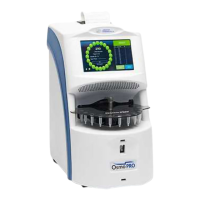
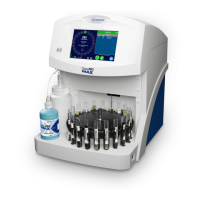
Identifies and explains the main components of the OsmoPRO MAX instrument.
Details the touchscreen interface for system navigation and operation.
Specifies the electrical power and outlet requirements for instrument installation.
Provides guidance on selecting an appropriate location based on space and electrical needs.
Instructions for carefully unpacking, inspecting, and registering the instrument shipment.
Provides detailed instructions for safely lifting and transporting the instrument.
Steps to remove the rear panel to access and remove the instrument's shipping stop.
Detailed instructions for removing the shipping stop from the instrument.
Steps to correctly reinstall the rear panel after initial setup.
Instructions for installing the turntable onto the instrument's drive spindle.
Guidance on connecting external devices like printers or barcode scanners to the instrument.
Steps for connecting the power cord and turning on the instrument for the first time.
Explains how to access the Main, Settings, and Diagnostics menus from the Home screen.
Details how to log in to the default Admin account for instrument setup and configuration.
Instructions for changing the instrument's display language.
Procedure for setting the instrument's internal clock and date.
Steps to set the installation date to enable preventative maintenance reminders.
Instructions for loading the OsmoPRO MAX Maintenance Kit, including scanning the assurance tag.
Steps for connecting the waste bottle to the instrument.
Detailed instructions for installing the peristaltic pump tubing lines.
Procedure for connecting the system fluid bottle and tubing to the instrument.
Steps to clean the instrument's fluidic system using the Enzymatic Cleaner.
Set requirements for user IDs, sample IDs, and test replicates.
Define user access levels for specific instrument functions and features.
Set system actions for results outside control limits and QC verification frequency.
Set automatic logout and screen dimming intervals for inactivity.
Enable or disable badge scanning for operator login.
Procedure for adding new user accounts with specific IDs and access levels.
Modify existing user account passwords and access levels.
Procedure for removing user accounts from the system.
Set up a network connection using DHCP or a static IP address.
Configure communication between the OsmoPRO MAX and a Laboratory Information System (LIS).
Configure server IP address, port, and send results mode for LIS communication.
Connect to the AdvancedQC peer group program for quality control data comparison.
Set up automatic or manual upload of QC records to the AdvancedQC Peer Group Program.
Adjust system audio, screen brightness, and barcode scanner settings.
Adjust the brightness level of the instrument's LCD screen.
Enable/disable the front barcode scanner and adjust its brightness.
Details how to use the touchscreen for setting parameters, entering commands, and viewing data.
Explains the functions and information displayed on the instrument's Home screen.
Describes the turntable display and the test information shown during operation.
Explains the different instrument status indicators like Initializing, Ready, Scanning, etc.
Information about viewing test results and system date/time.
How to capture the current screen and save it to a USB drive.
Accessing the main menu from the Home screen.
Details the function of various buttons used for starting tests and managing samples.
Accessing information about status icons, buttons, and system details.
Explains warning and alarm icons indicating instrument status and potential issues.
Indicates the status of the LAN and LIS connections.
Shows the status of the instrument's quality control feature.
Monitors the system fluid level and indicates when it needs to be reloaded.
Accessing explanations for status icons and testing buttons.
Information on icons and buttons related to testing turntable tubes.
Details icons indicating pending tasks requiring user action.
Provides information on system fluid status icons and fluid levels.
Details LAN and LIS connection status icons.
Shows icons indicating the access levels of different instrument users.
Access instrument details, contact information, and software revisions.
View historical data such as total tests, installation date, and calibration dates.
Overview of the main menu and its access to system functions.
Explains how to perform tests, use main menu functions, and troubleshoot the instrument.
Steps to add a new control and its associated lot information to the system.
Procedure for removing a control from the Controls Log database.
Add, delete, and select default lots for controls used in testing.
Instructions for adding a new lot for an existing control.
Procedure for deleting a specific control lot from the system.
Select which control lot the system uses for testing.
Generate and export Levey-Jennings charts for control data analysis.
Guidelines for properly handling and preparing samples for accurate testing.
Details minimum sample volumes and tube specifications for testing.
Set up requirements like sample ID entry and number of replicates per test.
Steps to initiate an automated sample testing sequence.
Describes the instrument's process during sample testing and cleaning cycles.
How to view results for individual samples during or after an automated test.
Instructions for adding more samples during or after a test sequence.
Procedure for performing a STAT test on a single sample during automated testing.
Describes how the instrument completes testing and saves results.
Access, sort, and filter stored test results records from the instrument database.
Methods to filter the results list to display specific subsets of data.
Export test results to a USB drive in CSV format for analysis.
Manually upload test results from the database to the LIS server.
Upload quality control records to the AdvancedQC program for data comparison.
Enable or disable exporting test results and system events.
Generate and export Levey-Jennings charts for control data analysis.
Steps to export results, events, users, and control logs to CSV files.
Conditions and reasons that necessitate instrument calibration.
Procedure for calibrating the OsmoPRO MAX using specified calibration standards.
Steps to prepare the instrument and calibration standards before starting calibration.
Detailed steps for running the instrument calibration process.
Procedures for daily verification of instrument calibration using reference solutions.
Using Clinitrol 290 to verify calibration as part of the quality control procedure.
Testing performance with biological solutions or simulated controls.
General warnings and precautions for performing service and maintenance tasks.
Guidelines for preventing electrostatic discharge damage to sensitive components.
Steps to safely shut down the instrument for shipping or storage.
Routine visual inspections of fluid lines and containers.
Procedures for replacing the maintenance kit and cleaning the fluid path.
Step-by-step guide for replacing the peristaltic pump tubing.
Procedure to prime the pipettor and clean instrument fluidics as needed.
Record routine cleaning tasks performed on the instrument.
Record preventative maintenance events and service engineer details.
Record instrument repair details, including service engineer and comments.
Instructions for updating the instrument's system software and firmware.
Access the Diagnostics menu to check instrument component performance.
Test the A/D converter, sample probe, block probe, and cooling assembly efficiency.
Test the assurance tag reader used for loading and tracking kits.
Test the sample probe's functionality at selected turntable positions.
Verify the functionality of the front and back barcode scanners.
Review and export a log of instrument actions and events.
Export displayed or selected event records to a USB drive.
Filter the events list to display a subset of results based on criteria.
Check the screen for dead pixels and adjust brightness.
Test instrument motors and sensors to ensure correct functionality.
Clarifies that only trained technicians should perform service procedures.
Lists problems requiring service from a qualified technician.
Detailed instructions for replacing instrument fuses, including necessary tools.
Explains warning and alarm messages and their potential causes and suggested actions.
Lists common hardware errors related to the Osmometer Board and their solutions.
Lists common hardware errors related to the Motor Board and their solutions.
Troubleshooting for fan errors, barcode scanner issues, and liquid detection errors.
Details sample-specific warnings like 'Out of Range' and 'No Tube Detected'.
Defines accuracy and repeatability in the context of instrument performance.
Details reportable range, resolution, and within-run repeatability specifications.
Specifies linearity performance and the effect of sample carryover.
Explains the meaning of various symbols used on the instrument and in documentation.
Describes the bidirectional TCP/IP communication link for LIS integration.
Explains LIS communication protocols and capabilities of the OsmoPRO MAX.
Configures operator verification of results before sending to LIS.
Details physical and data link layer protocols for LIS communication.
Describes content limitations and specifications for LIS messages.
Defines fields for sample information transmitted between the instrument and LIS.
Specifies fields for test orders, including specimen IDs and test details.
Defines fields for instrument result records sent to the LIS.
Specifies fields used by the instrument to request sample orders from the LIS.
Defines the record used to signify the end of a message transmission.
Describes functions available based on user access level (Supervisor/Operator).
Table summarizing functions accessible to Supervisors and Operators.
Outlines the terms and conditions of the limited warranty for the instrument.
Details what Advanced Instruments warrants regarding product quality and safety.
Specifies user responsibilities for instrument operation, maintenance, and safety.
Defines the useful life of the instrument, referencing IRS guidelines.
Defines conditions for reasonable instrument use as per instructions.
Emphasizes the importance of immediate notification for accidents or injuries.
 General
| Operating Temperature | 15°C to 35°C |
|---|---|
| Power Requirements | 100-240 V AC, 50/60 Hz |
| Resolution | 1 mOsm/kg |
| Measurement Time | 2 minutes |
| Connectivity | Ethernet, USB |
| Measurement Range | 0 to 2000 mOsm/kg H₂O |