Page 32
SELECTION
DEFAULT OPTION
WING (Type)
AILERON (Servos)
FLAP (Servos)
TAIL (Type)
THROTTLE (Servos)
NORMAL
1
1
NORMAL
1
DELTA* (Elevons)
2
2
V-TAIL or 2 x EL**
2
SYSTEM MENU
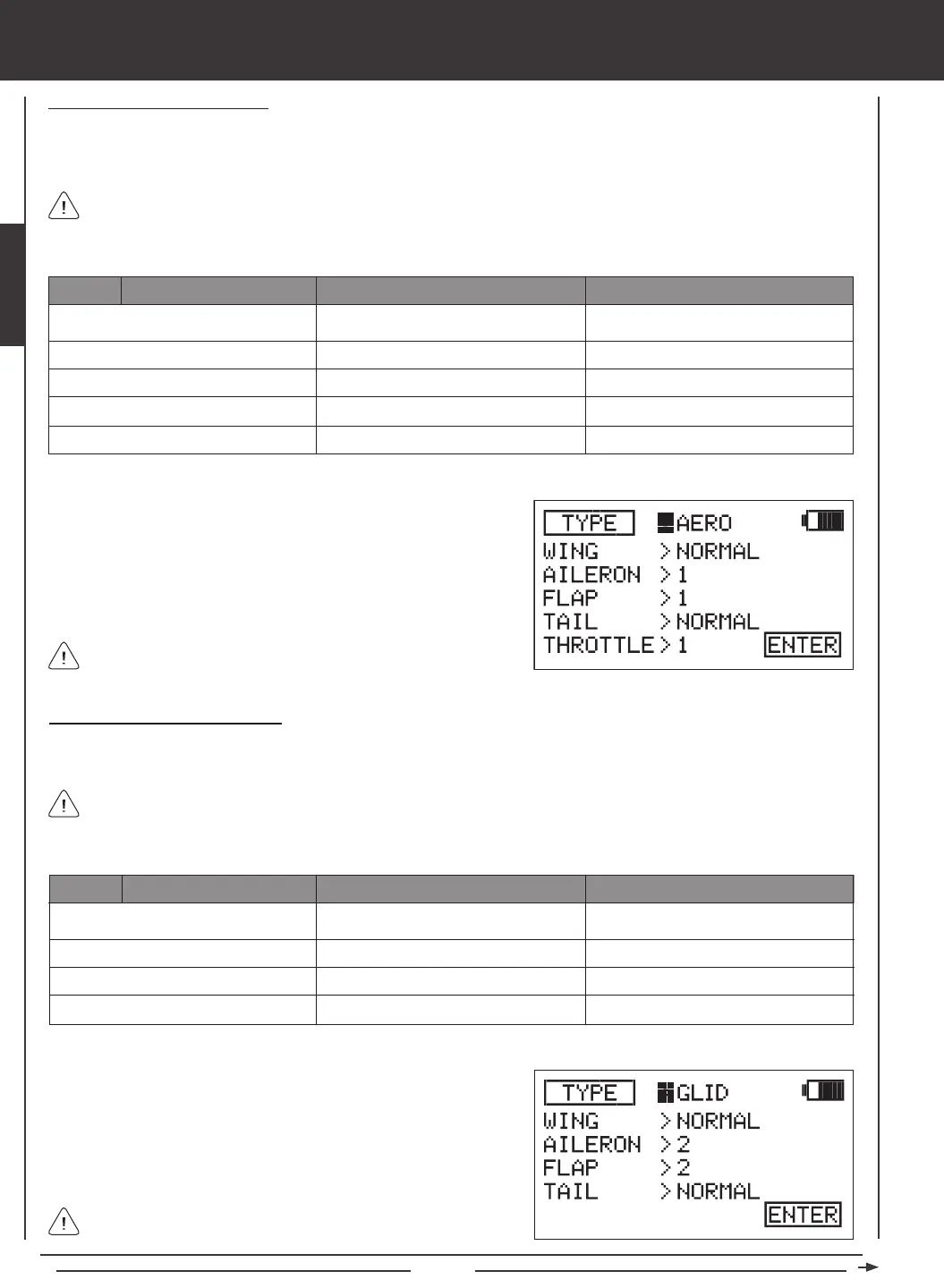
AERO
2) Press the Navigation Pad
56
to highlight the AERO selection you
wish to change, for example, AILERON.
3) Press the YES/+ or NO/- keys to change the selection option.
4) Repeat steps 2 and 3 to change the options for any of the other
selections you wish to change to suit your model setup.
Some selection options are dependent on other selection options
and may not be able to be changed.
Making GLIDER Selection Options
Choose GLID selection options that suit the aircraft that you're setting up. For example, if your aircraft features a six-servo wing,
choose AILERON>4 and FLAP>2. If your aircraft features a V-Tail, choose TAIL>V-TAIL, and so on.
SELECTION
DEFAULT OPTION
WING (Type)
AILERON (Servos)
FLAP (Servos)
TAIL (Type)
NORMAL
2
1
NORMAL
DELTA* (Elevons)
4
4
V-TAIL**
GLID
2) Press the Navigation Pad
56
to highlight the GLID selection you wish
to change, for example, WING.
3) Press the YES/+ or NO/- keys to change the selection option.
4) Repeat steps 2 and 3 to change the options for any of the other
selections you wish to change to suit your model setup.
Making AERO Selection Options
Choose AERO selection options that suit the aircraft that you're setting up. For example, if your aircraft is a ying wing and is
controlled by elevons, choose WING>DELTA. If your aircraft features separate aileron servos and split elevator halves that use
one elevator servo on each elevator half, choose AILERON>2 and TAIL>2xEL, and so on.
*Delta mixing is sometimes referred to as Elevon mixing.
*Delta mixing is sometimes referred to as Elevon mixing.
Channel Assignments will change based on the selection options chosen. To verify which channel slots to plug your servos
into, navigate to the CH ASSIGN menu after saving your Model Type selection options. For more information, see page 44.
1) Press the YES/+ or NO/- keys to change the selection option to TYPE>AERO.
Channel Assignments will change based on the selection options chosen. To verify which channel slots to plug your servos
into, navigate to the CH ASSIGN menu after saving your Model Type selection options. For more information, see page 44.
Some selection options are dependent on other selection options
and may not be able to be changed.
1) Press the YES/+ or NO/- keys to change the selection option to TYPE>GLID.
**So that both servos will move the same direction, you will need to Reverse one of the channels.
**So that both servos will move the same direction, you will need to Reverse one of the channels.


 To Next Page