Page 7–2
UPLC-II™ System Manual
7.1.1.2 Secondary DNP Web Page Settings
(Setting Up Data Points)
The UPLC-II™ sends only Binary Inputs and
Analog Inputs to an RTU or SCADA master station.
There are no DNP Outputs accepted by the UPLC-
II™ from an RTU or SCADA master station. All
points are programmable as to whether they will be
included in a particular class poll and also to what
variation (type of value) will be returned in the poll.
All points can be set to a Class of “off” if the point
is not valid for the selected UPLC-II™ function. All
binary points in the UPLC-II™ report a value of 0
when “off” and a value of 1 when “on”.
A separate pop-up window/page appears when you
click on each of the 4 buttons at the bottom of the
main DNP page. Only one pop-up page can be dis-
played at a time. Pop-up pages should be closed
after viewing or changing. To close the page, you
must either click “Submit”, to send the changes to
the UPLC-II™, or click the “X” in the upper right
corner of the page if there are no changes.
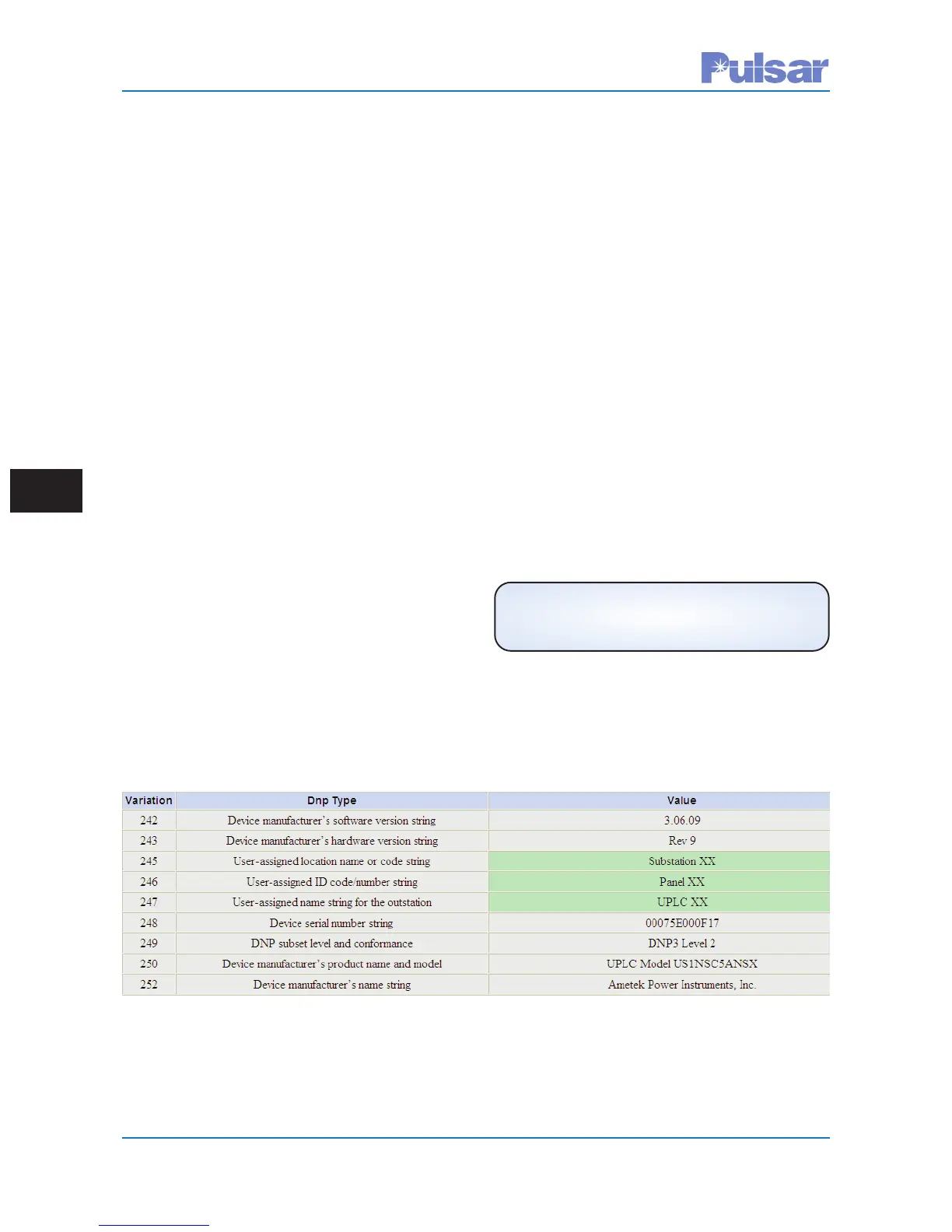
Basic information regarding the UPLC-II™ is
located on the Attributes page. The following attrib-
utes, in green cells, can be edited.
• User-Assigned Location Name
• User-Assigned ID Code Number
• User-Assigned Name for Outstation
For the 3 DNP Input Web pages,
1) “UPLC-II™ Inputs” (Binary)
2) “UPLC-II™ Outputs” (Binary)
3) “UPLC-II™ Analog” (Analog)
the following settings must be made in the pop-up
Web pages.
• Event/Static Data Class = Off, 0–3
• Description = Long Character String that
User Can Enter Describing the DNP Input
• Default Variation for Static Data = 1–3 (1-5
for Analog Inputs only)
• Default Variation for Event Data = 1–3 (1-5
for Analog Inputs only)
Please refer to the following figures.
Figure 7–2.
UPLC-II™ DNP Attributes Page
(Admin > Protocol > DNP > Attributes)
NOTE
You Can Double Click in Green Cells to Edit.


 To Next Page
 Loading...