Fax
- 104 -
Attaching a photo to your fax
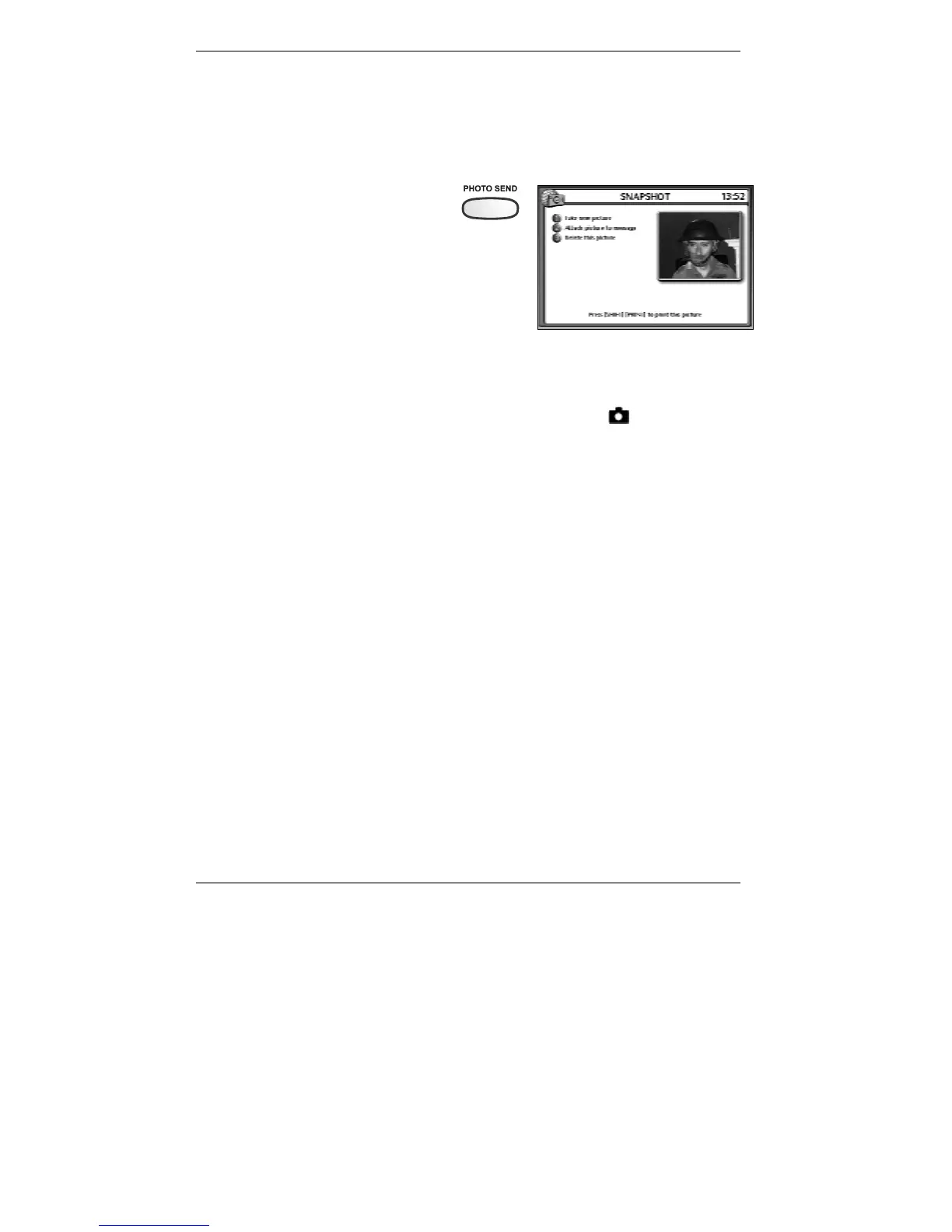
You can take a photo on the e-m@iler and attach it to your fax message. To do this,
compose your message in the normal way, but carry out steps 1 to 3 (below) just
before you press FAX to send it.
1. Press PHOTO SEND – you will
see yourself on-screen.
2. Press 1 to take a picture.
(If you don’t like the picture, you can press 1 to
take it again.)
& If you’ve connected a printer to the
e-m@iler (information on page 119), you
can press "SHIFT and PRINT to print the picture.
3. Press 2 to attach the picture to your message. (Note, symbol
will appear at top
left of display when a photo attachment is added.)
There is no additional cost for sending a fax message with a photo attachment.
♦ If you wish to delete the photo attachment, press PHOTO SEND then press 3.
& Avoid saving and storing messages containing photo attachments as they
use up a lot of memory.
At the recipient's fax machine, the photo you send will be printed out on a separate
page following the fax message.
Reading and deleting faxes
Faxes are stored in the same manner as email messages. For information on how to
read, delete and print fax messages, see 'Reading and deleting messages’ on
page 64.



 To Next Page