Email
- 69 -
(Note that the email address, subject and message can all be edited.)
4. To send the reply, press EMAIL.
5. Finally, press STOP to return to the standby display.
& You can set the
e-m@iler so the original message is not included in your reply
(for information see Advanced settings page 137).
!
& Note there may be reasons why your reply cannot be sent (for information
see 'Unsent messages' page 60)
& We recommend you do not reply to memos.
Forwarding email
➣
FAST TRACK: Display message, press R, type in email address, press
EMAIL.
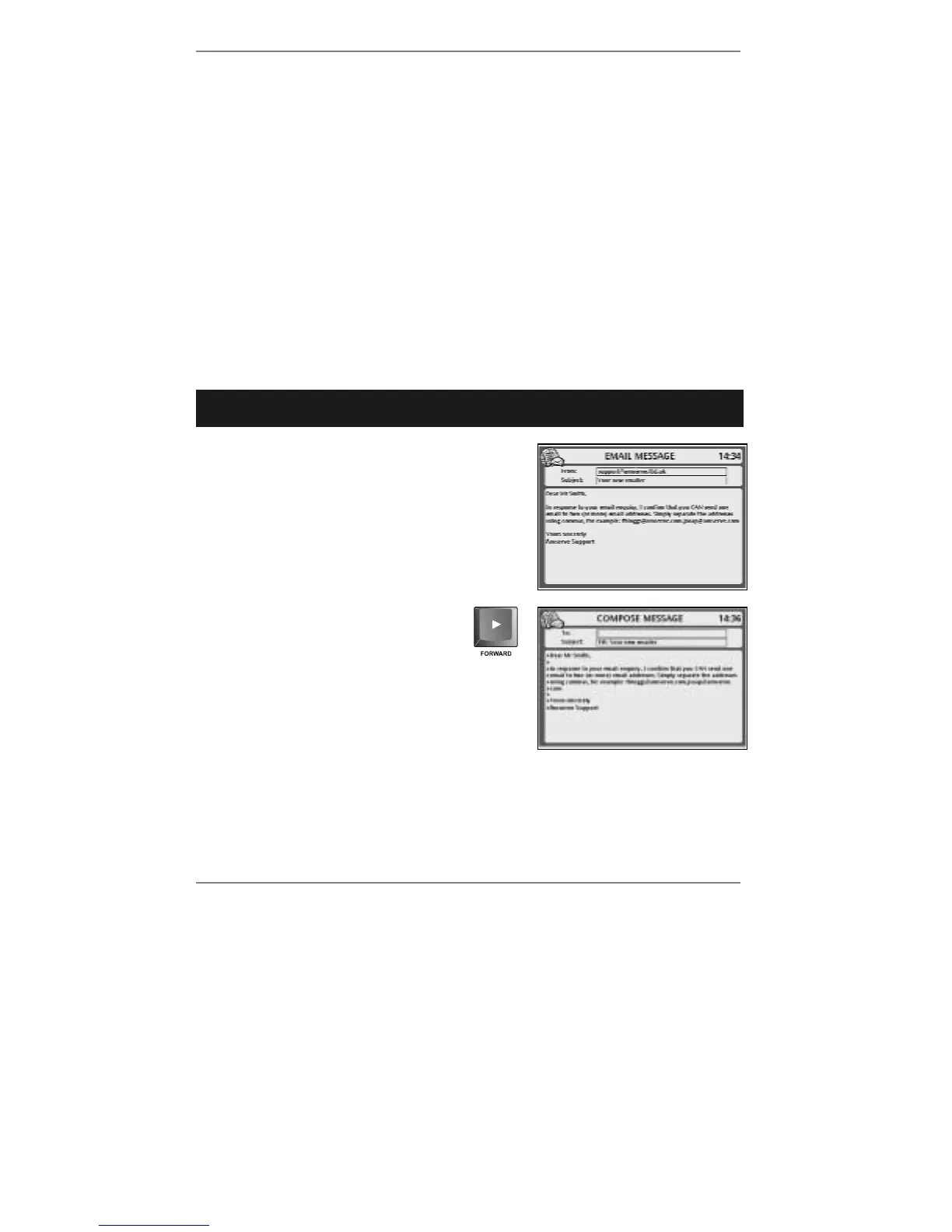
Messages can be forwarded (sent on to another
email address), as follows.
1. Display the message you wish to forward, for
example:
2. Press FORWARD to receive the
following display (right):
(Note the cursor
| is in the To: box.)
3. Type in the email address you wish
to forward this message to (or see
note* below).
& *Note – to forward this message to an email address you've previously stored,
press ADDRESS BOOK, start typing in the name, then use
U D and press
ENTER to insert the email address in the To: box.
♦ If you wish to forward this message to a mobile phone, see 'Sending email to an
SMS mobile phone' on page 70.



 To Next Page