Email
- 56 -
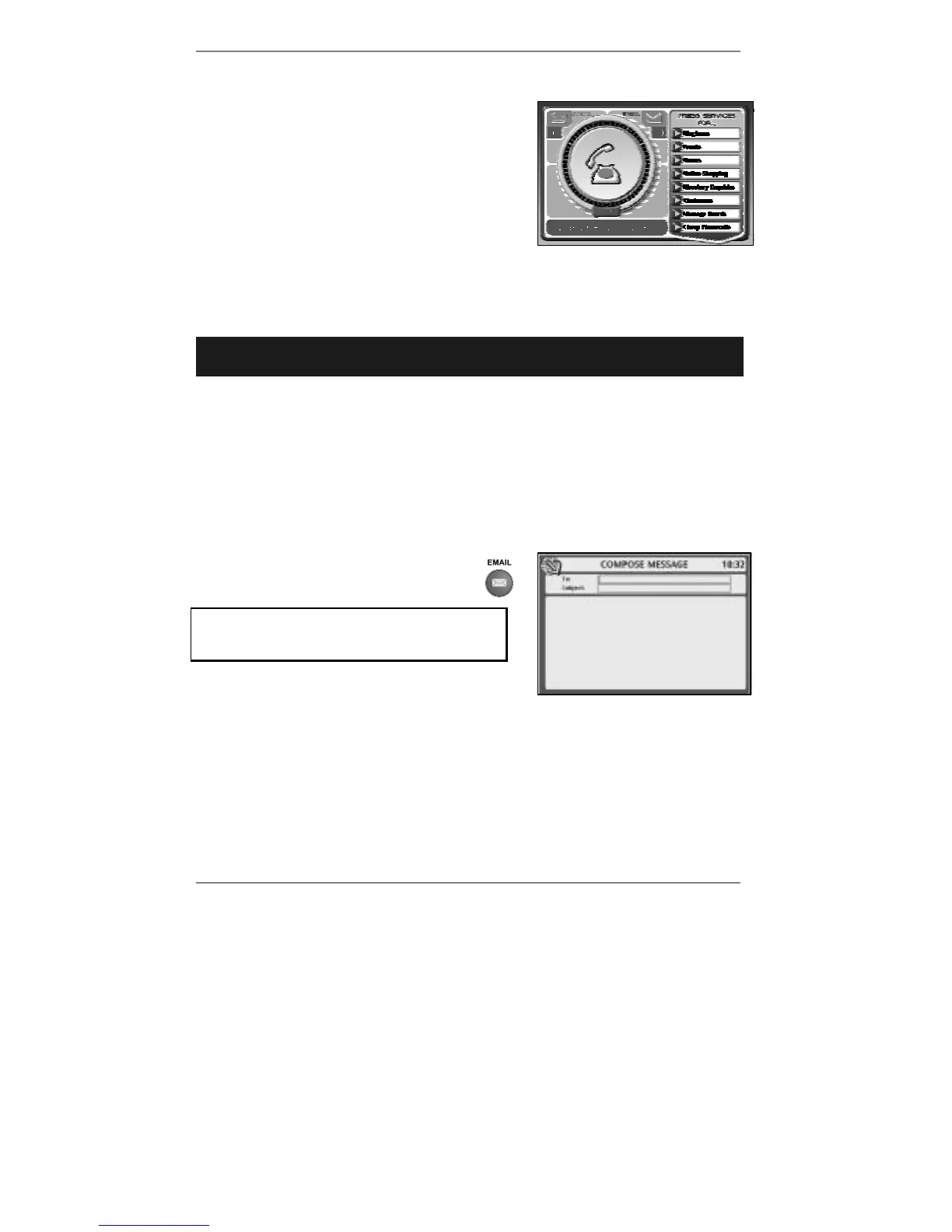
If the phone rings…
If the phone rings while you're composing an email
message, the screen you're working on will be
replaced by the following (for example):
When you finish the phone call, the previous
screen will be restored (note you will have to press
D to move the cursor back down to where you
were previously typing).
Sending an email message
➣
FAST TRACK: Press EMAIL once, type in email address, subject and
message, press EMAIL again.
♦ Note you can send two or more messages on the same email call. (For
information, see 'Sending one message to multiple addresses' on page 58.)
♦ You can add a photo and/or voice message to your email. (For information, see
pages 59 and 60.)
& To abort composing or sending a message, press STOP on the
e-m@iler
(or "SHIFT and STOP on the keyboard).
1. Press EMAIL once to receive the
following display (right):
If you've set up two or more email users,
then before you receive this display you'll be
asked to select a user.
Note the cursor | is in the To: box. (To move
the cursor, use
U D.)
2. Type in the email address you wish to send this message to (or see note* below).
& *Note – to send the message to an email address you've previously stored,
press ADDRESS BOOK, start typing in the name, then use
U D and press
ENTER to insert the required email address in the To: box.



 To Next Page