Text messages
- 74 -
D
Text messages
The
e-m@iler allows you to send a text message to any UK mobile phone equipped for
SMS (Short Message Service) texting. If the mobile phone supports MMS (Multimedia
Message Service) picture and voice messaging, you can add a photo or voice
attachment to the text message.
♦ If the recipient of your SMS text message sends a reply, it will be received as an
email message by the
e-m@iler.
♦ If the recipient of your MMS picture/voice message wishes to reply, they must
select the ‘email menu’ on their mobile phone and send their reply to your email
address. If their reply includes a picture, this will be displayed with the email
message. If their reply includes a voice message, this will be played automatically.
As its name suggests, SMS is for short messages only (up to 160 characters). If you
wish to send longer text messages, use MMS.
Sending an SMS (text only) message
➣
FAST TRACK: Press MOBILE MSG, 1, type in mobile phone number and
message, press MOBILE MSG.
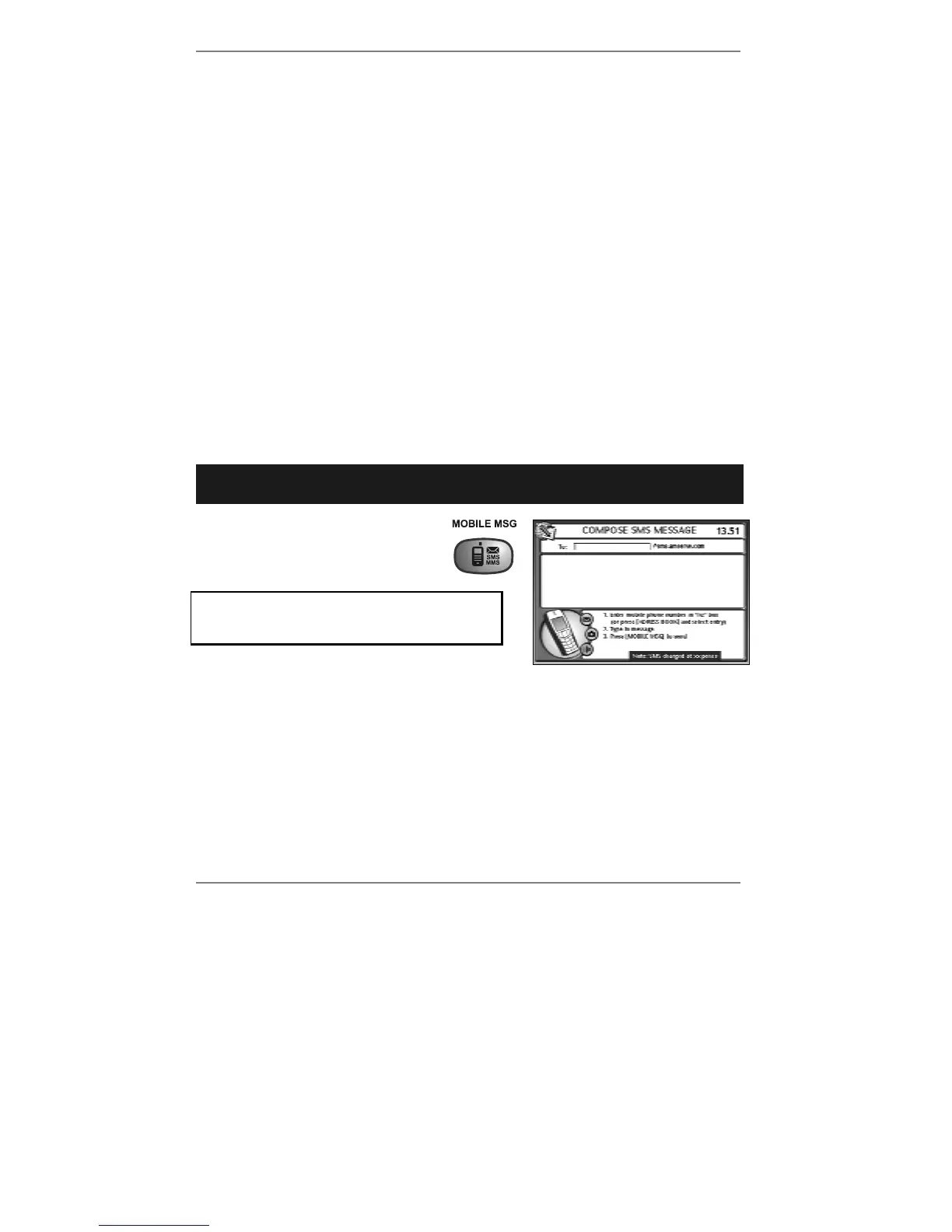
1. Press MOBILE MSG then
press 1 to start composing the
message (see example right):
If you've set up two or more email users,
then before you receive this display you'll
be asked to select a user.
Note the cursor
| is in the To: box.
The cost of an SMS text message is indicated at the bottom of the COMPOSE
SMS MESSAGE
screen.
2. Using the keyboard (not the number buttons on the phone), type in the mobile
phone number you wish to send this message to (or see note* below).
& *Note – to send the message to a mobile phone number you've previously
stored, press ADDRESS BOOK, start typing in the name, then use
U D and
press ENTER to insert the required mobile phone number in the To: box.



 To Next Page