Email
- 60 -
Attaching a voice message to your email
You can record a brief voice message on the e-m@iler and attach it to your email
message. To do this, compose your email message in the normal way, but carry out
steps 1 and 2 (below) just before you press EMAIL to send the message.
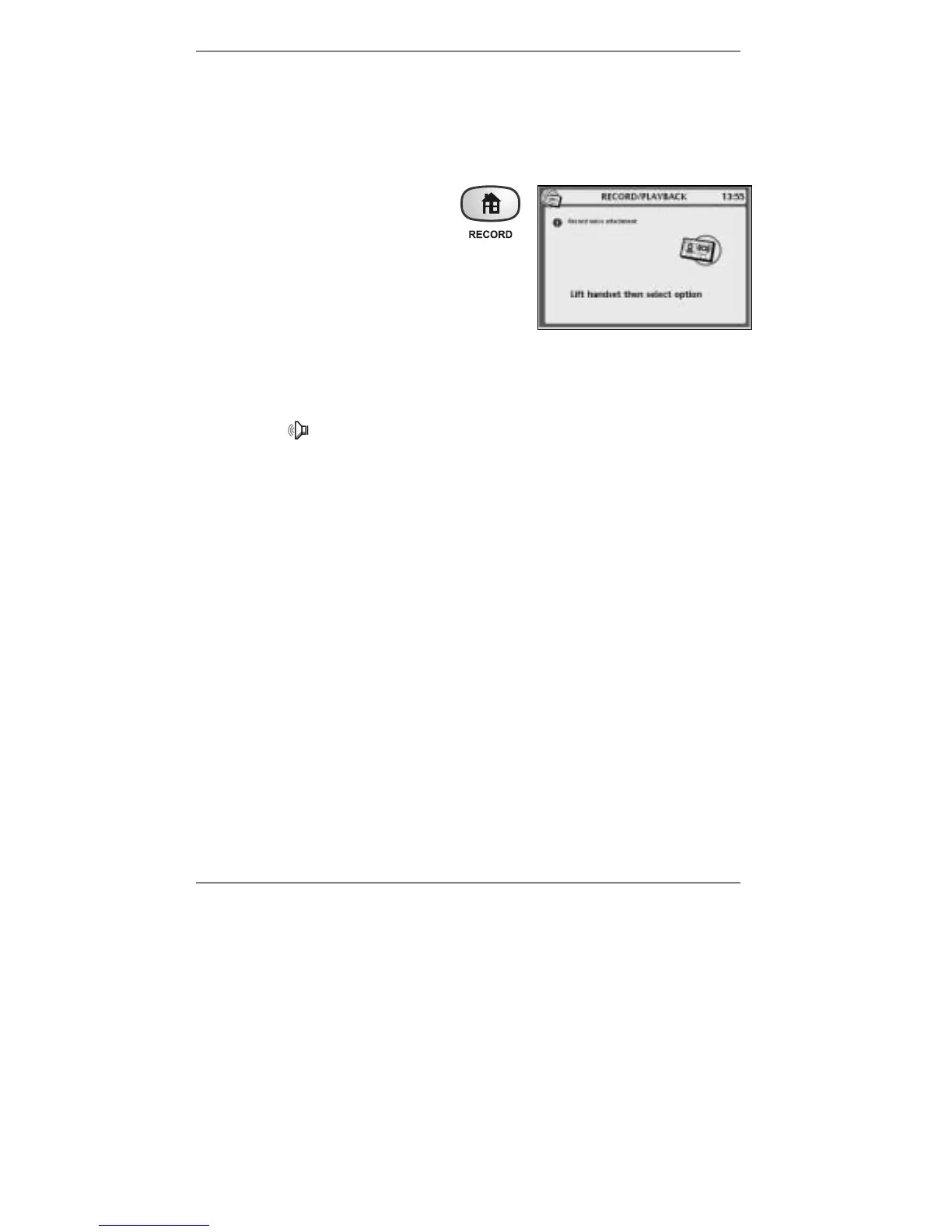
1. Hold down the RECORD button
(for approx 5 seconds) until the
following display appears (right):
2. Lift the handset and press 1 – speak after the
beep. When you've finished recording (about
10 seconds max), press STOP and replace
handset.
& Note when recording, you may leave the handset in place and speak into
the microphone at the front right-hand side of the e-m@iler instead.
(Press STOP twice to finish.)
(Note, symbol will appear at top right of display when a voice attachment is added.)
♦ If you wish to delete the voice attachment, press "SHIFT and !DEL.
& Avoid saving and storing messages containing photo and/or voice
attachments as they use up a lot of memory.
Unsent messages
If a message cannot be sent, it may be because:
♦ the line is engaged, or
♦ somebody picked up the phone (or an extension) while sending was in progress
(note that priority is always given to telephone calls), or
♦ the e-m@iler was unplugged from the phone line or couldn't get through to
Amserve (the service provider may have experienced a temporary service
disruption).
In each of these cases, the
e-m@iler will attempt to re-send the message after 30
minutes, 2 hours, 8 hours and 24 hours, until the message is sent. (Note that Dialling
for email will be displayed during each attempt.) Redial is automatic – there is no
need for you to take any action yourself. If you wish, you can attempt to re-send the
message manually by holding down the EMAIL button for approx 5 seconds.



 To Next Page