Installation
- 10 -
♦ You can adjust the brightness of the display using the pull-out keyboard below
the
e-m@iler – hold down the yellow SYMBOL key while pressing L or R like so:
hold down
while pressing
or
The display is factory-set so the backlight switches off at night (if there are no
adverts to be displayed). However, if you want the backlight on continuously (or
only when the e-m@iler is in use), refer to Advanced settings page 124.
& Don't worry that the clock setting isn't correct when you switch on – the time
(and date) will be set automatically during the registration process ahead.
Demo mode
If your e-m@iler is not connected to a telephone line, a demo mode will activate after a
few minutes. (This is for demonstrating the
e-m@iler‘s features on in-store displays.)
Note, the demo will automatically stop within a minute of you plugging the e-m@iler into
a working telephone line.
♦ To switch the demo on or off manually, press the keys "SHIFT and CALC
together on the pull-out keyboard. (You may need to wait a few seconds before
the demo starts.)
& You cannot switch on the demo if any adverts are present.
Screen saver
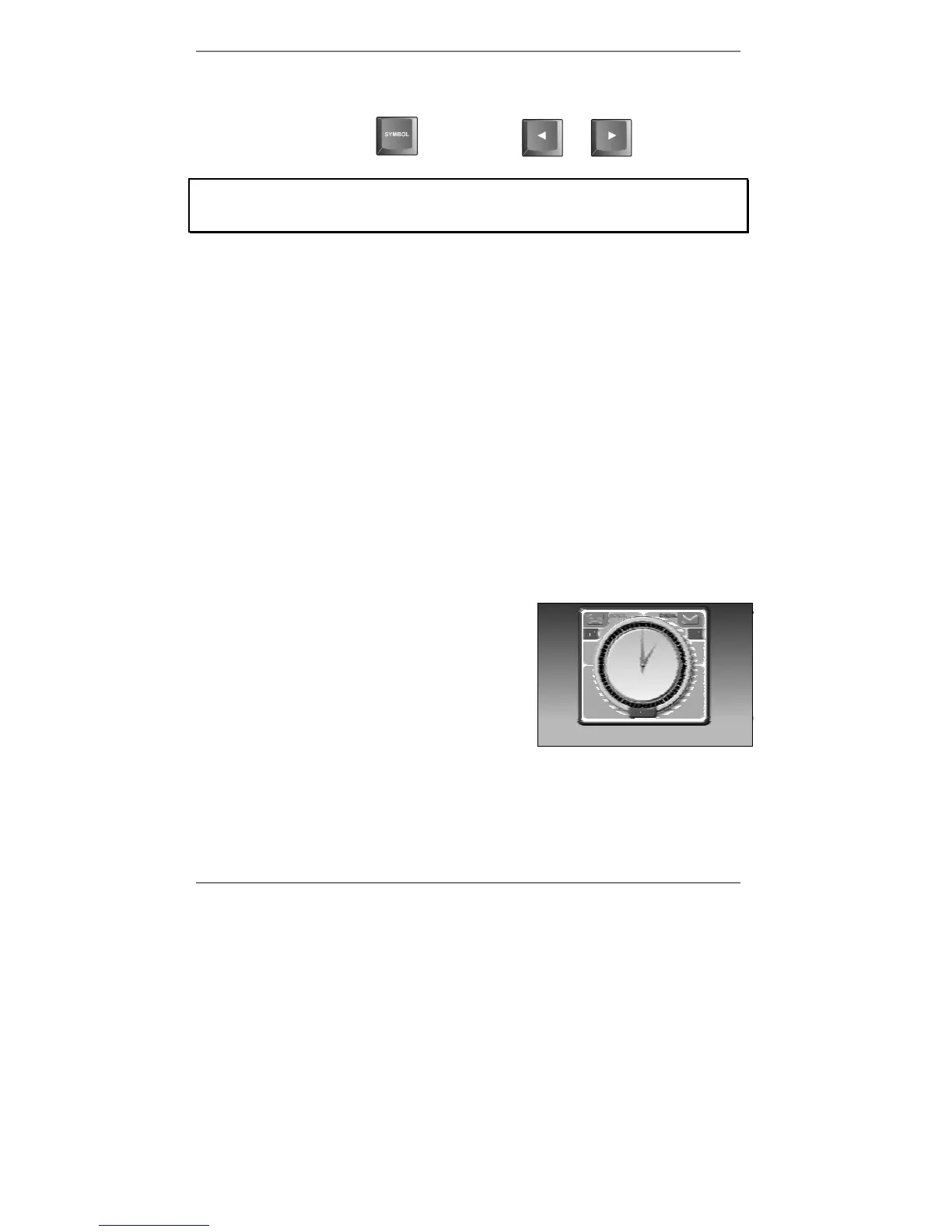
As is the case with PC monitors, a constantly
displayed static image can ‘burn’ itself onto the
screen. For this reason, whenever the e-m@iler
hasn't been used for a few minutes, the normal
display will disappear and a screen saver will
appear instead (see example right). This moving
image helps preserve the life of the screen.
♦ Note as soon as you press a key, receive a call, pick up the handset, etc, the
screen saver will disappear and the normal display will be restored.
If you don't use the e-m@iler for a few minutes while composing a message, the screen
saver will appear. Note, when you resume composing, you will have to press
D to
move the cursor back down to where you were previously typing.



 To Next Page