Games
- 112 -
D
Games
IMPORTANT – PARENTAL WARNING
This product allows the downloading of games. These incur a cost which will be
displayed on the screen prior to downloading. To avoid unauthorised
downloading, use the parental lock (information on page 117).
The
e-m@iler provides a varied and regularly updated library of games. You can have
up to 50 games downloaded in the
e-m@iler at one time – the exact number depends
on the amount of memory 'blocks' occupied by the games in question.
Note that any updates to the current library of games are detected
automatically whenever your e-m@iler makes an email call. Check out the
games menu from time to time for new releases.
Once you've chosen a game from the games menu, you need to download it before
you can play it. The downloading process stores the game in the e-m@iler's memory for
a set period. Once downloaded, you can play the game any number of times until it
expires, similar in principle to renting a movie from a video shop.
Before you download any game, you will find its cost and expiry time displayed on the
screen. Note that you pay only to download a game – playing it is free. (On average,
each game takes about a minute to download.)
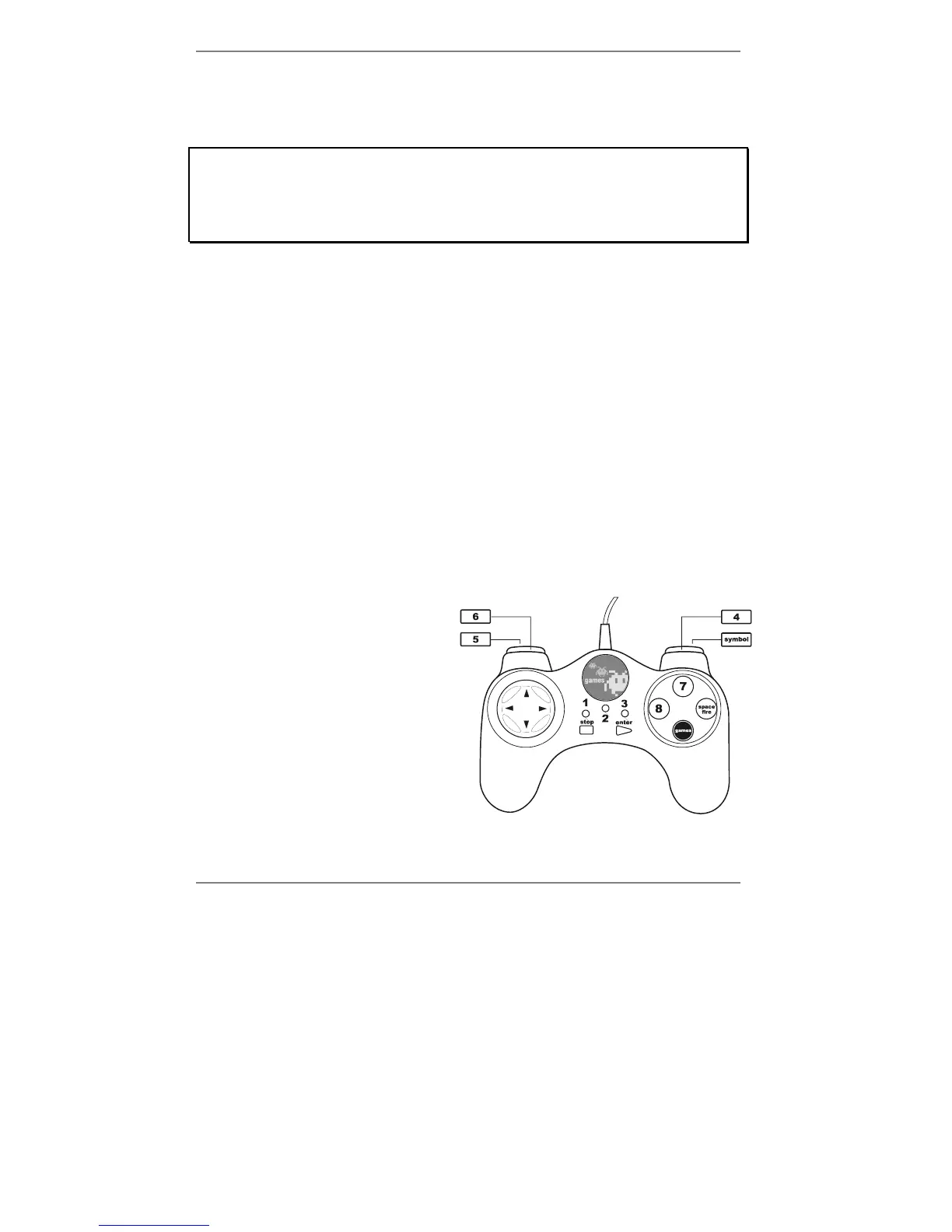
GamePad
You can use the pull-out keyboard to
download and play games. However,
to make gameplay faster, easier and
more fun, use the GamePad games
controller provided.
The GamePad should be connected
between the
e-m@iler and the keyboard
as shown on page 8.
Once connected, use the buttons on
the GamePad as you would those on
the keyboard.
& Note that some buttons used during gameplay (such as A – Z, 9, 0, etc) are
not accessible from the GamePad – use the keyboard instead.



 To Next Page